Call 1 (425) 406-1174 to start a Data Recovery!
Apple Computer Data Recovery

Advanced Enterprise & Forensic Protocols: Apple Computer Data Recovery
The Three Architectural Eras of Apple Data Recovery
1. The Modern Apple Silicon Era (M-Series Macs: 2020–Present)
- The Cryptographic Wall: Every single sector written to these chips is automatically encrypted using an aggressive, hardware-bound AES-256 key generated directly inside the Apple M-series processor. "Chip-off" recovery (desoldering the memory chips to read them externally) is completely impossible. If you separate the NAND chips from the specific CPU they were paired with at the factory, the data permanently becomes randomized, undecryptable code.
- The Seattle Data Recovery Protocol: If your M-series Mac is completely dead due to a liquid spill, drop, or power surge, our micro-soldering engineers must perform component-level motherboard restoration. Under high-powered microscopes, we isolate and replace shorted capacitors, blown power rails, or fried Power Management ICs (PMICs). The singular engineering goal is to repair the original motherboard to a stable, temporary state so that the CPU can successfully initialize, decrypt its own NAND storage, and allow a full forensic image to be extracted.
2. The Intel T2 Security Era (2018–2020)
- The Recovery Protocol: If the motherboard suffers a catastrophic failure that cannot be repaired using standard component replacement, our engineers must perform a delicate Cryptographic Chip Transplant. We must cleanly desolder the original CPU, the T2 chip, and the original NAND flash storage chips, reball them, and transplant the entire interconnected group onto a matching, functional donor logic board to restore the encryption path.
3. The Legacy Intel Era (Pre-2018)
- The Recovery Protocol:
- Removable SSDs: We extract the proprietary Apple SSD blade and place it into specialized hardware imagers (like the DeepSpar or PC-3000) that can directly manage degrading flash sectors and native Apple communication protocols.
- Mechanical / Fusion Drives: If an older iMac or MacBook Pro is clicking or beeping, the mechanical drive has suffered a physical head crash or a seized motor. These units are safely moved to our ISO 5 Cleanroom for physical mechanical repair and donor part replacement.
Critical Protocol for Failed Apple Computers
- Stop Continuous Power-Cycling: If a Mac is failing or overheating, repeatedly holding down the power button to force reboots stresses unstable flash memory cells or failing power rails. If an internal component is shorted, continuous electricity can cause a thermal event that permanently cooks the nearby NAND chips.
- Avoid Target Disk Mode on Damaged Hardware: Share Mode or Target Disk Mode are useful for healthy machines, but if your Mac is failing due to degrading storage sectors, forcing it to host a high-speed data stream will quickly cause the storage controller to permanently lock up.
- Say No to Built-In "First Aid" Repairs: If your Mac's file system structure is unstable, running Disk Utility's First Aid or terminal commands like
fsckwill force aggressive write commands onto the volume. On an already failing APFS container, this can corrupt the master file system indexes, rendering data unrecoverable.
- Details
- Written by: Seattle Data Recovery
- Category: iPhone
In the bustling Ballard neighborhood of Seattle, where technology intersects with everyday life, Seattle Data Recovery stands as a beacon of hope for those facing the frustration of lost data from their cherished Apple devices. Particularly adept at the intricate art of chip-off data recovery for the first-generation iPhone, known affectionately as the iPhone 2G, Seattle Data Recovery has established itself as a trusted partner in the realm of iPhone data recovery. Recognizing the importance of our digital memories, this blog examines the methods, challenges, and ultimate triumphs of recovering lost data from this iconic device.
- Details
- Written by: Seattle Data Recovery
- Category: Apple Computer Data Recovery
When the iconic Apple logo fades and a flashing question mark appears on your iMac's startup screen, despair can easily set in. This unsettling sight can evoke a sense of panic among users, especially if crucial files are at stake. Thankfully, Seattle Data Recovery specializes in recovering files and data from Apple iMac computers that fail to boot due to this distressing issue. In this comprehensive blog post, we'll delve into the reasons behind the iMac flashing question mark, the symptoms of a failing hard drive, and how information recovery services can help you regain access to your valuable data.
Understanding the Flashing Question Mark Indication
What Does the Flashing Question Mark Mean?
When your iMac displays a flashing question mark during startup, it indicates a critical issue: the computer cannot find a bootable operating system. This failure typically occurs for one of several reasons, primarily due to problems with the startup disk. Essentially, your iMac is unable to locate the essential files required to initiate its normal startup sequence, leading to an immediate halt in functionality.
Common Causes of Startup Failures
The most prevalent cause of the flashing question mark is an inaccessible or missing startup disk. This can stem from a hardware failure, a loose connection, or the drive being uninitialized. Moreover, the macOS installation on the disk might be corrupted or damaged, preventing the system from booting. Occasionally, an incorrect startup disk selection may cause your iMac to attempt to boot from a non-existent drive, further amplifying user frustration.
Recognizing Signs of a Failing Hard Drive
Indicators of Hard Drive Failure
A failing hard drive can manifest in various ways, particularly with the appearance of the flashing question mark. If your macOS hard drive is deteriorating, your system might display a "Failing" S.M.A.R.T. status in Disk Utility, along with other alarming signs. Ensuring awareness of these indicators is essential for users to take timely action and seek recovery assistance.
Disk Utility Insights
Using Disk Utility, you can assess the health of your drive. If the status shows "Verified," your drive is functioning normally. However, if it indicates "Failing," it denotes a serious risk of imminent failure and urges you to back up your data immediately. Additionally, if listed as "Unsupported," it suggests the drive lacks S.M.A.R.T. monitoring, although this doesn't necessarily imply a failing condition. Regularly checking these statuses can provide critical insight into the longevity and reliability of your iMac's hard drive.
Startup Behavior Dynamics
Understanding Startup Alerts
Observing your iMac's startup behavior can yield critical information about potential hard drive issues. A repeated appearance of the flashing question mark signifies that your computer cannot locate the startup disk. Furthermore, additional symptoms such as freezing or crashing early in the startup can indicate underlying hard drive problems.
Boot Loops and Logic Board Issues
Sometimes, users may experience a boot loop, where the Apple logo appears momentarily before eventually returning to the question mark. This symptom suggests that your hard drive may be impaired, potentially necessitating hardware inspection. The connection between boot failures and internal logic board issues underscores the complexity of diagnosing startup problems in iMacs.
Uncovering the Hardware Issues
Potential Hardware Malfunctions
While hardware issues are less prevalent, they can complicate recovery efforts. Malfunctions may occur within the drive itself or with other components, like the logic board. Such issues can hinder the drive's ability to maintain a stable connection, resulting in the persistent flashing question mark during boot attempts.
Diagnostic Procedures
To ascertain the nature of the hardware issue, diagnostics can be performed by professionals experienced in iMac repairs. Seattle Data Recovery utilizes cutting-edge technology to assess and resolve these issues, enabling users to regain access to their data while ensuring the integrity of the hardware remains intact.
The Role of Data Recovery Services
Importance of Professional Recovery Solutions
In situations where an iMac fails to boot due to a flashing question mark, engaging data recovery services becomes vital. The intricacies of file recovery require expertise and specialized equipment, enabling trained professionals to uncover and restore lost files securely. Professional recovery services can navigate damaged files and corrupt installations, making them indispensable during trying times.
Seattle Data Recovery's Expertise
Seattle Data Recovery has refined its skills to assist Apple users, particularly those experiencing issues with their iMacs. With experience handling a variety of data recovery cases, the team is well-equipped to tackle hard drive failures and other issues, ultimately leading to successful recovery outcomes for users who are frustrated.
Steps Taken by Seattle Data Recovery
Initial Assessment
When you reach out to Seattle Data Recovery for assistance, the process begins with an initial assessment. Their technicians will evaluate your iMac's condition to determine if it's a hardware or software issue causing the flashing question mark. They utilize state-of-the-art diagnostic tools to identify the problem while prioritizing the preservation of your valuable data.
Recovery Methodologies
After diagnostic evaluations, the team will discuss tailored recovery methodologies with you. Whether the solution lies in repairing corrupted files, replacing damaged components, or implementing recovery software, Seattle Data Recovery emphasizes a comprehensive approach to ensure customer satisfaction and successful outcomes.
Recovery Techniques for iMac Systems
Software-Based Recovery
When the issue arises from corrupt software, Seattle Data Recovery employs time-tested software solutions to restore the functionality of your iMac. These techniques often involve the meticulous process of extracting data from a failing drive, ensuring that critical files are salvaged during the recovery endeavor.
Hardware Interventions
In cases where hardware failure is the root cause, specialized techniques are employed. Seattle Data Recovery's technicians may perform physical repairs or component replacements necessary to restore the iMac's functionality. This comprehensive approach enables the team to recover data that might otherwise be lost.
The Emotional Toll of Data Loss
Coping with Data Loss
Experiencing sudden data loss due to an iMac's flashing question mark can be an emotionally taxing ordeal. Users often face the anxiety of lost work, cherished memories, and essential files, making it critical to address the situation with promptness and efficiency.
Reassurance Through Professional Support
However, seeking assistance from specialized data recovery services, such as Seattle Data Recovery, provides hope. Knowing that there are dedicated professionals committed to recovering your lost files can significantly alleviate emotional stress. Their empathetic support and expertise work together to foster a sense of confidence during a challenging time.
Preventative Measures and Best Practices
Backup Strategies
To mitigate the impact of data loss, taking preventive measures is vital. Implementing a robust backup strategy, such as regularly backing up your iMac to an external hard drive or utilizing cloud storage, will safeguard your valuable data. Consistent backups ensure that you maintain access to crucial files, even in the event of unexpected hard drive failures.
Monitoring Hard Drive Health
Additionally, regularly monitoring your iMac's hard drive health can help detect potential issues before they escalate. By checking Disk Utility and observing any unusual signs of performance degradation, users can take proactive steps to address potential problems early and avoid dire consequences.
Conclusion: The Path to Recovery
Finding Peace of Mind
Encountering an iMac displaying a flashing question mark is undoubtedly disheartening, but you don't have to navigate this labyrinth alone. Seattle Data Recovery stands ready to support individuals seeking to reclaim their lost data. Through a combination of expert knowledge, proven recovery methodologies, and unparalleled customer service, the team ensures a path toward restoration and peace of mind.
Final Thoughts: Empowering Users
Ultimately, understanding the reasons behind the flashing question mark and recognizing the significance of professional intervention is essential. Armed with awareness, users can approach data recovery services with confidence and increase their chances of recovering lost data. Trust Seattle Data Recovery to restore your files, help you regain control, and alleviate the distress associated with data loss.
- Details
- Written by: Seattle Data Recovery
- Category: Apple Computer Data Recovery
The Dilemma of the Flashing Question Mark
For Mac Mini users, encountering a flashing question mark during startup can be a source of immense frustration. This symbol is not just a simple glitch; it signifies a deeper issue, indicating that your computer is unable to locate a bootable operating system. Often, this issue points to a missing or corrupted startup disk and can lead to significant data loss if not addressed expediently. Fortunately, Seattle Data Recovery offers specialized services tailored to restore critical files and data in such scenarios.
Understanding the underlying causes of the Mac Mini flashing question mark is essential for effective troubleshooting. As we delve into the intricacies of this problem, we will explore the various reasons behind the error, the diagnostic processes, and ultimately, the data recovery solutions offered by Seattle Data Recovery.
Understanding the Flashing Question Mark: A Sign of Distress
What Does It Mean?
The flashing question mark icon indicates that your Mac Mini cannot locate its startup disk. This situation typically occurs when the hard drive or SSD is unrecognized, corrupted, or rendered inaccessible. Furthermore, external factors such as hardware failures or improper disk configuration can also contribute to this predicament. It is crucial to recognize that time is of the essence; the sooner you address the issue, the better your chances of recovering valuable data will be.
Common Causes of the Flashing Question Mark
The most prevalent cause of the flashing question mark on a Mac Mini is a missing startup disk. This scenario often arises due to hardware failure or loose connections within the device. Other potential culprits include a corrupted macOS installation or an incorrect configuration setting that directs the computer to boot from a non-existent or invalid disk. Understanding these various possibilities can help users effectively diagnose the root of the issue.
Detecting Signs of Hard Drive Failure
Key Indicators of a Failing Hard Drive
When your Mac Mini begins displaying the flashing question mark, it may be accompanied by other symptoms that indicate hard drive failure. Users may observe warning signs such as unusual noises, slow performance, or frequent crashes. Recognizing these indications early can help mitigate data loss and facilitate successful recovery efforts.
S.M.A.R.T. Status: A Crucial Diagnostic Tool
One of the most effective ways to gauge your hard drive's health is by checking its S.M.A.R.T. (Self-Monitoring, Analysis, and Reporting Technology) status using Disk Utility. This built-in tool provides users with essential information regarding the condition of their drives. If S.M.A.R.T. status is flagged as "Failing," immediate action should be taken to secure your data. On the other hand, a "Verified" status means that the drive appears to be functioning normally, so continued monitoring is recommended.
Steps to Troubleshoot the Flashing Question Mark
Initial Diagnostic Actions
In the event of a Mac Mini flashing a question mark, the first step is to assess the immediate situation. Begin by checking all physical connections. Ensure that the hard drive or SSD is securely connected, as a loose cable can easily lead to detection issues. If everything seems connected but the question mark persists, consider booting in Recovery Mode.
To access Recovery Mode, restart your Mac and hold down Command (⌘) + R until you see the Apple logo or a spinning globe. Once in Recovery Mode, you can use Disk Utility to verify and repair the startup disk. This process could potentially resolve minor issues, but if problems persist, you may need to explore other diagnostic avenues.
Utilizing Disk Utility
While in Recovery Mode, using Disk Utility can provide valuable insights into your drive's condition. The tool allows you to verify the integrity of your startup disk and perform repairs if necessary. If the repairs are successful, you can quit Disk Utility and attempt to restart your Mac. However, if Disk Utility indicates that the drive is failing, promptly contact a data recovery service to prevent further data loss.
The Expertise of Seattle Data Recovery
Why Choose Seattle Data Recovery?
When your Mac Mini displays the flashing question mark, seeking professional help is crucial, especially if DIY methods have failed. Seattle Data Recovery specializes in data recovery services tailored to Apple products, boasting extensive experience and a reputation for excellence. Their team understands the nuanced challenges posed by Mac systems and employs advanced recovery techniques to safely retrieve lost data.
Comprehensive Recovery Services
Seattle Data Recovery provides a comprehensive approach to recovering data from malfunctioning systems. Their specialists utilize state-of-the-art technology to create disk images, preserving any recoverable data before initiating repairs. They focus on minimizing data loss while ensuring that clients receive timely and transparent service throughout the recovery process.
Preventative Measures: Safeguarding Your Data
Regular Backups: Your Best Defense
The importance of regular backups cannot be overstated. By maintaining updated backups through Time Machine or cloud services, users can protect themselves from potential data loss resulting from hard drive failures. Establishing a consistent backup routine limits the impact of unforeseen issues and ensures that your valuable files remain accessible, even in the event of a hardware malfunction.
Seeking Professional Maintenance
In addition to regular backups, consider periodic maintenance by a certified professional to enhance the longevity of your system. Routine diagnostics can identify potential issues before they escalate, enabling preemptive measures to be taken. Collaborate with reputable service providers like Seattle Data Recovery, who offer not only recovery services but also preventative care for your Mac Mini.
Conclusion: The Importance of Swift Action
Encounters with the flashing question mark on your Mac Mini can be overwhelming, yet understanding the underlying issues equips you to tackle them more effectively. Seattle Data Recovery stands ready to assist, offering advanced recovery solutions that can restore lost data and help ensure your system functions optimally.
Acting swiftly in the face of these errors is critical, as the chances of a successful recovery diminish over time. By engaging the expertise of professionals, you can navigate this challenging situation with confidence, ultimately safeguarding your digital life.
Read more: Seattle Data Recovery Experts Tackle Mac Mini's Flashing Question Mark
- Details
- Written by: Seattle Data Recovery
- Category: iPhone
Introduction to the iPhone 18 Series
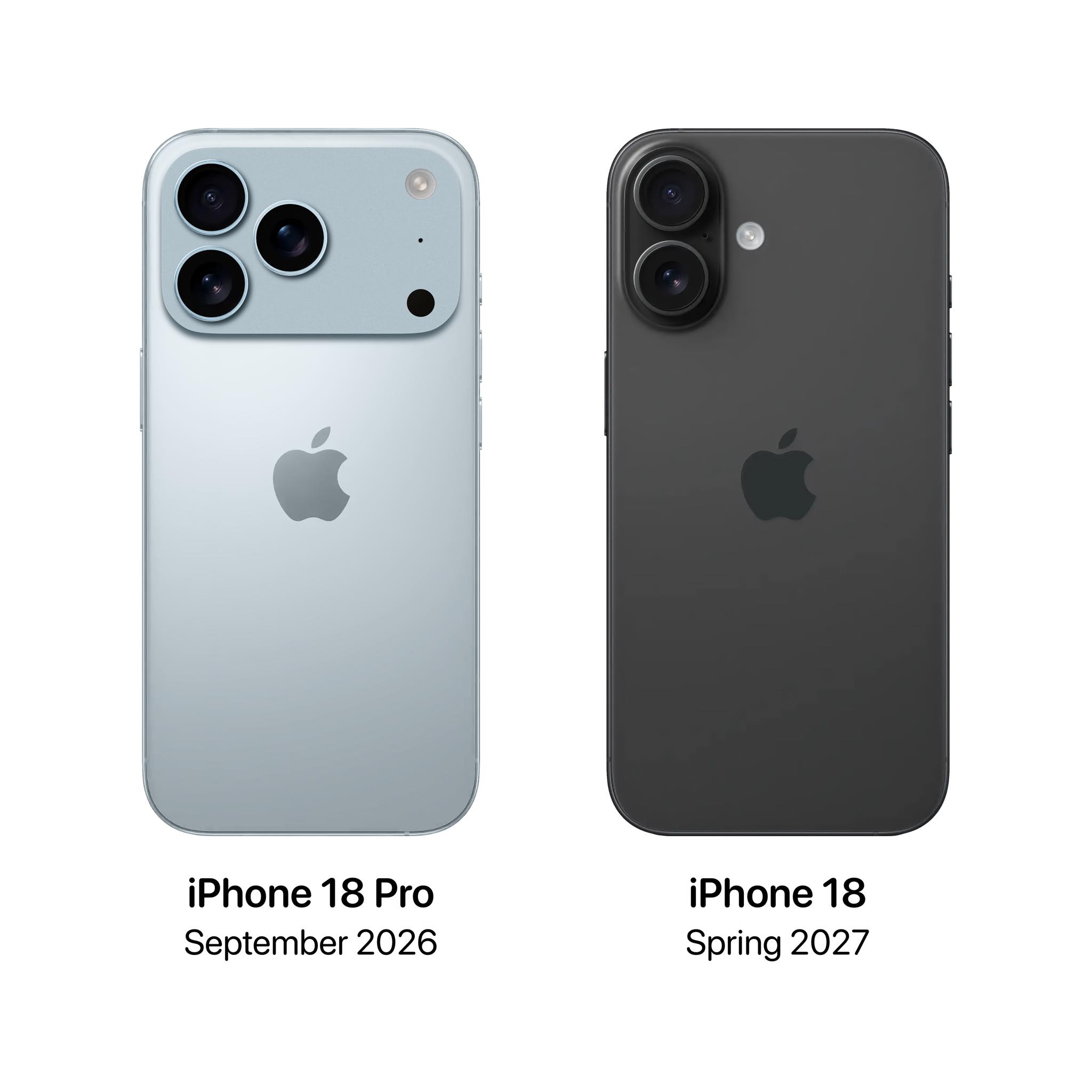
The technological landscape is constantly evolving, and with each new release from Apple, anticipation grows for the innovative features that lie ahead. The upcoming iPhone 18 series promises to be no exception, with rumors swirling about its launch scheduled for the fall of 2026. Expected models include the iPhone 18, iPhone 18 Pro, and iPhone 18 Pro Max, alongside speculation about a foldable iPhone and an economical "e" model anticipated for spring 2027.
As consumers eagerly await these monumental advancements, the reality remains that accidents can happen, and devices may sustain severe damage. At Seattle Data Recovery, we specialize in retrieving lost data, including that from broken iPhone 18 devices. Our expertise in chip-off recovery techniques ensures that even the most damaged devices might still reveal their hidden information.
Understanding the Significance of Data Recovery
In our modern world, smartphones have become repositories of our memories, work, and vital information. From cherished photographs to critical business contacts, losing access to this data can be devastating. The iPhone 18, like its predecessors, will likely be equipped with advanced data storage technologies, emphasizing the importance of effective data recovery solutions.
Seattle Data Recovery firmly believes that every effort should be made to restore lost information, particularly when it involves cutting-edge models like the iPhone 18. Our specialized techniques, such as chip-off recovery, play a crucial role in situations where traditional data recovery methods fall short.
Read more: Data Recovery for Apple: Restoring Files from Broken iPhone 18 Devices

- Details
- Written by: Seattle Data Recovery
- Category: Macbook Pro Data Recovery
Preserving Apple's Intel Heritage with Seattle Data Recovery
In the rapidly evolving world of technology, Apple's Intel-based MacBook Pro models remain iconic benchmarks for performance, design, and innovation. Despite the passage of time and the advent of Apple Silicon, these Intel-era laptops continue to serve professionals and creatives who value their reliable hardware and distinct features. However, like all digital devices, they are vulnerable to data loss, necessitating expert intervention.
Seattle Data Recovery specializes in restoring data from Intel MacBook Pro models, combining deep technical knowledge with effective strategies to recover lost files. This article explores the diverse landscape of Apple's popular Intel MacBook models and highlights why Seattle Data Recovery is the trusted partner for MacBook Pro users facing data loss.
The Evolution of Intel MacBook Pro: From Retina Displays to Touch Bars
Apple's Intel MacBook Pro journey began to transform significantly in 2012 with the introduction of Retina displays. The MacBook Pro 13" Retina (Mid-2012/Early 2013) marked a pivotal transition, delivering stunning visuals that redefined user experience. Soon after, the 15" Retina MacBook Pro (2012-2015) combined high-resolution screens with powerful quad-core i7 CPUs, cementing its status as a favorite among creatives.
As technology advanced, Apple introduced the Touch Bar across its MacBook Pro lineup (2016-2020), integrating innovative features such as Touch ID and all-USB-C ports. These models, while groundbreaking, also introduced new challenges in hardware and software management. Seattle Data Recovery's expertise spans these transformative Intel models, empowering users to regain access to their precious data despite hardware failures or software errors.
The Retina Era: MacBook Pro's Visual Revolution
Between 2012 and 2015, the Retina MacBook Pro models set industry standards with their ultra-high-definition displays. The 13" Retina MacBook Pro impressed users by delivering crisp detail and vibrant colors, ideal for photo editing and graphic design. Meanwhile, the 15" Retina MacBook Pro provided increased processing power with quad-core Intel i7 CPUs, catering to demanding professional workflows.
These devices, though reliable, are susceptible to drive failures and system crashes over time. Data loss scenarios can arise from accidental deletion, corrupted file systems, or hardware malfunctions. This is where Seattle Data Recovery excels, employing advanced techniques tailored to the delicate, often proprietary storage architectures of Intel MacBooks.
Navigating the Touch Bar Era: Innovative Yet Demanding Hardware
From 2016 to 2020, Apple's MacBook Pro lineup underwent a bold redesign, featuring the Touch Bar—a thin, multi-touch-enabled display strip that replaced the traditional function keys. This era included 13" and 15" models equipped with powerful Core i7 and Core i9 processors, discrete graphics options, and versatile USB-C ports that supported both data transfer and charging.
Despite these advancements, the shift to all Thunderbolt 3 ports and soldered storage created unique challenges in data recovery. Unlike traditional hard drives, the integrated SSDs in these laptops demand specialized knowledge to access and recover data without compromising system integrity. Seattle Data Recovery's team maintains up-to-date expertise on these model specifics, ensuring successful recovery when standard solutions fall short.
The MacBook Air Intel Chapter: Lightweight Design Meets Retina Quality
The MacBook Air entered its Intel Retina phase from 2018 to 2020, setting new expectations for ultra-portability combined with high-quality displays. The 13-inch Air models featured slimmer bezels and USB-C connectivity, appealing to users seeking a balance between performance and mobility. Earlier, the 2017 MacBook Air represented the last generation before this revolution, recognized for its dependable design and value.
Data loss in MacBook Air Intel models often stems from physical damage or firmware corruption, especially given their compact, tightly integrated hardware. Seattle Data Recovery understands these challenges well. Their recovery techniques are customized to the Air's specific storage configurations, ensuring that critical documents, photos, and system files can be retrieved efficiently.
The Ultralight Pioneer: 12-inch MacBook (2015-2017)
Apple's 12-inch MacBook, produced from 2015 to 2017, stands as a remarkable feat of engineering—ultra-thin, fanless, and pioneering USB-C as its sole port. This model's unique architecture, focused on lightweight portability, made it popular among minimalists and professionals on the go.
However, the slim design also means components and storage are tightly integrated, sometimes making data retrieval more intricate after a failure. Recognizing these challenges, Seattle Data Recovery offers specialized services tailored to the 12-inch MacBook's architecture, increasing the likelihood of a full data recovery without invasive hardware modifications.
Early Intel and Classic MacBook Models: Foundations of Modern Portability
Before the Retina and Touch Bar revolutions, Apple's Intel MacBooks evolved through significant design milestones, including the aluminum unibody redesign in 2008. The MacBook Pro (Aluminum Unibody, 2008) introduced a sleek metallic look with improved durability, while the standard MacBook (Aluminum Unibody, 2008-2010) catered to everyday consumers with solid performance.
Though older, these models remain in use and often contain valuable legacy data. Given their use of traditional hard drives or early SSDs, data loss issues can vary from mechanical failures to logical corruption. Seattle Data Recovery possesses the tools and expertise to handle these earlier generations, ensuring sensitive information is recovered professionally and securely.
Core i7 and i9 Powered MacBook Pros: Performance at Its Peak
Late-generation Intel MacBook Pros, particularly from 2019 to 2020, featured robust Core i7 and Core i9 processors and marked the pinnacle of Intel's MacBook Pro line before Apple Silicon. These models included enhanced thermal designs and optional discrete GPUs, targeting power users in video production, 3D modeling, and software development.
Users of these powerful machines often store large media projects and complex data sets, making data loss incidents particularly damaging. Seattle Data Recovery's proficiency with the hardware and software environments of these workstations enables rapid diagnosis and comprehensive recovery, minimizing downtime for professionals who rely on their MacBook Pro's capabilities.
The Apple Silicon Transition: Why Intel MacBooks Still Matter
Apple's industry-shifting move to Apple Silicon chips marks a new chapter, but the legacy of the Intel MacBook Pro remains profoundly relevant. Professionals and businesses still use Intel machines for compatibility with legacy software, bootcamped Windows environments, and specific hardware configurations.
Seattle Data Recovery acknowledges this continued demand by offering expert recovery services tailored to Intel MacBook models. Their thorough understanding of pre-Apple Silicon Apple architectures ensures users can trust in a seamless recovery experience, no matter how old or new their MacBook Pro is.
Why Choose Seattle Data Recovery for Your MacBook Pro Intel Data Recovery?
Data loss is never convenient, and when it occurs on an Intel-based MacBook Pro, it requires both technical skill and familiarity with Apple's hardware ecosystem. Seattle Data Recovery delivers unmatched expertise in this niche. Their technicians utilize proprietary tools and cleanroom facilities to safely recover data without compromising the physical integrity of your device.
Seattle Data Recovery's customer-focused approach provides transparent communication, risk-free evaluation, and quick turnaround times. Their dedication to protecting user privacy and data confidentiality reflects the same quality and meticulousness Apple users expect from their devices.
Trust Seattle Data Recovery to Bring Your Intel MacBook Pro Data Back to Life
Apple's Intel MacBook Pro models represent a remarkable era of technological innovation, blending high-quality displays, impressive processing power, and breakthrough designs. Whether you own a Retina MacBook Pro, a Touch Bar model, or any other Intel-based MacBook, data loss can strike unexpectedly, threatening your projects and memories.
Seattle Data Recovery's specialized Intel MacBook Pro recovery services stand ready to restore your data securely and efficiently. Trust in their expertise to navigate the complexities of Apple hardware and keep your critical files alive, preserving the legacy of your MacBook for years to come.
- Data Recovery for Apple: Seattle Data Recovery's Expertise in Pre-M1 Apple MacBook Pro Restoration
- Seattle Data Recovery Restores Data from Broken iPhone 8 Devices
- Seattle Data Recovery Restores Lost Data From Broken iPhone 11s
- Data Recovery for Apple: The Definitive Guide to Top MacBook SSDs for Every User
Subcategories
iMac
Advanced Engineering Protocols: Recovering Lost Data from Apple iMac Systems
The Three Architecture Eras of iMac Data Recovery
1. Modern Apple Silicon Era (iMac M1, M3, and Newer)
- The Architecture: In modern iMacs, there is no separate hard drive or SSD module to remove. The storage consists of raw NAND flash memory chips soldered directly onto the main logic board. Furthermore, all data is automatically encrypted by the hardware keys bound directly inside the Apple M-series processor.
- The Recovery Protocol: "Chip-off" extraction is impossible because removing the memory chips separates them from the cryptographic keys in the CPU, rendering the data scrambled code. If your iMac is completely dead due to a liquid spill or a power surge, Seattle Data Recovery must perform component-level motherboard repair. Under specialized magnification, our micro-soldering engineers isolate and replace shorted capacitors, blown power rails, or damaged Power Management ICs (PMICs). The goal is to restore stable power to the logic board just long enough for the system to initialize, decrypt its own storage, and allow a full data extraction.
2. The Intel T2 Security Era (iMac Retina 5K 27-inch, 2020)
- The Architecture: These models feature Intel processors but utilize Apple's proprietary T2 Security Chip. The SSD chips are soldered directly to the motherboard, and the T2 chip handles all hardware-level encryption.
- The Recovery Protocol: Similar to Apple Silicon models, if the logic board dies, the data is locked away. Our technicians utilize dedicated hardware diagnostic tools to interface with the board's internal data lines. If the primary logic board is too severely fractured to repair, we must perform a delicate transplant—moving the CPU, the T2 chip, and the original NAND chips over to a matching donor board to safely decrypt the volume.
3. The Intel Mechanical & Fusion Drive Era (iMac Models 2012–2019)
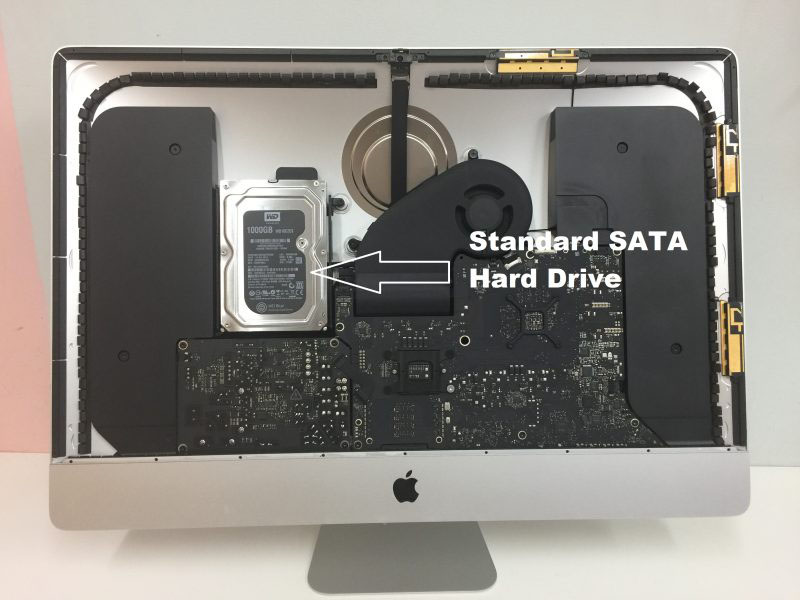
- The Architecture: These iMacs contain traditional 2.5-inch or 3.5-inch hard drives, standard removable blade SSDs, or a Fusion Drive (which digitally binds a small blade SSD and a large mechanical hard drive together into a single logical volume).
- The Recovery Protocol:
- Mechanical Drives: If your older iMac is clicking, beeping, or failing to boot, the internal mechanical drive has likely suffered a head crash or a seized motor. We extract the drive from the iMac casing and move it directly into our ISO 5 Cleanroom for physical component replacement using exact matching donor parts.
- Fusion Drives: Recovering a failed Fusion Drive requires extracting both the physical mechanical drive and the proprietary Apple blade SSD. Because the APFS or HFS+ file system spreads data across both drives simultaneously, our hardware imagers must create bit-for-bit clones of both storage components and digitally realign them in our server environment to reconstruct the original partition map.
Critical Protocol for Users Facing iMac Failures
- Do Not Keep Force-Rebooting: If your iMac is making a faint clicking or ticking noise from behind the screen, the mechanical drive is failing. Repeatedly turning it on forces damaged read heads to scratch the internal platters, permanently shaving away your data.
- Avoid Target Disk Mode on Failing Hardware: While Target Disk Mode is an excellent native utility for healthy Macs, using it on an iMac with a physically failing drive or degrading flash memory sectors will cause the storage controller to overheat and permanently lock up.
- Say No to Automatic "First Aid" Fixes: Running Disk Utility’s First Aid or third-party file scraping utilities on an unstable drive forces aggressive write commands onto the volume. If the file system index is unstable, these tools can accidentally wipe the ghost remains of your partition tables.
iPhone
The Reality of Chip-Off Data Recovery on Modern iPhones
Why Chip-Off Is Physically Blocked by Apple Architecture
- Hardware-Level Encryption (AES-256): Every single piece of data written to an iPhone's NAND flash memory chip is instantly encrypted using hardware keys.
- The Secure Enclave Entanglement: The unique cryptographic keys required to decrypt your data are not stored on the memory chip itself. Instead, they are permanently fused inside the iPhone's main CPU (and protected by the Secure Enclave co-processor).
- The Cryptographic Lock: If a technician desolders the NAND flash memory chip and places it into an external reader, the reader will only see a chaotic, completely scrambled wall of encrypted code. The data cannot be decrypted without passing through that exact device's original CPU and receiving the correct user passcode.
The Real Solution: Board-Level Logic Repair (The "Donation" Method)
1. Micro-Soldering Component Diagnostic & Replacement
- Under high-power microscopes, our technicians isolate shorted capacitors, blown filters, and destroyed power management ICs (PMICs).
- We remove the damaged microscopic components using specialized hot-air rework stations and solder healthy replacements onto the board to restore the power delivery network.
2. The "Board Swap" (CPU & NAND Transplant)
- We source a completely identical, working "donor" iPhone logic board.
- We carefully desolder the unique, paired components from your broken phone: the CPU (with Secure Enclave), the NAND Flash Memory Chip, and the EEPROM/Baseband chip.
- We clean and "reball" these chips, then solder them onto the healthy donor board. Because the cryptographic trio remains intact, the donor board will successfully boot up, prompt you for your original passcode, and allow us to extract a complete backup.
Critical Steps to Maximize Your Recovery Chances
- Avoid Generic Phone Repair Shops: Standard retail repair shops are trained to swap out screens, batteries, and charging ports. If an iPhone has a complex motherboard issue, a general technician using improper heat settings can easily delaminate the logic board or permanently fry the CPU, destroying any chance of recovery.
- Do Not Attempt to Clean Water Damage Yourself: If your device fell into water, plugging it into a charger to "see if it works" is the most destructive action you can take. Electricity mixed with liquid accelerates corrosion and can instantly short out the CPU's primary power lines.
- Know Your Passcode: Because Apple's encryption cannot be cracked, bypass algorithms do not exist. Any successful hardware recovery requires entering your original lock screen passcode to initialize the final data transfer.
MacBook Data Recovery
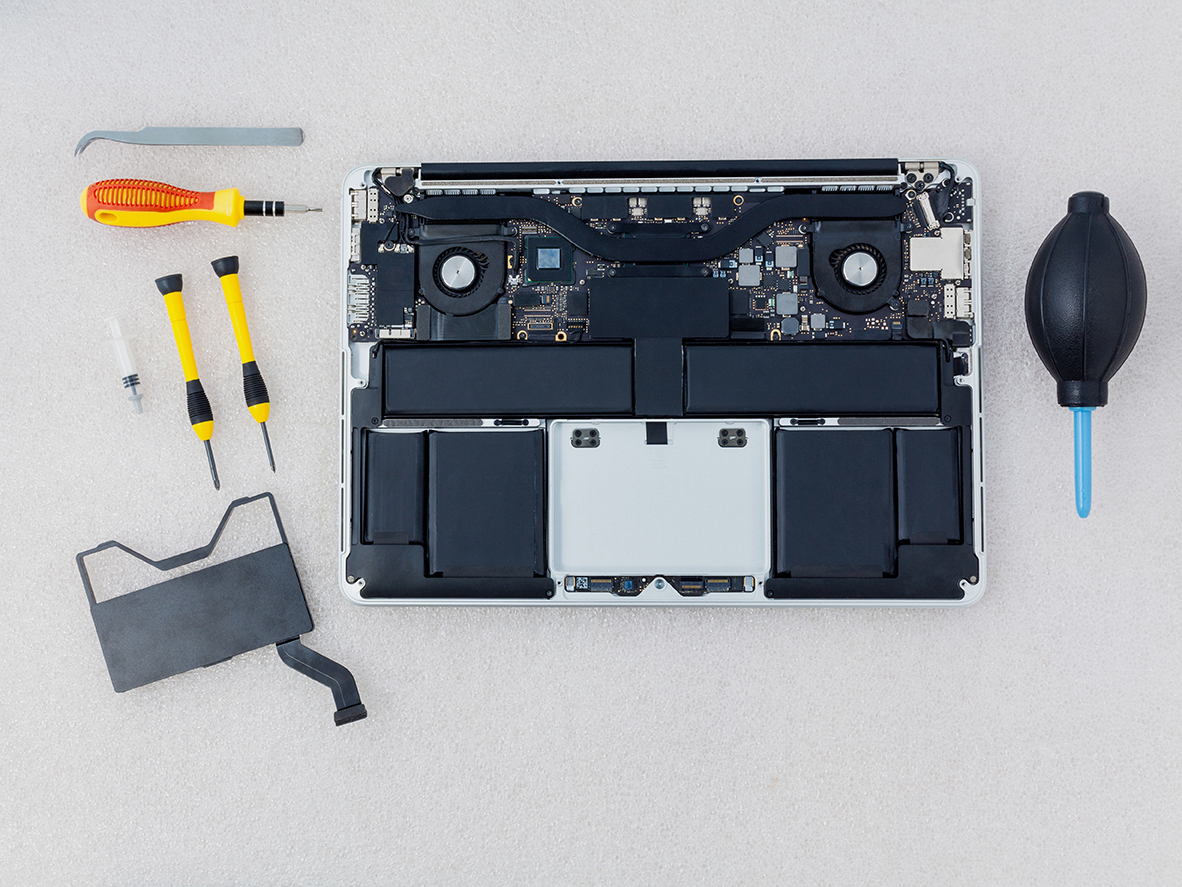
- Soldered Storage: On modern Apple Silicon models (M1, M2, M3, and newer), NAND flash memory is soldered directly to the logic board rather than existing as a removable card.
- Hardware-Bound Encryption: Data is encrypted via a key generated inside the Apple processor, making traditional "chip-off" desoldering methods ineffective because separating the NAND chips from the factory-paired CPU permanently scrambles the data.
- Micro-Soldering & Repair: Restoring shorted power rails or damaged components under high-magnification microscopes.
- Firmware and Controller Handling: Bypassing communication failures and stabilizing the data translation layers.
- APFS Extraction: Utilizing specialized equipment to image the Apple File System once the hardware and cryptographic handshake are restored.
- Liquid Damage: Motherboard short circuits from spills.
- No Power / Dead Device: Failures in the USB-C controller or power management IC.
- Boot Loops & OS Corruption: Systems freezing during updates.
- Logical Issues: Accidental file deletion and volume corruption.
Macbook Pro Data Recovery
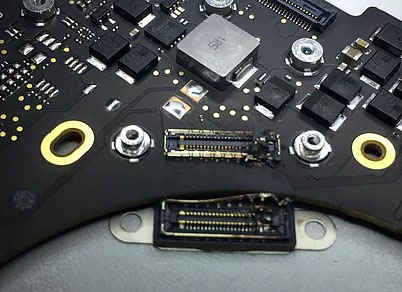
Advanced Laboratory Protocols: MacBook Pro Data Recovery
The Architecture Tiers of MacBook Pro Storage
1. The Modern Apple Silicon Era (M1, M2, M3, M4 Models: 2020–Present)
- The Cryptographic Bond: Every piece of data written to these NAND chips is automatically encrypted using an aggressive, hardware-bound AES-256 key generated directly inside the Apple M-series processor. "Chip-off" recovery (desoldering the memory chips to read them externally) is fundamentally impossible. If you separate the NAND chips from their factory-paired CPU, the data permanently becomes scrambled, randomized code.
- Our Recovery Protocol: If your M-series MacBook Pro is completely dead due to a liquid spill, drop, or power surge, our micro-soldering engineers must perform component-level motherboard restoration. Under high-powered microscopes, we isolate and replace shorted capacitors, blown power rails, or fried Power Management ICs (PMICs). The singular engineering goal is to repair the original motherboard to a stable, temporary state so that the CPU can successfully initialize, decrypt its own storage, and allow a full forensic clone to be extracted.
2. The Intel T2 Security Era (Touch Bar Models: 2018–2020)
- Our Recovery Protocol: If the motherboard suffers a catastrophic failure that cannot be repaired using standard component replacement, our engineers must perform a delicate Cryptographic Chip Transplant. We must cleanly desolder the original CPU, the T2 chip, and the original NAND flash storage chips, reball them, and transplant the entire interconnected group onto a matching, functional donor logic board to restore the encryption path.
3. The Legacy Intel Era (Pre-2018 Models)
- Our Recovery Protocol:
- Removable SSDs: We extract the proprietary Apple SSD blade and place it into specialized hardware imagers (like the DeepSpar or PC-3000) that can directly manage degrading flash sectors and native Apple communication protocols.
- Mechanical Drives: If your older MacBook Pro is clicking or beeping, the internal mechanical drive has suffered a physical head crash or a seized motor. These units are safely moved to our ISO 5 Cleanroom for physical component repair and donor part replacement.
Critical Emergency Protocol for Failed MacBook Pros
- Stop Continuous Power-Cycling: If a MacBook Pro is failing or overheating, repeatedly holding down the power button to force reboots stresses unstable flash memory cells or failing power rails. If an internal component is shorted, continuous electricity can cause a thermal event that permanently cooks the nearby NAND chips.
- Avoid Target Disk Mode / Share Mode on Unstable Hardware: While Share Mode is a useful utility for healthy machines, forcing a MacBook Pro with degrading storage sectors or unstable logic board voltages to host a high-speed data stream will quickly cause the storage controller to permanently lock up or fail.
- Say No to Built-In "First Aid" Repairs: If your Mac's file system structure is unstable, running Disk Utility's First Aid or terminal commands like
fsckwill force aggressive write commands onto the volume. On an already failing APFS container, this can corrupt the master file system indexes, rendering data unrecoverable.
Mac Pro
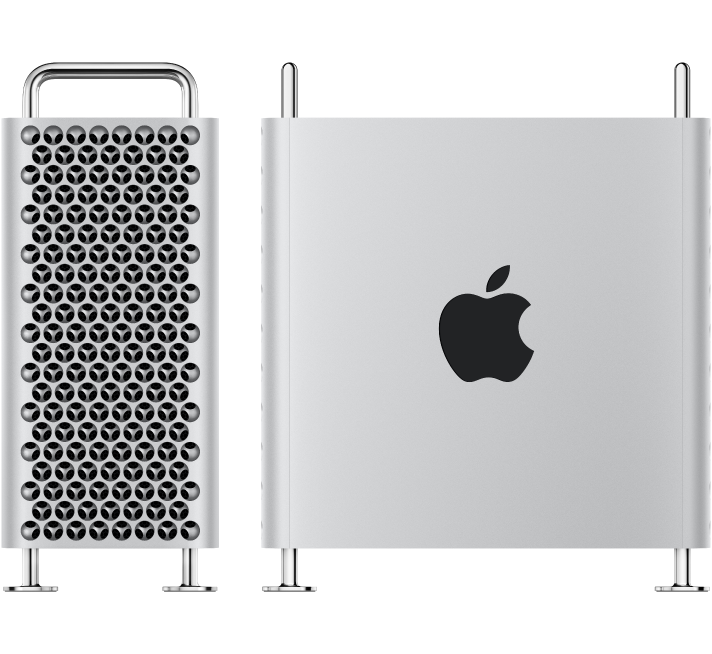
Advanced Engineering Protocols: Mac Pro Tower Data Recovery
The Three Architecture Eras of Mac Pro Storage
1. Modern Apple Silicon Era (Mac Pro M2 Ultra and Newer: 2023–Present)
- The Architecture: The modern Apple Silicon Mac Pro Tower looks like a modular desktop, but its storage architecture is highly integrated. It utilizes proprietary Apple Storage Modules that slide into specific slots on the motherboard. However, these modules do not contain standard standalone SSD controllers. The actual flash memory controller is built directly into the M-series Ultra CPU, which automatically encrypts all data using hardware-bound AES-256 keys.
- The Recovery Protocol: If the Mac Pro Tower is completely dead due to a massive power surge or liquid damage, moving the storage modules to a different Mac Pro will fail. The data is cryptographically tied to that specific motherboard's CPU. Seattle Data Recovery must perform component-level motherboard repair. Under high-powered microscopes, our micro-soldering engineers isolate and replace shorted capacitors, blown power lines, or fried Power Management ICs (PMICs) to stabilize the original board. This allows the CPU to boot, decrypt its own storage modules, and safely export the data.
2. The Intel Modular SSD Era (Mac Pro "Cheese Grater" Tower: 2019–2023)
- The Architecture: These high-end Intel-based towers use custom Apple flash storage blades. Much like the Apple Silicon era, these blades lack independent controllers; instead, they are cryptographically paired and managed by Apple’s onboard T2 Security Chip.
- The Recovery Protocol: If a catastrophic electronic failure prevents the board from turning on, our engineers must perform a delicate Cryptographic Chip Transplant. We cleanly desolder the original CPU, the T2 chip, and the flash storage chips from the damaged motherboard, reball them, and transplant the entire interconnected group onto a functional donor board to restore the encryption path.
3. Legacy Intel Towers (Mac Pro "Trash Can" 2013 and Classic Towers 2006–2012)
- The Architecture:
- 2013 "Trash Can" Cylinder: Uses a single, proprietary removable Apple PCIe SSD blade.
- Classic Silver Towers (Dual-Processor): Features four internal 3.5-inch SATA hard drive bays, often configured by professional editors into internal RAID 0 (Striped) or RAID 5 arrays for speed.
- The Recovery Protocol:
- Removable SSDs: We extract the proprietary blade and place it into specialized hardware imagers (like the DeepSpar or PC-3000) that can directly manage degrading flash sectors.
- Multi-Drive RAID Arrays: If one or more mechanical drives inside a classic tower fail or start clicking, we perform physical micro-surgery inside our ISO 5 Cleanroom using exact matching donor heads or spindle motors. Once all individual drive members are cloned, our engineers manually extract the raw metadata layout, realign the block sizes, and virtually reconstruct the striped array to safely export your project files.
Critical Protocol for Mac Pro Operators Facing Failure
- Do Not Attempt an Automatic RAID Rebuild: If an internal multi-drive array degrades or a drive starts clicking, do not force an automated software rebuild. The extreme stress of a rebuild will often cause a secondary, aging drive in the array to fail mechanically, destroying the data permanently.
- Cut Power to Clicking Units Instantly: If you hear a physical clicking, ticking, or grinding noise coming from the tower's drive bays, shut down the system immediately. Forcing a mechanically failing hard drive to spin allows the broken heads to scrape the magnetic film off the platters, turning your data into unrecoverable dust.
- Avoid Destructive System Utilities: Running automated disk checkers like Disk Utility's First Aid or terminal directory repairs on an unstable APFS volume can accidentally overwrite ghost remains of your original partition maps.
Mac Mini
The Mac mini Lineup (2005–Present)
1. The G4 & Early Intel Polycarbonate Era (2005–2009)
- Mac mini (G4): Introduced in January 2005. Powered by a single PowerPC G4 processor. It was the only Mac mini variant to run the legacy PowerPC architecture.
- Mac mini (Early/Late 2006): Model Identifiers
Macmin1,1. Apple’s first Intel-based minis, featuring Intel Core Solo or Core Duo processors and an internal optical combo/SuperDrive. - Mac mini (Mid 2007): Model Identifier
Macmin2,1. Upgraded to 64-bit Intel Core 2 Duo processors but limited by a 32-bit EFI firmware layer. - Mac mini (Early/Late 2009): Model Identifier
Macmin3,1. Switched to Nvidia GeForce 9400M integrated graphics, bringing a massive jump in video capabilities and dual-display output.
2. The Unibody Aluminum Era (Intel / 2010–2018)
- Mac mini (Mid 2010): Model Identifier
Macmin4,1. The final model to feature an internal optical drive slot. Included a built-in HDMI port and an SD card slot. - Mac mini (Mid 2011): Model Identifier
Macmin5,1/5,2. Apple completely removed the internal CD/DVD optical drive. Introduced Thunderbolt 1 technology and optional AMD Radeon dedicated graphics. - Mac mini (Late 2012): Model Identifier
Macmin6,1/6,2. Highly revered in server farms, this model introduced Quad-Core Intel Core i7 configurations, USB 3.0, and support for dual internal hard drives or early Fusion Drives. - Mac mini (Late 2014): Model Identifier
Macmin7,1. A highly controversial revision that soldered the RAM directly to the motherboard, removing user upgradability. Shifted entirely to dual-core processors and added Thunderbolt 2. - Mac mini (Late 2018): Model Identifier
Macmin8,1. Coated in a distinct Space Gray finish. This high-performance refresh introduced Intel 8th-Gen 4-core and 6-core desktop processors, standard PCIe flash storage, an Apple T2 security chip, four Thunderbolt 3 ports, and optional 10Gb Ethernet.
3. The Apple Silicon Unibody Era (2020–2023)
- Mac mini (M1, 2020): Model Identifier
Macmin9,1. The historic debut of the M1 chip inside a desktop format, delivering massive thermal efficiency and speed improvements but reducing the physical Thunderbolt port count from four to two. - Mac mini (M2 / M2 Pro, Early 2023): Model Identifier
Macmini9,2/9,12. The standard M2 model updated the base architecture, while the premium M2 Pro configuration added four Thunderbolt 4 ports, support for up to three external displays, and massive graphical processing headroom.
4. The Ultra-Compact Redesign Era (2024–Present)
- Mac mini (M4 / M4 Pro, Late 2024): A major structural architecture overhaul. The physical footprint was drastically downsized to a 5x5 inch super-compact chassis featuring front-facing USB-C ports. Powered by the M4 or M4 Pro architecture, it standardized a minimum of 16GB unified memory and introduced Thunderbolt 5 speeds on the M4 Pro high-end tier.
The Mac Studio Lineup (2022–Present)
1. The First Generation (M1 Architecture)
- Mac Studio (M1 Max / M1 Ultra, 2022): Model Identifier
MacStudio1,1. Features the M1 Max chip or the massive M1 Ultra chip (which physically fused two M1 Max chips together via an UltraFusion interconnect). It included an SDXC card slot and twin USB-C/Thunderbolt ports right on the front face of the chassis.
2. The Second Generation (M2 Architecture)
- Mac Studio (M2 Max / M2 Ultra, 2023): Model Identifier
MacStudio2,1. Updated the processing blocks to the M2 generation. The M2 Ultra variant configured up to a 24-core CPU and a 76-core GPU, alongside a high-bandwidth HDMI port capable of running an 8K external monitor natively at 240Hz.
3. The Third Generation (M4 Architecture)
- Mac Studio (M4 Max / M4 Ultra, 2025–2026): Updated the architecture to the highly efficient 3nm M4 silicon framework. This upgrade brought extreme hardware-accelerated ray tracing engines, massive boosts to local Machine Learning / Neural Engine calculations, and native support for Thunderbolt 5 connectivity configurations on premium tiers.
MacBook Air
1. The Original Tapered Polycarbonate/Aluminum Era (Intel)
- MacBook Air (Original - Early/Late 2008): Model Identifier
MacBookAir1,1. Powered by custom-shrunk Intel Core 2 Duo processors and slow, micro-PATA hard drives (or early, expensive 64GB PATA SSDs). - MacBook Air (Mid 2009): Model Identifier
MacBookAir2,1. Upgraded to faster Nvidia GeForce 9400M integrated graphics and standard SATA-based solid-state drives.
2. The Classic Wedge-Shaped Unibody Era (Intel / 2010–2017)
- MacBook Air (11-inch & 13-inch, Late 2010): Model Identifier
MacBookAir3,1(11") /3,2(13"). Completely removed mechanical drive options in favor of raw stick-shaped flash modules. - MacBook Air (11-inch & 13-inch, Mid 2011): Model Identifier
MacBookAir4,1/4,2. Introduced Intel Core i5/i7 processors, backlit keyboards, and Thunderbolt 1 technology. - MacBook Air (11-inch & 13-inch, Mid 2012): Model Identifier
MacBookAir5,1/5,2. Upgraded to USB 3.0 ports, MagSafe 2, and faster mSATA-generation blade SSD storage. - MacBook Air (11-inch & 13-inch, Mid 2013 / Early 2014): Model Identifier
MacBookAir6,1/6,2. Shifted to ultra-efficient Intel Haswell processors (bringing "all-day" 12-hour battery life) and high-speed PCIe-based flash storage. - MacBook Air (11-inch & 13-inch, Early 2015 / Mid 2017): Model Identifier
MacBookAir7,1/7,2. The final revision of the classic non-Retina generation, standardizing faster broadwell chips and PCIe 3.0 flash lanes.
3. The Retina Display & T2 Security Era (Intel / 2018–2020)
- MacBook Air (Retina, 13-inch, 2018 / 2019): Model Identifier
MacBookAir8,1/8,2. Introduced Touch ID, the controversial butterfly keyboard mechanism, and secure hardware-encrypted storage. - MacBook Air (Retina, 13-inch, Early 2020): Model Identifier
MacBookAir9,1. Fixed the typing interface by deploying the scissor-switch Magic Keyboard and offered Intel 10th-Gen Quad-Core configurations.
4. The Apple Silicon Wedge Era (M1)
- MacBook Air (M1, 2020): Model Identifier
MacBookAir10,1. Abandoned internal cooling fans entirely for a completely silent, passively cooled chassis. Driven by the M1 chip, this model became a historic benchmark for battery life and performance efficiency.
5. The Flat "Pro-Style" Redesign Era (M2 through M5)
- MacBook Air (M2, 2022 / 2023): Model Identifier
MacBookAir14,2(13-inch M2) andMacBookAir14,15(15-inch M2). - MacBook Air (M3, Early 2024): Model Identifier
MacBookAir15,3(13-inch M3) andMacBookAir15,13(15-inch M3). Added native hardware-accelerated ray tracing and support for dual external displays while the laptop lid is closed. - MacBook Air (M4 / M5 Series, 2025–2026): Upgraded the baseline architectural memory profile to handle intense local Machine Learning workflows and advanced Apple Intelligence task parsing smoothly.