Call 1 (425) 406-1174 to start a Data Recovery!
Data Recovery for All Storage Manufacturer Brands
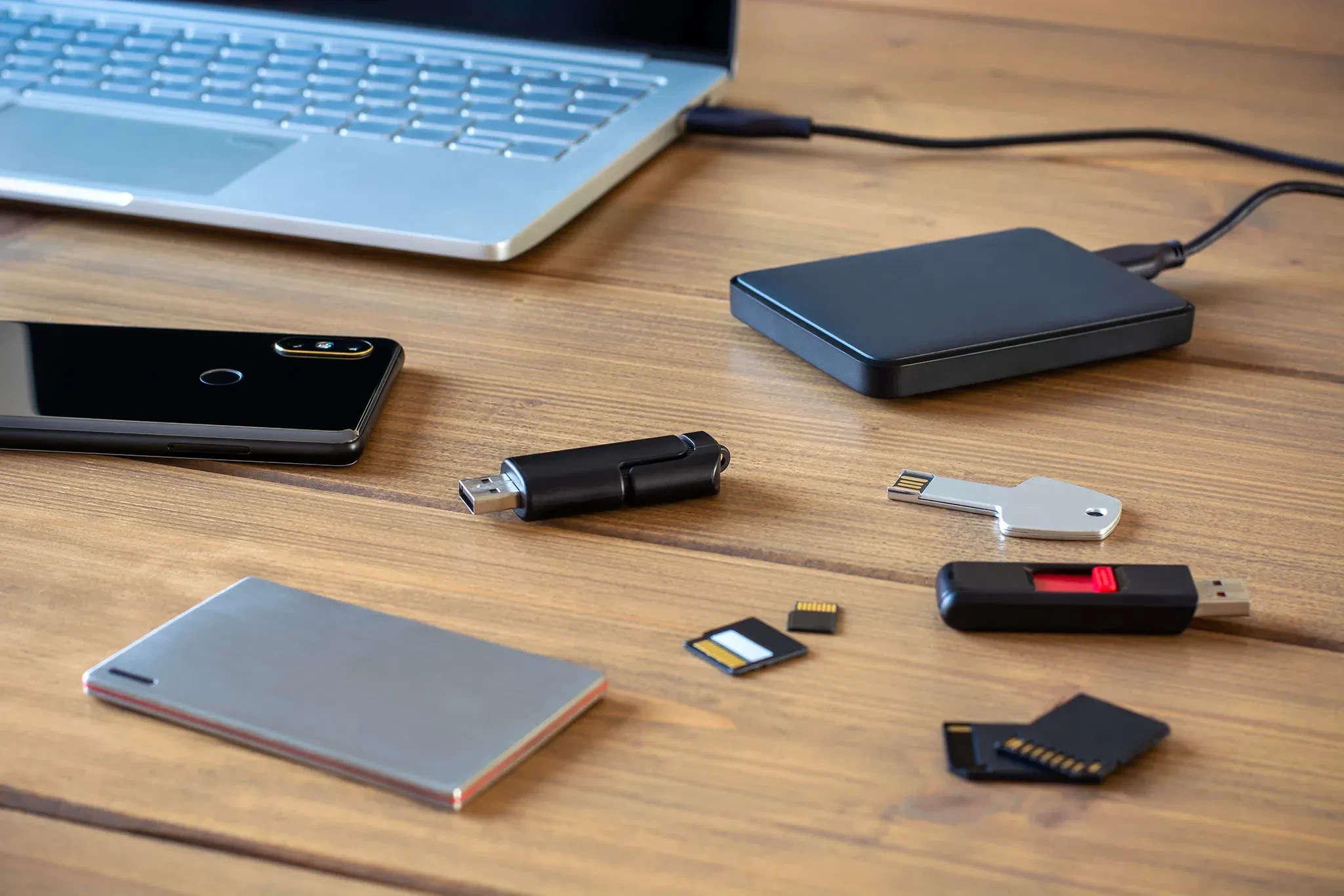
The Most Popular Brands of Hard Drives and SSDs for Data Recovery
In the data recovery industry, storage media is broadly split into two distinct engineering categories: Mechanical Hard Disk Drives (HDDs) and Solid-State Drives (SSDs). Each brand uses proprietary microcode, unique internal mechanical geometries, or specialized flash controllers that dictate their specific failure modes and engineering solutions.
Our cleanroom laboratory inside the University of Washington Medicine Building in Ballard actively interfaces with these dominant consumer, professional, and enterprise storage manufacturers:
1. Major Mechanical Hard Drive (HDD) Brands
Mechanical drives fail primarily due to physical head crashes, seized spindle motors, or firmware sector corruption on the magnetic platters.
- Western Digital (WD): One of the most common brands seen in recovery laboratories.
- Popular Models: WD Passport, WD Elements, WD Blue, WD Black, and enterprise WD Ultrastar series.
- Common Failure Modes: Weak or failing read/write head assemblies that produce a distinct ticking or clicking sound. Modern Western Digital external drives often have the USB connector soldered directly to the primary drive circuit board, requiring our engineers to micro-solder a SATA interface conversion to bypass the encryption and read raw sectors.
- Seagate: Dominates both the low-cost consumer laptop drive market and massive enterprise arrays.
- Popular Models: Seagate Backup Plus, Expansion, Barracuda, IronWolf NAS, and enterprise Exos helium-filled units.
- Common Failure Modes: Seagate drives frequently experience "stiction" (where the read heads become physically glued to the data platters, locking up the motor and causing a faint beeping sound) or critical microcode allocation errors (such as the infamous "Media Cache" or "LED:000000CC" firmware locks).
- Toshiba: Widely integrated as original internal components inside major laptop brands, automotive navigation arrays, and portable consumer drives.
- Popular Models: Toshiba Canvio, Canvio Basics, and X300/P300 series.
- Common Failure Modes: Motor spindle bearing seizures following physical drop trauma. These require complex mechanical platter transplants inside our cleanroom to migrate the data platters into a functional donor motor chassis.
2. Major Solid-State Drive (SSD) Brands
Solid-state failures are almost exclusively electronic or firmware-based. When a flash controller fails, it locks the drive into a dead state or presents an incorrect capacity (e.g., 0MB).
- Samsung: The global market leader in consumer, prosumer, and enterprise flash storage.
- Popular Models: Samsung 970 EVO, 980 Pro, 990 Pro, T5/T7/T9 Portable Series, and PM enterprise server blades.
- Common Failure Modes: Translation layer metadata corruption. When internal tracking cells wear out or drop power mid-write, the drive's firmware panics, locking the SSD into a read-only state or throwing an internal factory alias that hides user files.
- SanDisk / Western Digital SSDs: Heavily utilized by creative professionals, photographers, and video editors worldwide.
- Popular Models: SanDisk Extreme Portable SSD, Extreme Pro, and WD Black SN850X / Blue NVMe series.
- Common Failure Modes: Fractured internal circuit pathways and structural layout flaws. Certain portable generations suffer from internal surface-mount components that break loose from sub-standard thermal expanding solder, requiring meticulous microscope trace repairs or raw chip-off flash extraction.
- Crucial (Micron): Popular as affordable system boot expansions and commercial workstation upgrades.
- Popular Models: Crucial MX500 (SATA), P3, P5 Plus, and T700 Gen5 NVMe drives.
- Common Failure Modes: Extreme thermal degradation on Gen5 models and power management circuit (PMIC) shorts, which prevent the SSD from receiving electrical current and cause it to read as completely dead.
- Apple Silicon Integrated NAND: Found in modern MacBook Pro, MacBook Air, and Mac Studio architectures.
- Popular Models: Custom integrated flash chips soldered directly to the logic board on M1, M2, M3, and M4 Macs.
- Common Failure Modes: Catastrophic logic board shorts from coffee or water spills. Because the storage cannot be removed, our micro-soldering team must perform advanced donor transplants, migrating the encrypted NAND chips and the processor keys together onto a stable motherboard to allow decryption.
- Other Major NAND Manufacturers: Brands like Kingston, Sabrent, SK Hynix, Lexar, and Corsair. These drives frequently utilize third-party flash controllers (such as Phison, Silicon Motion, or Marvell) that require our lab to apply proprietary software emulators to manually bypass the controller chip and re-stitch scattered raw files.
Secure Laboratory Entry and Client Logistics
Whether your failing drive is a mechanical server disk or a modern encrypted NVMe chip, minimizing power cycles is crucial to avoiding permanent data degradation.
Our cleanroom laboratory inside the University of Washington Medicine Building in Ballard is open for secure drive walk-ins and device drop-offs from 9:00 AM to 5:00 PM, Monday through Friday.
- Vehicle Arrival & Free Parking: Drive directly onto Level 2 of our facility structure. We have designated free customer parking spaces (Spaces 40–45) explicitly reserved for our data recovery clients.
- Secure Elevator Access: Head through the main lobby entrance doors and take the building elevator straight up to Level 4 (the stairwells are locked for facility security).
- Regus Reception Experience: Turn right out of the elevator cab to step into our executive corporate suite, managed in exclusive partnership with Regus. Regus front-desk reception teams are globally recognized for elite administrative support, strict data privacy controls, and a secure corporate environment. Your hardware will be instantly logged into our secure system and placed under absolute custody tracking before entering our cleanroom engineering workspace.
- Details
- Written by: Seattle Data Recovery
- Category: ASUS ZenBook Data Recovery Services
The Failure Scenario
Your ZenBook Duo (dual-screen) or ZenBook Fold (flexible OLED) is dropped or compressed in a backpack. While the internal computer components are humming and the status lights indicate it is fully running, all internal displays remain completely black, or the touch digitizer is shattered and rendering random, chaotic phantom inputs that prevent you from logging in.
The Storage Challenge
The computer itself is alive, but you have no visual feedback or control over the operating system. Because ZenBook screen connections use high-bandwidth proprietary display connectors directly on the motherboard, connecting an external monitor via USB-C or HDMI does not always automatically clone the screen—especially if the laptop is stuck at a pre-login Windows Hello facial recognition check or an encryption prompt.
The Professional Recovery Process
We charge a diagnostic fee to safely secure the device and prevent accidental file deletion caused by the shattered touchscreen generating "ghost touches."
- Touch Digitizer Disconnection: We carefully open the casing and physically isolate the screen ribbon cables from the motherboard. This stops the broken glass from sending erratic commands that could accidentally format folders or trigger a security lockout.
- Hardware Extraction via Laboratory Benches: Rather than risking further damage to an expensive, specialized chassis, we extract the internal high-speed NVMe storage media entirely.
- Forensic File Reconstruction: The removed drive is mounted onto our write-blocked lab hardware, bypassing Windows user account security boundaries entirely to pull your user profiles, desktop documents, local application databases, and system configurations onto a secure external drive.
- Details
- Written by: Seattle Data Recovery
- Category: ASUS ROG & Zephyrus Gaming Laptop Data Recovery
The Failure Scenario
You power on your ASUS ROG laptop, but instead of loading Windows, the screen displays a "No Bootable Device" error or drops you directly into the ASUS ROG UEFI BIOS interface. If you navigate to the Intel Rapid Storage Technology (RST) or AMD RAID configuration menu inside the BIOS, the array status is listed as "Failed," "Degraded," or "Incomplete."
The Storage Challenge
To achieve blazing-fast read and write speeds, many ASUS ROG and Zephyrus laptops ship from the factory with two physical M.2 NVMe SSDs configured in a RAID 0 (striped) array. In this setup, data is broken down into tiny fragments and distributed evenly across both physical drives. There is no redundancy. If either drive develops bad sectors, suffers a controller failure, or loses synchronization due to a sudden crash, the entire virtual volume breaks instantly. Neither drive can be read independently by standard data recovery software.
The Professional Recovery Process
Recovering data from a striped array requires evaluating both drives simultaneously. We charge an upfront diagnostic fee to inspect the health of each physical SSD in our lab.
- Independent Drive Mirroring: We isolate both NVMe drives from the laptop and connect them to specialized hardware imagers (like the PC-3000 Portable III). We force each drive to create a perfect, bit-by-bit physical clone on our secure lab storage servers.
- Block Size and Block Order Analysis: If one of the physical drives has failed hardware components, we stabilize it first. Once both clones are complete, our engineers analyze the raw hex data to determine the exact strip size (usually 64KB or 128KB) and the correct drive sequence used by the original controller.
- Virtual Array Reconstruction: We manually assemble the two independent image files into a single virtual disk inside our specialized software environment. This allows us to repair the broken partition tables and safely extract your game saves, creative projects, and personal data.
- Details
- Written by: Seattle Data Recovery
- Category: ASUS VivoBook & ExpertBook Data Recovery
The Failure Scenario
A cup of coffee or water spills across your desk, seeping into the underside of your ASUS ExpertBook. The system cuts power instantly. Even after letting it dry out for several days, the laptop is completely dead—the power button does nothing, no battery charging indicator lights up, and it will not respond to any input.
The Storage Challenge
While business-class ExpertBooks feature spill-resistant keyboards designed to slow down liquids, fluid can still make its way into the highly compact motherboard chassis through ports and vents. When liquid makes contact with a live circuit board, it creates an immediate electrical bridge, causing severe short circuits. Over time, this moisture causes copper corrosion that eats away at the microscopic traces connecting the CPU to the high-speed M.2 NVMe storage slots, trapping your critical corporate files on a dead system.
The Professional Recovery Process
Do not attempt to repeatedly turn on a liquid-damaged laptop. Doing so sends erratic voltage down broken lines, which can permanently burn out the storage memory chips. We charge an upfront diagnostic fee to open the ExpertBook and assess the damage under a stereo microscope.
- Ultrasonic Cleaning: We remove the motherboard and submerge it in an industrial ultrasonic tank filled with a specialized chemical solvent. High-frequency sound waves blast away corrosion, scale, and dried residue from beneath the soldered components.
- Micro-Soldering Isolation: Our engineers trace the power rails using ExpertBook circuit schematics. We identify and replace shorted capacitors, blown power chips, and damaged diodes to temporarily stabilize the board's storage power lines.
- Direct Drive Imaging: Once basic electrical stability is restored to the storage interface, we mount the drive onto a hardware write-blocker, bypassing the laptop's broken operating system to pull a complete, clean mirror of your data sectors.
- Details
- Written by: Seattle Data Recovery
- Category: ASUS Data Recovery Services in Seattle
Because ASUS dynamically sources its internal storage from third-party manufacturers based on supply lines and production runs, there is no single "ASUS hard drive model." Instead, when you open an ASUS laptop or desktop, you will find specific OEM (Original Equipment Manufacturer) solid-state drive (SSD) model numbers assigned by the actual storage manufacturers.
The specific OEM model numbers most frequently found factory-installed in modern ASUS ZenBook, ROG, TUF, and Vivobook computers include:
1. Samsung OEM Drives (Premium & Gaming Lineups)
Samsung components are regularly standard in premium tiers like the ASUS ROG Strix and ZenBook Pro lines.
- Samsung PM9A1: This is the OEM version of the highly popular retail Samsung 980 PRO. It is a PCIe Gen 4 x4 NVMe drive commonly found in 512GB and 1TB capacities. [1]
- Samsung PM9B1 / PM9C1: Power-efficient Gen 4 NVMe drives often used in mid-to-high tier thin laptops like the standard ZenBook series.
- Samsung PM991 / PM991a: A very common budget-to-midrange PCIe Gen 3 NVMe drive found heavily across standard ASUS Vivobook and baseline TUF gaming laptops. [2, 6]
- Samsung PM981 / PM981a: PCIe Gen 3 NVMe drives widely utilized in ASUS laptops built between 2019 and 2021.
2. SK hynix OEM Drives (High-End & Midrange Lineups)
SK hynix is a massive supplier for ASUS, especially for high-capacity 1TB or 2TB configurations in performance laptops.
- SK hynix PC801: A top-tier PCIe Gen 4 x4 NVMe drive found natively in recent ASUS ROG gaming laptops. It is the OEM equivalent of the retail SK hynix Platinum P41.
- SK hynix PC711: A PCIe Gen 3 NVMe drive heavily utilized in slightly older or mid-tier ASUS ZenBook and gaming configurations.
-
SK hynix BC711 / BC901: Frequently used small form-factor or value-tier NVMe drives found in mainstream consumer lines.
3. Western Digital & SanDisk OEM Drives (Mainstream Lineups)
Western Digital (WD) provides drive configurations scaled heavily across ASUS's budget, student, and desktop systems.
- Western Digital PC SN740 / SN730: High-performance OEM NVMe drives. The SN740 is a Gen 4 drive frequently integrated into ROG Ally handheld devices and TUF laptops.
- Western Digital PC SN560 / SN530: Mid-tier, DRAM-less Gen 4 or Gen 3 NVMe options designed for efficiency, highly common in Vivobook series laptops.
- SanDisk SD9SN8W (X600 Series): Found in slightly older ASUS setups, these represent 2.5-inch or M.2 SATA-based SSD configurations.
4. Micron & Crucial OEM Drives
- Micron 2400 / 2450: Budget-friendly PCIe Gen 4 NVMe drives built using QLC or TLC flash, heavily integrated into current-generation value models like the ASUS Vivobook Go or basic TUF laptops.
- Micron 3400 / 2550: High-performance Gen 4 configurations used interchangeably with Samsung and SK hynix drives in gaming towers and performance laptops.
5. Intel, Kingston, & Kingston-Affiliates
- Intel 660p / 670p (SSDPEKNW): Popular QLC Gen 3 NVMe drives used broadly across several generations of ASUS TUF and ROG laptops.
- Kingston OM8PDP / OM8P0S: Broadly distributed entry-level OEM M.2 NVMe series tailored specifically for lower-tier Vivobook and corporate ASUS ExpertBook lines.
- Foresee (Longsys): Budget-oriented flash drives (such as the Foresee OEM M.2 NVMe series) occasionally surface in baseline, entry-level ASUS laptops sold in specific regions.
How to Check the Exact Model Number Inside Your ASUS Computer
Because ASUS mixes and matches these exact parts during assembly, you can check what is inside your system without unscrewing the back panel:
- Right-click the Windows Start Button and select Device Manager.
- Expand the Disk drives drop-down menu.
- The exact alphanumeric code listed there (e.g.,
MZVL21T0HCLRfor a Samsung PM9A1, orHFM001TD3JX013Nfor an SK hynix drive) is your hard drive's true model number.
If you have a specific ASUS model code or are looking up a serial string from your Device Manager, feel free to share it so I can break down its precise technical specs for you!
- Details
- Written by: Seattle Data Recovery
- Category: Mac Pro
If you are maintaining one of these vintage machines today, note that Apple's custom firmware limits how third-party disk tools read thermal reporting data. If a factory drive fails, replacing it with a modern off-the-shelf SATA SSD (using a 2.5-to-3.5-inch sled adapter like the OWC Mount Pro) is highly recommended.
Subcategories
Seattle Data Recovery Services for Hewlett-Packard Computers
Advanced Laboratory Protocols: Hewlett-Packard (HP) Computer Data Recovery
Recovering data from a failed Hewlett-Packard computer—whether a high-performance HP Z-Book Workstation, a corporate EliteBook, a sleek consumer Spectre x360 / Pavilion, or a massive HP ProLiant Server Array—requires a deep understanding of HP's proprietary firmware configurations, hardware encryption modules, and component structures.
At Seattle Data Recovery, we treat HP data loss at a forensic component level. Standard retail recovery software is completely useless if your computer fails to power on or suffers a mechanical breakdown. Our laboratory utilizes advanced diagnostic hardware imagers, micro-soldering stations, and an on-site cleanroom to bypass hardware blocks and safely extract your critical files.
The Architecture Tiers of HP Storage and Security
To successfully retrieve your records, our engineering team deploys targeted protocols depending on your HP device's generation and hardware architecture:
1. Modern HP Ultrabooks and the Wolf Security Ecosystem
Modern premium HP laptops prioritize thin form factors, which frequently means the NAND flash memory storage chips are soldered directly onto the motherboard. Additionally, these corporate machines deploy HP Wolf Security frameworks paired with Microsoft BitLocker hardware-level encryption managed by the onboard Trusted Platform Module (TPM).
- The Component-Level Solution: If an HP Spectre or EliteBook is completely dead due to a motherboard short circuit, fluid spill, or power surge, "chip-off" data extraction is impossible. If you desolder the memory chips, the data remains a scrambled, unreadable wall of encrypted code because it is separated from the motherboard's original CPU and TPM keys.
- Our micro-soldering engineers must perform motherboard restoration under high-power microscopes. We isolate and replace blown power rails, shorted capacitors, or damaged Power Management ICs (PMICs) to temporarily stabilize the original board. This allows the system to initialize, accept your original encryption keys, and safely export your unencrypted files.
2. HP Z-Workstations and Professional Desktops
Favored by local engineering firms, data analysts, and creative agencies, HP Z-Series towers and laptops leverage high-speed NVMe PCIe M.2 SSD modules.
- Bypassing Firmware Locks: When these high-performance solid-state drives begin to fail, they encounter heavy sector degradation. The SSD's internal controller panics, locking the drive into a permanent "Busy" or "Read-Only" state that causes Windows to freeze or crash.
- We extract the M.2 module and mount it onto specialized hardware diagnostic imagers like the PC-3000 Portable III. This equipment allows us to issue factory-level commands to patch the drive's internal microcode in RAM, bypass the controller lock, and clone the raw data sectors safely.
3. Legacy HP Laptops, Towers, and ProLiant Servers
Older consumer HP models and enterprise ProLiant rack systems rely on traditional mechanical hard drives (spanning brands like Seagate, Western Digital, and HGST) or multi-disk RAID arrays (RAID 1, 5, 6, 10).
- Mechanical & Cleanroom Surgery: If your older HP laptop or tower is emitting a rhythmic clicking, beeping, or grinding sound, the hard drive has suffered a physical head crash or a seized spindle motor. These devices are taken directly into our certified ISO 5 Cleanroom. Our technicians safely extract the broken mechanical parts and replace them with exact matching factory donor components, providing the temporary stability required to clone the drive. For ProLiant server collapses, we manually reverse-engineer the underlying stripe size and parity settings to virtually rebuild the array.
Critical Instructions for Users Facing HP Failures
If your Hewlett-Packard computer suddenly throws a "Boot Device Not Found (3F0)" error, gets stuck in an automatic repair loop, or completely refuses to power on, your immediate actions dictate the survival rate of your data:
- Do Not Keep Force-Rebooting: If your laptop or desktop is making unusual clicking or ticking sounds, disconnect power immediately. Repeatedly trying to turn on a mechanically failing hard drive forces broken parts to dig into the data platters, turning your files into unrecoverable dust.
- Locate Your BitLocker Recovery Key: If your HP laptop is managed under an enterprise network or corporate domain, ensure your IT department can access your 48-digit BitLocker Recovery Key. Because modern encryption features no mathematical backdoors, this key is mandatory to finalize the extraction of a recovered sector clone.
- Strictly Avoid Windows Built-In System Repairs: If an HP system fails to boot due to an unstable storage drive, running aggressive Windows recovery options, automated chkdsk commands, or factory reset utilities will force the system to write new files over your old directories. On an already degrading drive, this can permanently purge the ghost remains of your missing partition tables.
Seattle Data Recovery Restores Dell Computers and Uncovers Lost Files

Advanced Laboratory Protocols: Dell Computer Data Recovery
Recovering data from a failed Dell computer—whether an enterprise PowerEdge Server Array, a high-performance Precision Workstation, a corporate Latitude / OptiPlex, or a premium consumer XPS / Inspiron—requires a deep understanding of Dell's proprietary motherboard designs, BIOS/Unified Extensible Firmware Interface (UEFI) security features, and factory hardware integrations.
At Seattle Data Recovery, we treat Dell data loss at a forensic component level. Standard consumer file-scraping software is completely useless if your computer suffers a physical breakdown or fails to boot. Our laboratory utilizes advanced diagnostic hardware, micro-soldering stations, and an on-site cleanroom to bypass hardware blocks and safely extract your critical files.
The Architecture Tiers of Dell Storage and Security
To successfully retrieve your records, our engineering team deploys targeted protocols depending on your Dell device's generation and hardware architecture:
1. Modern Dell Laptops and the SafeBIOS Security Perimeter
Modern, premium Dell laptops prioritize thin form factors, which frequently means the NAND flash memory storage chips are soldered directly onto the motherboard. Additionally, these corporate machines deploy Dell SafeBIOS utilities paired with Microsoft BitLocker hardware-level encryption managed by the onboard Trusted Platform Module (TPM).
- The Component-Level Solution: If an XPS or Latitude laptop is completely dead due to a motherboard short circuit, fluid spill, or power surge, "chip-off" data extraction is impossible. If you desolder the memory chips, the data remains a scrambled, unreadable wall of encrypted code because it is separated from the motherboard's original CPU and TPM keys.
- Our micro-soldering engineers must perform motherboard restoration under high-power microscopes. We isolate and replace blown power rails, shorted capacitors, or damaged Power Management ICs (PMICs) to temporarily stabilize the original board. This allows the system to initialize, accept your original encryption keys, and safely export your unencrypted files.
2. Dell Precision Workstations and OptiPlex Desktops
Favored by local engineering firms, architectural designers, and creative agencies, Dell Precision towers and workstations leverage high-speed NVMe PCIe M.2 SSD modules.
- Bypassing SSD Firmware Locks: When these high-performance solid-state drives begin to fail, they encounter heavy sector degradation. The SSD's internal controller panics, locking the drive into a permanent "Busy" or "Read-Only" state that causes Windows to freeze or crash.
- We extract the M.2 module and mount it onto specialized hardware diagnostic imagers like the PC-3000 Portable III. This equipment allows us to issue factory-level commands to patch the drive's internal microcode in RAM, bypass the controller lock, and clone the raw data sectors safely.
3. Dell PowerEdge Servers and PERC Controller Collapse
Local businesses rely heavily on Dell PowerEdge server nodes to manage their operational databases and virtual machines. These systems group drives into complex RAID configurations (RAID 1, 5, 6, 10) managed by an internal Dell PowerEdge RAID Controller (PERC).
- Virtual Array Reconstruction: If a PowerEdge server experiences multi-drive mechanical failures or a fried PERC card, standard IT teams are locked out. Our lab engineers pull every individual drive member from the rack. Any drive presenting mechanical failures (clicking or buzzing) is processed inside our ISO 5 Cleanroom for head-stack or motor replacement. Once all drive members are safely cloned to our secure servers, our engineers manually calculate the array’s block size, parity rotation, and stripe order—virtually rebuilding the underlying storage environment to smoothly extract your pristine, uncorrupted databases (such as SQL or Oracle files).
Critical Instructions for Users Facing Dell System Failures
If your Dell computer suddenly throws a "No Bootable Devices Found" error, gets stuck in an automated SupportAssist diagnostic loop, or completely refuses to power on, your immediate actions dictate the survival rate of your data:
- Do Not Keep Force-Rebooting: If your laptop or desktop is making unusual clicking, ticking, or buzzing sounds, disconnect power immediately. Repeatedly trying to turn on a mechanically failing hard drive forces broken parts to dig into the data platters, turning your files into unrecoverable dust.
- Locate Your BitLocker Recovery Key: If your Dell laptop is managed under an enterprise network or corporate domain, ensure your IT department can access your 48-digit BitLocker Recovery Key. Because modern encryption features no mathematical backdoors, this key is mandatory to finalize the extraction of a recovered sector clone.
- Strictly Avoid Automated SupportAssist OS Recovery Fixes: If a Dell system fails to boot due to an unstable storage drive, running aggressive Dell SupportAssist automated recovery options, firmware flashes, or factory reset utilities will force the system to write new files over your old directories. On an already degrading drive, this can permanently purge the ghost remains of your missing partition tables.
Windows Operating System Data Recovery
When a Windows system encounters severe file system corruption, partition damage, or imminent physical hardware failure, it displays specific warnings before dropping completely offline. Recognizing these errors early allows you to stop using the system and protect your data from being permanently overwritten.
The most common Windows errors that indicate an immediate need for professional data recovery include:
1. Boot-Level & Hardware Detection Errors
These black-screen or firmware-level errors appear before Windows can even begin to load. They indicate that your motherboard or boot loader can no longer communicate with your hard drive or SSD.
- "Operating System Not Found" or "Missing Operating System"
- "No Bootable Device Detected" or "Insert Boot Media and Press Any Key"
- "S.M.A.R.T. Capable Hard Drive Failure Predicted" (The drive's internal health monitor is actively warning of an imminent physical crash).
- "Hard Drive - Not Found" or "Error Code 0142 / 0145" (Common built-in hardware diagnostic failures).
2. Blue Screen of Death (BSOD) Boot Loops
If Windows encounters a catastrophic system error linked to storage communication, it crashes into a blue screen. Pay close attention to these specific stop codes:
INACCESSIBLE_BOOT_DEVICE(Windows can no longer read the drive partition housing the operating system files).CRITICAL_PROCESS_DIEDorKERNEL_DATA_INPAGE_ERROR(Often caused by a solid-state drive dropping offline or block corruption).UNMOUNTABLE_BOOT_VOLUME(The primary boot partition file structure is severely corrupted or unreadable).
3. Logical File System & Formatting Prompts
These alerts typically occur when you connect an external hard drive, SSD, or SD card, or when a secondary internal drive fails.
- "You need to format the disk in drive X: before you can use it." (Do NOT click format; your data is still intact, but Windows has lost track of the file system architecture).
- "X:\ is not accessible. The file or directory is corrupted and unreadable."
- "The parameter is incorrect" or "The device is not ready."
- Drive showing as "RAW" in Windows Disk Management (The original file allocation table, like NTFS or exFAT, has collapsed).
4. File I/O (Input/Output) & Performance Alerts
These warnings crop up during active Windows sessions when you attempt to copy, move, or open your files.
- "The request could not be performed because of an I/O device error." (A direct indicator of physically damaged sectors or a failing hardware controller).
- "Windows detected a hard disk problem" (A pop-up window explicitly urging you to back up your data immediately).
- "File is too large for the destination file system" or sudden, endless 0 bytes/sec copy speeds that freeze Windows Explorer.
Critical Triage Advice: What to Do Next
If your Windows machine or external drive is flashing any of these errors, stop executing software utility scans or automated fixes (like
chkdsk). Forcing a physically failing or firmware-corrupted drive to undergo intense stress can cause permanent, unrecoverable data loss. Our specialized laboratory inside the University of Washington Medicine Building in Ballard is fully equipped to safely bypass these Windows errors, stabilize your storage hardware, and extract your files.
BitLocker Encryption Data Recovery
Enterprise-Level BitLocker Encryption Data Recovery Protocols
Microsoft’s BitLocker Drive Encryption is a highly effective security framework engineered to protect data by encrypting entire volumes using AES-128 or AES-256 algorithms. However, when the underlying storage media experiences a hardware failure, or when the operating system's boot configuration becomes corrupted, BitLocker turns into an absolute wall that locks out users and traditional IT departments.
At Seattle Data Recovery, we treat BitLocker data loss as a dual challenge combining low-level cryptographic forensic reconstruction with hardware-level physical repair. Standard data recovery software cannot safely interact with encrypted, failing sectors. Our laboratory utilizes specialized hardware imagers and custom firmware terminal patches to reconstruct BitLocker partition structures and safely extract unencrypted user files.
The Two Core Fronts of BitLocker Data Failure
To successfully recover data from a BitLocker-encrypted volume, our engineers deploy targeted protocols depending on whether the drive is suffering from a Logical/Cryptographic Failure or a Physical Hardware Failure.
Tier 1: Logical, Cryptographic, and Metadata Repair
If your computer or external drive is physically healthy but trapped in a "BitLocker Recovery Loop" or throwing errors like "The drive cannot be unlocked because the volume is corrupted," the volume's cryptographic metadata has fractured.
- Reconstructing Fractured Metadata Headers: BitLocker stores critical cryptographic metadata (including the encrypted Volume Master Key) at the very beginning of the partition. If this specific sector develops a single bad cell, Windows can no longer recognize the partition as a valid BitLocker drive. Our engineers use advanced hex editors via the PC-3000 to locate duplicate backup metadata headers hidden at the end of the partition, manually restitching the volume structure.
- Decryption Bypass via Raw Bitstream: If the Windows operating system crashes or freezes every time you enter your correct 48-digit BitLocker Recovery Key, the file system index is unstable. We connect the drive to a hardware imager, feed your recovery key directly into our secure hardware controller, and command the hardware to decrypt the raw sector stream on-the-fly, bypassing the broken Windows operating system entirely.
Tier 2: Physical Hardware Intervention (Clicking Hard Drives & Dead SSDs)
If a BitLocker-encrypted external hard drive or internal laptop SSD suffers a physical drop, power surge, or component failure, logical software fixes cannot help.
- Cleanroom Micro-Surgery: If a drive is clicking, buzzing, or dead, it must be moved directly into our certified ISO 5 Cleanroom or micro-soldering stations. Technicians repair physical components—such as swapping damaged read/write head stacks or transplanting unique NVRAM calibration chips onto donor boards.
- The Criticality of Bit-for-Bit Cloning: In non-encrypted drives, missing a few unreadable bad sectors simply means losing a few files. On a BitLocker drive, if a bad sector sits inside the cryptographic master key zone, the entire drive becomes permanently unrecoverable. Our hardware imagers utilize precise voltage shifting and deep timeout commands to map around failing sectors, creating a perfect, readable clone before any decryption attempt is initiated.
Critical Instructions for Users Facing BitLocker Failures
If a drive suddenly prompts you for a BitLocker recovery key or reports that the volume is corrupted, your very next actions determine whether your data will survive:
- Locate and Secure Your 48-Digit Recovery Key: Because BitLocker utilizes mathematical encryption with no built-in backdoors, recovery is impossible without the original 48-digit BitLocker Recovery Key or the original password. Check your Microsoft Account Recovery Key Portal, active Active Directory/Azure AD company consoles, or printed backup documentation.
- Strictly Avoid Automated "Chkdsk" Repairs: If a BitLocker partition is reporting file system corruption, never run
chkdsk /for structural command-line repair tools. These utilities fix file systems by writing random data over unreadable blocks. On an encrypted drive, running a chkdsk command will aggressively overwrite fragile cryptographic metadata, corrupting the encryption mapping permanently. - Do Not Keep Power-Cycling a Noisy Drive: If an encrypted drive is emitting clicking or ticking noises, cut power immediately. Forcing a drive with broken mechanical read heads to spin will scratch the internal platters, transforming your encrypted files into unrecoverable dust particles.
Seattle Data Recovery Services for IBM and Lenovo Computers

Advanced Laboratory Protocols: IBM and Lenovo Computer Data Recovery
Recovering data from a failed Lenovo or legacy IBM computer—whether a corporate ThinkPad (T-Series, X-Series, or Carbon X1), a high-performance ThinkStation, a consumer IdeaPad / Yoga, or a massive IBM System x Server Array—demands a deep understanding of Lenovo’s customized motherboard layouts, proprietary firmware structures, and advanced encryption frameworks.
At Seattle Data Recovery, we treat IBM and Lenovo data loss at a forensic component level. Standard consumer file-scraping apps are entirely useless if your machine suffers a physical breakdown or fails to boot. Our laboratory utilizes advanced diagnostic hardware, micro-soldering stations, and an on-site cleanroom to bypass hardware blocks and safely extract your critical files.
The Architecture Tiers of IBM & Lenovo Storage and Security
To successfully retrieve your records, our engineering team deploys targeted protocols depending on your device's generation and hardware architecture:
1. Modern Lenovo Ultrabooks and the ThinkShield Security Perimeter
Modern premium Lenovo laptops prioritize ultra-thin form factors, which frequently means the NAND flash memory storage chips are soldered directly onto the motherboard. Additionally, these corporate machines deploy Lenovo ThinkShield security frameworks paired with Microsoft BitLocker hardware-level encryption managed by the onboard Trusted Platform Module (TPM).
- The Component-Level Solution: If a ThinkPad Carbon X1 or Yoga laptop is completely dead due to a motherboard short circuit, fluid spill, or power surge, "chip-off" data extraction is impossible. If you desolder the memory chips, the data remains a scrambled, unreadable wall of encrypted code because it is separated from the motherboard's original CPU and TPM keys.
- Our micro-soldering engineers must perform motherboard restoration under high-power microscopes. We isolate and replace blown power rails, shorted capacitors, or damaged Power Management ICs (PMICs) to temporarily stabilize the original board. This allows the system to initialize, accept your original encryption keys, and safely export your unencrypted files.
2. ThinkStation Workstations and ThinkCentre Desktops
Favored by local engineering firms, data analysts, and corporate offices, Lenovo ThinkStation towers and desktops leverage high-speed NVMe PCIe M.2 SSD modules.
- Bypassing SSD Firmware Locks: When these high-performance solid-state drives begin to fail, they encounter heavy sector degradation. The SSD's internal controller panics, locking the drive into a permanent "Busy" or "Read-Only" state that causes Windows to freeze or crash.
- We extract the M.2 module and mount it onto specialized hardware diagnostic imagers like the PC-3000 Portable III. This equipment allows us to issue factory-level commands to patch the drive's internal microcode in RAM, bypass the controller lock, and clone the raw data sectors safely.
3. IBM System x Servers and ServeRAID Controller Collapse
Local enterprises and institutions rely heavily on legacy IBM System x and Lenovo ThinkSystem server nodes to manage their operational databases and virtual machines. These systems group drives into complex RAID configurations (RAID 1, 5, 6, 10) managed by an internal ServeRAID controller.
- Virtual Array Reconstruction: If a server experiences multi-drive mechanical failures or a fried controller card, standard IT teams are locked out. Our lab engineers pull every individual drive member from the rack. Any drive presenting mechanical failures (clicking or buzzing) is processed inside our ISO 5 Cleanroom for head-stack or motor replacement. Once all drive members are safely cloned to our secure servers, our engineers manually calculate the array’s block size, parity rotation, and stripe order—virtually rebuilding the underlying storage environment to smoothly extract your pristine, uncorrupted databases (such as SQL or Oracle files).
Critical Instructions for Users Facing Lenovo System Failures
If your Lenovo computer suddenly throws an "Error 1962: No operating system found" message, gets stuck in a critical BIOS update loop, or completely refuses to power on, your immediate actions dictate the survival rate of your data:
- Do Not Keep Force-Rebooting: If your laptop or desktop is making unusual clicking, ticking, or buzzing sounds, disconnect power immediately. Repeatedly trying to turn on a mechanically failing hard drive forces broken parts to dig into the data platters, turning your files into unrecoverable dust.
- Locate Your BitLocker Recovery Key: If your ThinkPad is managed under an enterprise network or corporate domain, ensure your IT department can access your 48-digit BitLocker Recovery Key. Because modern encryption features no mathematical backdoors, this key is mandatory to finalize the extraction of a recovered sector clone.
- Strictly Avoid Automated Lenovo Vantage OS Recovery Fixes: If a Lenovo system fails to boot due to an unstable storage drive, running aggressive automated recovery options, firmware flashes, or factory reset utilities will force the system to write new files over your old directories. On an already degrading drive, this can permanently purge the ghost remains of your missing partition tables.
Apple Computer Data Recovery

Advanced Enterprise & Forensic Protocols: Apple Computer Data Recovery
Recovering data from Apple computers—including the MacBook Pro, MacBook Air, iMac, and Mac Studio—presents a highly complex landscape in modern digital forensics. Over the past decade, Apple has fundamentally re-engineered personal computing architecture, shifting from modular, removable storage to tightly integrated, hardware-encrypted ecosystems.
At Seattle Data Recovery, we treat Apple data loss not as a simple software challenge, but as an advanced structural hardware problem. Standard retail data recovery software is structurally locked out of modern Mac architectures. Our laboratory deploys specialized hardware diagnostic tools, low-level firmware emulators, and micro-soldering infrastructure tailored explicitly for Apple's proprietary APFS (Apple File System) and security co-processors.
The Three Architectural Eras of Apple Data Recovery
To safely retrieve your data, our engineers categorize Apple computers into three distinct engineering eras, each requiring a completely unique recovery protocol:
1. The Modern Apple Silicon Era (M-Series Macs: 2020–Present)
In modern MacBook Pros, Airs, and Mac Studios, there is no physical "hard drive" or removable SSD module inside the machine. The storage consists of raw NAND flash memory chips soldered directly onto the main logic board.
- The Cryptographic Wall: Every single sector written to these chips is automatically encrypted using an aggressive, hardware-bound AES-256 key generated directly inside the Apple M-series processor. "Chip-off" recovery (desoldering the memory chips to read them externally) is completely impossible. If you separate the NAND chips from the specific CPU they were paired with at the factory, the data permanently becomes randomized, undecryptable code.
- The Seattle Data Recovery Protocol: If your M-series Mac is completely dead due to a liquid spill, drop, or power surge, our micro-soldering engineers must perform component-level motherboard restoration. Under high-powered microscopes, we isolate and replace shorted capacitors, blown power rails, or fried Power Management ICs (PMICs). The singular engineering goal is to repair the original motherboard to a stable, temporary state so that the CPU can successfully initialize, decrypt its own NAND storage, and allow a full forensic image to be extracted.
2. The Intel T2 Security Era (2018–2020)
During this transition period, Macs still used Intel processors, but Apple introduced the proprietary T2 Security Chip to handle the machine's secure boot and hardware-level encryption. Like modern Apple Silicon Macs, the flash storage chips are soldered directly to the logic board.
- The Recovery Protocol: If the motherboard suffers a catastrophic failure that cannot be repaired using standard component replacement, our engineers must perform a delicate Cryptographic Chip Transplant. We must cleanly desolder the original CPU, the T2 chip, and the original NAND flash storage chips, reball them, and transplant the entire interconnected group onto a matching, functional donor logic board to restore the encryption path.
3. The Legacy Intel Era (Pre-2018)
Older MacBooks and iMacs utilize either traditional mechanical hard drives, proprietary removable Apple SSD "blades," or hybrid Fusion Drives (which digitally bridge a mechanical drive and a flash drive together).
- The Recovery Protocol:
- Removable SSDs: We extract the proprietary Apple SSD blade and place it into specialized hardware imagers (like the DeepSpar or PC-3000) that can directly manage degrading flash sectors and native Apple communication protocols.
- Mechanical / Fusion Drives: If an older iMac or MacBook Pro is clicking or beeping, the mechanical drive has suffered a physical head crash or a seized motor. These units are safely moved to our ISO 5 Cleanroom for physical mechanical repair and donor part replacement.
Critical Protocol for Failed Apple Computers
If your Mac suddenly flashes a Folder with a Question Mark, presents an encryption login loop, or completely refuses to power on, your immediate actions dictate the survival rate of your data:
- Stop Continuous Power-Cycling: If a Mac is failing or overheating, repeatedly holding down the power button to force reboots stresses unstable flash memory cells or failing power rails. If an internal component is shorted, continuous electricity can cause a thermal event that permanently cooks the nearby NAND chips.
- Avoid Target Disk Mode on Damaged Hardware: Share Mode or Target Disk Mode are useful for healthy machines, but if your Mac is failing due to degrading storage sectors, forcing it to host a high-speed data stream will quickly cause the storage controller to permanently lock up.
- Say No to Built-In "First Aid" Repairs: If your Mac's file system structure is unstable, running Disk Utility's First Aid or terminal commands like
fsckwill force aggressive write commands onto the volume. On an already failing APFS container, this can corrupt the master file system indexes, rendering data unrecoverable.
iMac
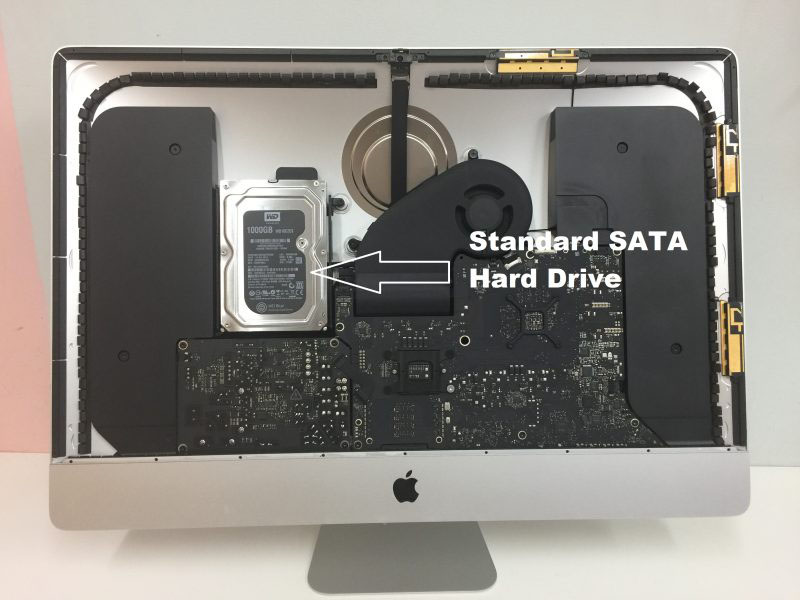
Advanced Engineering Protocols: Recovering Lost Data from Apple iMac Systems
Recovering data from a failed Apple iMac depends heavily on the model year and the specific storage architecture used inside the machine. Over the last decade, Apple transitioned from traditional mechanical hard drives to complex Fusion Drives, and eventually to modern Apple Silicon M-series logic boards with integrated flash memory.
At Seattle Data Recovery, we treat iMac data loss at a hardware level. Standard software scans often fail or cause further degradation to unstable Apple hardware. Our laboratory deploys specialized hardware imaging systems and micro-soldering protocols tailored specifically to Apple’s proprietary file systems (APFS and HFS+) and security architectures.
The Three Architecture Eras of iMac Data Recovery
To safely retrieve your files, our engineers must first identify which storage tier your iMac utilizes:
1. Modern Apple Silicon Era (iMac M1, M3, and Newer)
- The Architecture: In modern iMacs, there is no separate hard drive or SSD module to remove. The storage consists of raw NAND flash memory chips soldered directly onto the main logic board. Furthermore, all data is automatically encrypted by the hardware keys bound directly inside the Apple M-series processor.
- The Recovery Protocol: "Chip-off" extraction is impossible because removing the memory chips separates them from the cryptographic keys in the CPU, rendering the data scrambled code. If your iMac is completely dead due to a liquid spill or a power surge, Seattle Data Recovery must perform component-level motherboard repair. Under specialized magnification, our micro-soldering engineers isolate and replace shorted capacitors, blown power rails, or damaged Power Management ICs (PMICs). The goal is to restore stable power to the logic board just long enough for the system to initialize, decrypt its own storage, and allow a full data extraction.
2. The Intel T2 Security Era (iMac Retina 5K 27-inch, 2020)
- The Architecture: These models feature Intel processors but utilize Apple's proprietary T2 Security Chip. The SSD chips are soldered directly to the motherboard, and the T2 chip handles all hardware-level encryption.
- The Recovery Protocol: Similar to Apple Silicon models, if the logic board dies, the data is locked away. Our technicians utilize dedicated hardware diagnostic tools to interface with the board's internal data lines. If the primary logic board is too severely fractured to repair, we must perform a delicate transplant—moving the CPU, the T2 chip, and the original NAND chips over to a matching donor board to safely decrypt the volume.
3. The Intel Mechanical & Fusion Drive Era (iMac Models 2012–2019)
- The Architecture: These iMacs contain traditional 2.5-inch or 3.5-inch hard drives, standard removable blade SSDs, or a Fusion Drive (which digitally binds a small blade SSD and a large mechanical hard drive together into a single logical volume).
- The Recovery Protocol:
- Mechanical Drives: If your older iMac is clicking, beeping, or failing to boot, the internal mechanical drive has likely suffered a head crash or a seized motor. We extract the drive from the iMac casing and move it directly into our ISO 5 Cleanroom for physical component replacement using exact matching donor parts.
- Fusion Drives: Recovering a failed Fusion Drive requires extracting both the physical mechanical drive and the proprietary Apple blade SSD. Because the APFS or HFS+ file system spreads data across both drives simultaneously, our hardware imagers must create bit-for-bit clones of both storage components and digitally realign them in our server environment to reconstruct the original partition map.
Critical Protocol for Users Facing iMac Failures
If your iMac suddenly flashes a Folder with a Question Mark, fails to progress past the Apple logo bar, or won't turn on at all, your next steps are critical to preventing permanent file destruction:
- Do Not Keep Force-Rebooting: If your iMac is making a faint clicking or ticking noise from behind the screen, the mechanical drive is failing. Repeatedly turning it on forces damaged read heads to scratch the internal platters, permanently shaving away your data.
- Avoid Target Disk Mode on Failing Hardware: While Target Disk Mode is an excellent native utility for healthy Macs, using it on an iMac with a physically failing drive or degrading flash memory sectors will cause the storage controller to overheat and permanently lock up.
- Say No to Automatic "First Aid" Fixes: Running Disk Utility’s First Aid or third-party file scraping utilities on an unstable drive forces aggressive write commands onto the volume. If the file system index is unstable, these tools can accidentally wipe the ghost remains of your partition tables.
iPhone
The Reality of Chip-Off Data Recovery on Modern iPhones
In the data recovery industry, "chip-off" data recovery refers to the physical removal of a flash memory chip (NAND) from a device's logic board so it can be placed into an external chip reader to extract raw data. While this technique is highly successful for older devices, digital cameras, and flash drives, chip-off data recovery is impossible on modern iPhones.
At Seattle Data Recovery, we want to ensure you have accurate technical information: any lab claiming they can desolder a NAND chip from a modern iPhone (iPhone 4s or newer) and read your photos directly from it is misinformed or misleading you.
Why Chip-Off Is Physically Blocked by Apple Architecture
Starting with the iPhone 5 and solidifying with hardware-level changes across later models (especially devices using A-series processors and the Secure Enclave), Apple implemented a highly secure, interconnected hardware blueprint.
- Hardware-Level Encryption (AES-256): Every single piece of data written to an iPhone's NAND flash memory chip is instantly encrypted using hardware keys.
- The Secure Enclave Entanglement: The unique cryptographic keys required to decrypt your data are not stored on the memory chip itself. Instead, they are permanently fused inside the iPhone's main CPU (and protected by the Secure Enclave co-processor).
- The Cryptographic Lock: If a technician desolders the NAND flash memory chip and places it into an external reader, the reader will only see a chaotic, completely scrambled wall of encrypted code. The data cannot be decrypted without passing through that exact device's original CPU and receiving the correct user passcode.
The Real Solution: Board-Level Logic Repair (The "Donation" Method)
Because a chip-off bypass is structurally impossible, the only way to recover data from a severely smashed, water-damaged, or dead iPhone is to repair the original logic board to a temporary functional state. The phone must boot up completely normally just one final time so it can decrypt its own data using its original CPU and your passcode.
At Seattle Data Recovery, our micro-soldering engineers deploy advanced motherboard repair techniques rather than destructive chip-offs:
1. Micro-Soldering Component Diagnostic & Replacement
If an iPhone is completely dead after a severe electrical short or liquid submersion, the logic board is usually missing critical power rails.
- Under high-power microscopes, our technicians isolate shorted capacitors, blown filters, and destroyed power management ICs (PMICs).
- We remove the damaged microscopic components using specialized hot-air rework stations and solder healthy replacements onto the board to restore the power delivery network.
2. The "Board Swap" (CPU & NAND Transplant)
If an iPhone has been physically snapped in half or the logic board itself is severely fractured, standard component replacement will not work. In these extreme "lost cause" scenarios, our engineers perform a highly advanced surgical procedure:
- We source a completely identical, working "donor" iPhone logic board.
- We carefully desolder the unique, paired components from your broken phone: the CPU (with Secure Enclave), the NAND Flash Memory Chip, and the EEPROM/Baseband chip.
- We clean and "reball" these chips, then solder them onto the healthy donor board. Because the cryptographic trio remains intact, the donor board will successfully boot up, prompt you for your original passcode, and allow us to extract a complete backup.
Critical Steps to Maximize Your Recovery Chances
If you have an iPhone with critical data that will not power on, protect your device from permanent loss:
- Avoid Generic Phone Repair Shops: Standard retail repair shops are trained to swap out screens, batteries, and charging ports. If an iPhone has a complex motherboard issue, a general technician using improper heat settings can easily delaminate the logic board or permanently fry the CPU, destroying any chance of recovery.
- Do Not Attempt to Clean Water Damage Yourself: If your device fell into water, plugging it into a charger to "see if it works" is the most destructive action you can take. Electricity mixed with liquid accelerates corrosion and can instantly short out the CPU's primary power lines.
- Know Your Passcode: Because Apple's encryption cannot be cracked, bypass algorithms do not exist. Any successful hardware recovery requires entering your original lock screen passcode to initialize the final data transfer.
MacBook Data Recovery
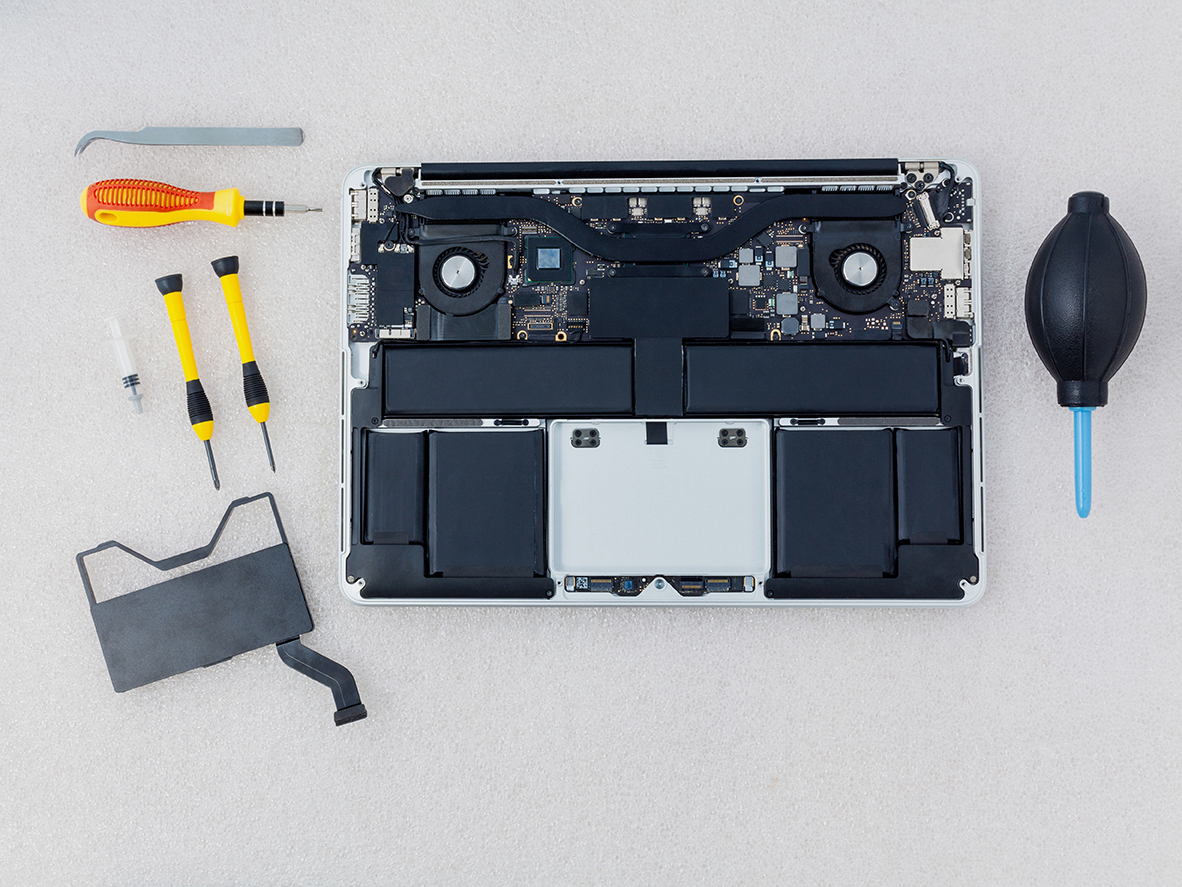
Advanced MacBook Data Recovery Services in Seattle
Recovering data from modern Apple MacBooks requires specialized expertise due to integrated hardware, soldered storage, and proprietary file architectures Seattle Data Recovery. Standard recovery software fails when a device won't power on, so advanced laboratory diagnostics and micro-soldering are needed.
Why Modern MacBook Data Recovery is Unique
- Soldered Storage: On modern Apple Silicon models (M1, M2, M3, and newer), NAND flash memory is soldered directly to the logic board rather than existing as a removable card.
- Hardware-Bound Encryption: Data is encrypted via a key generated inside the Apple processor, making traditional "chip-off" desoldering methods ineffective because separating the NAND chips from the factory-paired CPU permanently scrambles the data.
Our Engineering Approach
When handling dead or non-responsive MacBooks, the recovery protocol relies on component-level intervention:
- Micro-Soldering & Repair: Restoring shorted power rails or damaged components under high-magnification microscopes.
- Firmware and Controller Handling: Bypassing communication failures and stabilizing the data translation layers.
- APFS Extraction: Utilizing specialized equipment to image the Apple File System once the hardware and cryptographic handshake are restored.
Common Failure Scenarios
- Liquid Damage: Motherboard short circuits from spills.
- No Power / Dead Device: Failures in the USB-C controller or power management IC.
- Boot Loops & OS Corruption: Systems freezing during updates.
- Logical Issues: Accidental file deletion and volume corruption.
Get Started
If your MacBook fails or suffers liquid exposure, avoid repeated power cycling or charging to prevent permanent damage to the NAND flash chips. Contact the Seattle team for a professional hardware assessment.
Macbook Pro Data Recovery
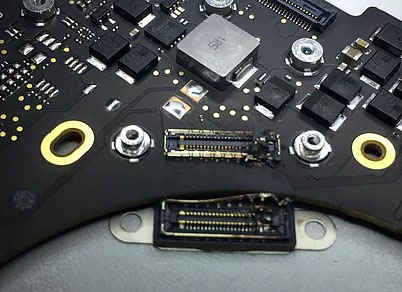
Advanced Laboratory Protocols: MacBook Pro Data Recovery
Recovering data from a failed Apple MacBook Pro requires deep expertise in micro-electronics, cryptographic entanglement, and Apple's proprietary file structures. Over the last decade, Apple transformed the MacBook Pro from a modular laptop with a removable drive into a highly integrated, security-focused computing ecosystem.
At Seattle Data Recovery, we treat MacBook Pro data loss at a hardware component level. Because modern MacBook Pros lack a removable storage drive, standard consumer recovery software is entirely useless if the laptop fails to power on. Our laboratory utilizes advanced diagnostic hardware, low-level firmware emulators, and high-precision micro-soldering stations specifically calibrated for Apple’s APFS (Apple File System) and hardware encryption engines.
The Architecture Tiers of MacBook Pro Storage
To safely extract your files, our engineers must first identify the specific engineering architecture of your MacBook Pro model:
1. The Modern Apple Silicon Era (M1, M2, M3, M4 Models: 2020–Present)
In all modern MacBook Pro models (including the 14-inch and 16-inch variants), there is no separate SSD module inside the machine. The storage consists of raw NAND flash memory chips soldered directly onto the main logic board.
- The Cryptographic Bond: Every piece of data written to these NAND chips is automatically encrypted using an aggressive, hardware-bound AES-256 key generated directly inside the Apple M-series processor. "Chip-off" recovery (desoldering the memory chips to read them externally) is fundamentally impossible. If you separate the NAND chips from their factory-paired CPU, the data permanently becomes scrambled, randomized code.
- Our Recovery Protocol: If your M-series MacBook Pro is completely dead due to a liquid spill, drop, or power surge, our micro-soldering engineers must perform component-level motherboard restoration. Under high-powered microscopes, we isolate and replace shorted capacitors, blown power rails, or fried Power Management ICs (PMICs). The singular engineering goal is to repair the original motherboard to a stable, temporary state so that the CPU can successfully initialize, decrypt its own storage, and allow a full forensic clone to be extracted.
2. The Intel T2 Security Era (Touch Bar Models: 2018–2020)
During this transition period, MacBook Pros utilized Intel processors but integrated Apple's proprietary T2 Security Chip to manage secure boot and hardware-level encryption. Like modern M-series laptops, the flash storage chips are permanently soldered to the motherboard.
- Our Recovery Protocol: If the motherboard suffers a catastrophic failure that cannot be repaired using standard component replacement, our engineers must perform a delicate Cryptographic Chip Transplant. We must cleanly desolder the original CPU, the T2 chip, and the original NAND flash storage chips, reball them, and transplant the entire interconnected group onto a matching, functional donor logic board to restore the encryption path.
3. The Legacy Intel Era (Pre-2018 Models)
Older MacBook Pros feature either traditional 2.5-inch mechanical hard drives (Non-Retina models) or proprietary removable Apple SSD "blades" (Retina models from 2012–2015, and the 2016–2017 Non-Touch Bar Function Key models).
- Our Recovery Protocol:
- Removable SSDs: We extract the proprietary Apple SSD blade and place it into specialized hardware imagers (like the DeepSpar or PC-3000) that can directly manage degrading flash sectors and native Apple communication protocols.
- Mechanical Drives: If your older MacBook Pro is clicking or beeping, the internal mechanical drive has suffered a physical head crash or a seized motor. These units are safely moved to our ISO 5 Cleanroom for physical component repair and donor part replacement.
Critical Emergency Protocol for Failed MacBook Pros
If your MacBook Pro suddenly flashes a Folder with a Question Mark, presents an encryption login loop, or completely refuses to power on, your immediate actions dictate the survival rate of your data:
- Stop Continuous Power-Cycling: If a MacBook Pro is failing or overheating, repeatedly holding down the power button to force reboots stresses unstable flash memory cells or failing power rails. If an internal component is shorted, continuous electricity can cause a thermal event that permanently cooks the nearby NAND chips.
- Avoid Target Disk Mode / Share Mode on Unstable Hardware: While Share Mode is a useful utility for healthy machines, forcing a MacBook Pro with degrading storage sectors or unstable logic board voltages to host a high-speed data stream will quickly cause the storage controller to permanently lock up or fail.
- Say No to Built-In "First Aid" Repairs: If your Mac's file system structure is unstable, running Disk Utility's First Aid or terminal commands like
fsckwill force aggressive write commands onto the volume. On an already failing APFS container, this can corrupt the master file system indexes, rendering data unrecoverable.
Mac Pro
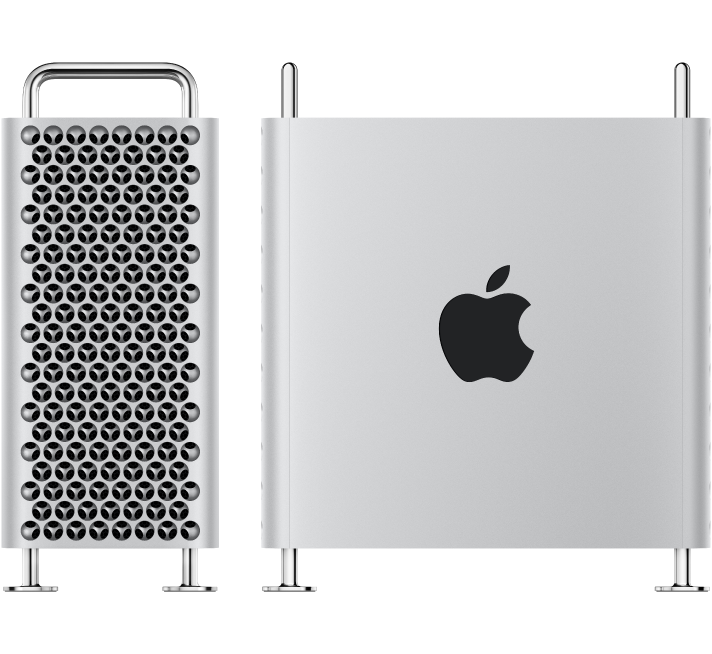
Advanced Engineering Protocols: Mac Pro Tower Data Recovery
Recovering data from an Apple Mac Pro Tower depends entirely on the machine’s generation. Because the Mac Pro is Apple’s flagship workstation for film editors, audio engineers, and data scientists, a failure usually involves high-capacity storage arrays, complex RAID configurations, or hardware-encrypted modern logic boards.
At Seattle Data Recovery, we treat Mac Pro data loss at a component engineering level. Standard data recovery apps cannot handle modern Apple security systems or complex multi-disk failures. Our laboratory uses specialized hardware imagers and micro-soldering stations tailored to Apple’s APFS (Apple File System) and hardware encryption engines.
The Three Architecture Eras of Mac Pro Storage
To safely extract your files, our engineers must first identify which generation of the Mac Pro Tower you are running:
1. Modern Apple Silicon Era (Mac Pro M2 Ultra and Newer: 2023–Present)
- The Architecture: The modern Apple Silicon Mac Pro Tower looks like a modular desktop, but its storage architecture is highly integrated. It utilizes proprietary Apple Storage Modules that slide into specific slots on the motherboard. However, these modules do not contain standard standalone SSD controllers. The actual flash memory controller is built directly into the M-series Ultra CPU, which automatically encrypts all data using hardware-bound AES-256 keys.
- The Recovery Protocol: If the Mac Pro Tower is completely dead due to a massive power surge or liquid damage, moving the storage modules to a different Mac Pro will fail. The data is cryptographically tied to that specific motherboard's CPU. Seattle Data Recovery must perform component-level motherboard repair. Under high-powered microscopes, our micro-soldering engineers isolate and replace shorted capacitors, blown power lines, or fried Power Management ICs (PMICs) to stabilize the original board. This allows the CPU to boot, decrypt its own storage modules, and safely export the data.
2. The Intel Modular SSD Era (Mac Pro "Cheese Grater" Tower: 2019–2023)
- The Architecture: These high-end Intel-based towers use custom Apple flash storage blades. Much like the Apple Silicon era, these blades lack independent controllers; instead, they are cryptographically paired and managed by Apple’s onboard T2 Security Chip.
- The Recovery Protocol: If a catastrophic electronic failure prevents the board from turning on, our engineers must perform a delicate Cryptographic Chip Transplant. We cleanly desolder the original CPU, the T2 chip, and the flash storage chips from the damaged motherboard, reball them, and transplant the entire interconnected group onto a functional donor board to restore the encryption path.
3. Legacy Intel Towers (Mac Pro "Trash Can" 2013 and Classic Towers 2006–2012)
- The Architecture:
- 2013 "Trash Can" Cylinder: Uses a single, proprietary removable Apple PCIe SSD blade.
- Classic Silver Towers (Dual-Processor): Features four internal 3.5-inch SATA hard drive bays, often configured by professional editors into internal RAID 0 (Striped) or RAID 5 arrays for speed.
- The Recovery Protocol:
- Removable SSDs: We extract the proprietary blade and place it into specialized hardware imagers (like the DeepSpar or PC-3000) that can directly manage degrading flash sectors.
- Multi-Drive RAID Arrays: If one or more mechanical drives inside a classic tower fail or start clicking, we perform physical micro-surgery inside our ISO 5 Cleanroom using exact matching donor heads or spindle motors. Once all individual drive members are cloned, our engineers manually extract the raw metadata layout, realign the block sizes, and virtually reconstruct the striped array to safely export your project files.
Critical Protocol for Mac Pro Operators Facing Failure
If your Mac Pro Tower suddenly drops a high-capacity drive array, flashes a Question Mark Folder, or refuses to power on during a critical deadline, your immediate actions are vital:
- Do Not Attempt an Automatic RAID Rebuild: If an internal multi-drive array degrades or a drive starts clicking, do not force an automated software rebuild. The extreme stress of a rebuild will often cause a secondary, aging drive in the array to fail mechanically, destroying the data permanently.
- Cut Power to Clicking Units Instantly: If you hear a physical clicking, ticking, or grinding noise coming from the tower's drive bays, shut down the system immediately. Forcing a mechanically failing hard drive to spin allows the broken heads to scrape the magnetic film off the platters, turning your data into unrecoverable dust.
- Avoid Destructive System Utilities: Running automated disk checkers like Disk Utility's First Aid or terminal directory repairs on an unstable APFS volume can accidentally overwrite ghost remains of your original partition maps.
Mac Mini
The Mac mini Lineup (2005–Present)
The Mac mini was originally introduced in 2005 as a "BYODKM" (Bring Your Own Display, Keyboard, and Mouse) machine designed to entice Windows switchers. It has undergone several dramatic structural transformations.
1. The G4 & Early Intel Polycarbonate Era (2005–2009)
Characterized by a compact 2-inch tall square footprint with a white polycarbonate top panel and an aluminum structural band.
- Mac mini (G4): Introduced in January 2005. Powered by a single PowerPC G4 processor. It was the only Mac mini variant to run the legacy PowerPC architecture.
- Mac mini (Early/Late 2006): Model Identifiers
Macmin1,1. Apple’s first Intel-based minis, featuring Intel Core Solo or Core Duo processors and an internal optical combo/SuperDrive. - Mac mini (Mid 2007): Model Identifier
Macmin2,1. Upgraded to 64-bit Intel Core 2 Duo processors but limited by a 32-bit EFI firmware layer. - Mac mini (Early/Late 2009): Model Identifier
Macmin3,1. Switched to Nvidia GeForce 9400M integrated graphics, bringing a massive jump in video capabilities and dual-display output.
2. The Unibody Aluminum Era (Intel / 2010–2018)
Apple redesigned the enclosure into a thinner, wider, single piece of stamped aluminum featuring a removable black circular bottom plastic hatch for seamless RAM upgrades.
- Mac mini (Mid 2010): Model Identifier
Macmin4,1. The final model to feature an internal optical drive slot. Included a built-in HDMI port and an SD card slot. - Mac mini (Mid 2011): Model Identifier
Macmin5,1/5,2. Apple completely removed the internal CD/DVD optical drive. Introduced Thunderbolt 1 technology and optional AMD Radeon dedicated graphics. - Mac mini (Late 2012): Model Identifier
Macmin6,1/6,2. Highly revered in server farms, this model introduced Quad-Core Intel Core i7 configurations, USB 3.0, and support for dual internal hard drives or early Fusion Drives. - Mac mini (Late 2014): Model Identifier
Macmin7,1. A highly controversial revision that soldered the RAM directly to the motherboard, removing user upgradability. Shifted entirely to dual-core processors and added Thunderbolt 2. - Mac mini (Late 2018): Model Identifier
Macmin8,1. Coated in a distinct Space Gray finish. This high-performance refresh introduced Intel 8th-Gen 4-core and 6-core desktop processors, standard PCIe flash storage, an Apple T2 security chip, four Thunderbolt 3 ports, and optional 10Gb Ethernet.
3. The Apple Silicon Unibody Era (2020–2023)
While retaining the physical 2018 unibody footprint, Apple returned the finish to traditional silver and replaced the entire internal architecture with an integrated system-on-chip (SoC).
- Mac mini (M1, 2020): Model Identifier
Macmin9,1. The historic debut of the M1 chip inside a desktop format, delivering massive thermal efficiency and speed improvements but reducing the physical Thunderbolt port count from four to two. - Mac mini (M2 / M2 Pro, Early 2023): Model Identifier
Macmini9,2/9,12. The standard M2 model updated the base architecture, while the premium M2 Pro configuration added four Thunderbolt 4 ports, support for up to three external displays, and massive graphical processing headroom.
4. The Ultra-Compact Redesign Era (2024–Present)
- Mac mini (M4 / M4 Pro, Late 2024): A major structural architecture overhaul. The physical footprint was drastically downsized to a 5x5 inch super-compact chassis featuring front-facing USB-C ports. Powered by the M4 or M4 Pro architecture, it standardized a minimum of 16GB unified memory and introduced Thunderbolt 5 speeds on the M4 Pro high-end tier.
The Mac Studio Lineup (2022–Present)
Introduced as an entirely new product category, the Mac Studio is designed for extreme creative workflows (video editing, 3D rendering, audio production). Visually resembling a taller, extruded Mac mini with a heavy-duty dual-fan thermal extraction core on the bottom, it packs Apple’s highest-tier "Max" and "Ultra" processors.
1. The First Generation (M1 Architecture)
- Mac Studio (M1 Max / M1 Ultra, 2022): Model Identifier
MacStudio1,1. Features the M1 Max chip or the massive M1 Ultra chip (which physically fused two M1 Max chips together via an UltraFusion interconnect). It included an SDXC card slot and twin USB-C/Thunderbolt ports right on the front face of the chassis.
2. The Second Generation (M2 Architecture)
- Mac Studio (M2 Max / M2 Ultra, 2023): Model Identifier
MacStudio2,1. Updated the processing blocks to the M2 generation. The M2 Ultra variant configured up to a 24-core CPU and a 76-core GPU, alongside a high-bandwidth HDMI port capable of running an 8K external monitor natively at 240Hz.
3. The Third Generation (M4 Architecture)
- Mac Studio (M4 Max / M4 Ultra, 2025–2026): Updated the architecture to the highly efficient 3nm M4 silicon framework. This upgrade brought extreme hardware-accelerated ray tracing engines, massive boosts to local Machine Learning / Neural Engine calculations, and native support for Thunderbolt 5 connectivity configurations on premium tiers.
MacBook Air
Here is the comprehensive list of all Apple MacBook Air models organized by their design generation and processor architecture from the original introduction in 2008 to the present day:
1. The Original Tapered Polycarbonate/Aluminum Era (Intel)
Famous for being pulled out of a manila envelope by Steve Jobs, this generation laid the groundwork for ultra-thin portables but suffered from limited performance and structural hinge fragilities.
- MacBook Air (Original - Early/Late 2008): Model Identifier
MacBookAir1,1. Powered by custom-shrunk Intel Core 2 Duo processors and slow, micro-PATA hard drives (or early, expensive 64GB PATA SSDs). - MacBook Air (Mid 2009): Model Identifier
MacBookAir2,1. Upgraded to faster Nvidia GeForce 9400M integrated graphics and standard SATA-based solid-state drives.
2. The Classic Wedge-Shaped Unibody Era (Intel / 2010–2017)
The definitive MacBook Air design. It introduced the sharp, wedge-shaped aluminum unibody chassis, dual USB ports, a MagSafe power connector, and removable, proprietary blade SSDs.
- MacBook Air (11-inch & 13-inch, Late 2010): Model Identifier
MacBookAir3,1(11") /3,2(13"). Completely removed mechanical drive options in favor of raw stick-shaped flash modules. - MacBook Air (11-inch & 13-inch, Mid 2011): Model Identifier
MacBookAir4,1/4,2. Introduced Intel Core i5/i7 processors, backlit keyboards, and Thunderbolt 1 technology. - MacBook Air (11-inch & 13-inch, Mid 2012): Model Identifier
MacBookAir5,1/5,2. Upgraded to USB 3.0 ports, MagSafe 2, and faster mSATA-generation blade SSD storage. - MacBook Air (11-inch & 13-inch, Mid 2013 / Early 2014): Model Identifier
MacBookAir6,1/6,2. Shifted to ultra-efficient Intel Haswell processors (bringing "all-day" 12-hour battery life) and high-speed PCIe-based flash storage. - MacBook Air (11-inch & 13-inch, Early 2015 / Mid 2017): Model Identifier
MacBookAir7,1/7,2. The final revision of the classic non-Retina generation, standardizing faster broadwell chips and PCIe 3.0 flash lanes.
3. The Retina Display & T2 Security Era (Intel / 2018–2020)
A total structural overhaul adding a high-resolution Retina display, modern USB-C/Thunderbolt 3 ports, and an integrated Apple T2 Security Chip that soldered the flash storage components straight to the board.
- MacBook Air (Retina, 13-inch, 2018 / 2019): Model Identifier
MacBookAir8,1/8,2. Introduced Touch ID, the controversial butterfly keyboard mechanism, and secure hardware-encrypted storage. - MacBook Air (Retina, 13-inch, Early 2020): Model Identifier
MacBookAir9,1. Fixed the typing interface by deploying the scissor-switch Magic Keyboard and offered Intel 10th-Gen Quad-Core configurations.
4. The Apple Silicon Wedge Era (M1)
While keeping the exact same physical unibody enclosure as the early 2020 Intel variant, Apple swapped the internal motherboard completely out for its groundbreaking system-on-chip (SoC) architecture.
- MacBook Air (M1, 2020): Model Identifier
MacBookAir10,1. Abandoned internal cooling fans entirely for a completely silent, passively cooled chassis. Driven by the M1 chip, this model became a historic benchmark for battery life and performance efficiency.
5. The Flat "Pro-Style" Redesign Era (M2 through M5)
Apple retired the iconic wedge shape in favor of a sleek, uniform flat-profile aluminum enclosure mirroring the MacBook Pro layout, introducing a notch display, MagSafe 3 charging, and a larger 15-inch size tier.
- MacBook Air (M2, 2022 / 2023): Model Identifier
MacBookAir14,2(13-inch M2) andMacBookAir14,15(15-inch M2). - MacBook Air (M3, Early 2024): Model Identifier
MacBookAir15,3(13-inch M3) andMacBookAir15,13(15-inch M3). Added native hardware-accelerated ray tracing and support for dual external displays while the laptop lid is closed. - MacBook Air (M4 / M5 Series, 2025–2026): Upgraded the baseline architectural memory profile to handle intense local Machine Learning workflows and advanced Apple Intelligence task parsing smoothly.
If you are currently attempting to retrieve lost files from any of these models, note that configurations from 2010 through 2017 feature removable flash blades that can be extracted and placed into an external reader. Models from 2018 to the present day feature fully soldered, encrypted storage modules.
ASUS Data Recovery Services in Seattle
Data loss on your ASUS device can bring your productivity, gaming, or business to a sudden halt. Whether your ultra-thin ZenBook won't power on, your ROG gaming rig suffers a failed RAID array, or a recent Windows update locked you out with a BitLocker recovery prompt, Seattle Data Recovery is here to help.
We provide certified, local engineering expertise to safely recover files from all generations of ASUS laptops, desktops, and storage devices.
ASUS Models We Service
Our engineers possess specialized tools and proprietary adapters to interface directly with ASUS-specific motherboard components and storage media:
- ASUS ZenBook & ZenBook Pro: Expert data extraction from ultra-thin models (including UX330, UX501, and Flip series) featuring proprietary SSD shapes or soldered onboard flash storage.
- ASUS ROG (Republic of Gamers) & Zephyrus: Specialized reconstruction of complex NVMe M.2 RAID 0 configurations, high-capacity gaming drives, and liquid-damaged motherboards.
- ASUS VivoBook & ExpertBook: Rapid recovery for mainstream and business laptops experiencing logical corruption, mechanical failure, or sudden encryption lockouts.
- ASUS TUF Gaming & X-Series: Affordable retrieval options for budget-friendly performance laptops suffering from dropped hard drives or corrupt file systems.
- ASUS Desktop PCs & ROG Alley: Full data support for ROG Strix desktops, VivoPC units, and ASUS handheld gaming consoles.
Common ASUS Data Loss Scenarios We Resolve
ASUS hardware is exceptionally engineered, but components face distinct failure patterns over time. We routinely recover data from devices exhibiting:
- "No Bootable Device" Errors: Caused by physical SSD degradation, corrupt master boot records, or failing mechanical hard drives.
- BitLocker Recovery Lockouts: Resolving access issues when unexpected BIOS or Windows updates trigger encryption locks without saving a recovery key.
- Power & Liquid Damage: Ultrasonic cleaning and component-level motherboard repair to temporarily revive dead laptops just long enough to safely mirror your data.
- Physical Drops & Impact: Cleanroom platter swaps and head assemblies for traditional mechanical hard drives damaged by accidental drops.
Our Seattle Recovery Process
- In-Lab Evaluation: Drop off your ASUS laptop or drive at our Seattle facility for a comprehensive diagnostic evaluation.
- Guaranteed Quote: We provide a transparent, fixed-price quote and estimated turnaround time before any recovery attempt begins.
- Safe Extraction: All physical recoveries take place in our certified cleanroom environment to protect exposed media from airborne contaminants.
- Data Verification: You review a file list confirming that your critical photos, documents, or game saves have been completely recovered.
Don't risk permanent data loss by attempting home fixes on a failing drive.
ASUS Laptop Data Recovery Services
A broken or inaccessible laptop can instantly disrupt your work, school, or gaming. If your ASUS laptop won't turn on, shows a flashing cursor, or demands a BitLocker key you don't have, your files are likely still intact.
We provide advanced, professional data recovery for all ASUS laptop lines, combining specialized hardware tools with micro-soldering expertise to recover your critical documents, photos, databases, and creative projects safely.
Supported ASUS Laptop Series
ASUS utilizes diverse storage architectures across its lineups—ranging from traditional hard drives to proprietary solid-state drives (SSDs) and storage chips soldered directly onto the motherboard. We support them all:
- ASUS ZenBook (Standard, Pro, Flip, & Duo): These premium, ultra-thin laptops frequently use proprietary M.2 SSD form factors or soldered onboard NAND flash storage. We utilize specialized logic board readers to bypass broken motherboards and extract your data directly.
- ASUS ROG (Republic of Gamers) & Zephyrus: High-end gaming laptops often utilize dual NVMe SSDs configured in RAID 0 striping for maximum speed. If one drive fails, the entire file system breaks down. Our engineers can reconstruct these complex RAID arrays in our lab to retrieve your data.
- ASUS VivoBook & ExpertBook: Mainstream consumer and business laptops that commonly suffer from mechanical hard drive drops, corrupted partition tables, or sudden software crashes.
- ASUS TUF Gaming & X-Series: Durable and budget-friendly performance laptops that frequently encounter "Device Not Found" errors due to heavy wear and tear or overheating components.
Common Causes of ASUS Data Loss
Laptops travel with us everywhere, exposing them to unique physical and logical hazards. Contact us immediately if your ASUS laptop experiences:
1. Hard Drive or SSD Failure
- Symptoms: "No Bootable Device" error message, looping BIOS screens, or constant blue screen of death (BSOD) crashes.
- The Cause: Physical degradation of flash memory chips or physical mechanical failure (clicking/beeping) on older hard drive models.
2. Sudden BitLocker Encryption Lockouts
- Symptoms: A blue screen appears upon boot demanding a 48-digit BitLocker recovery key.
- The Cause: ASUS motherboard BIOS updates or automatic Windows updates can trigger security chips (TPM) to lock the drive. If your key is lost, we use specialized logical extraction techniques to address encrypted partitions.
3. Liquid Spills & Motherboard Damage
- Symptoms: The laptop is completely dead, won't charge, or keyboard keys stop responding after exposure to water, coffee, or juice.
- The Cause: Short circuits across the logic board. Do not try to turn the laptop back on. Our engineers perform component-level micro-soldering and ultrasonic cleaning to temporarily revive the board to pull the data.
4. Accidental Deletion or Formatting
- Symptoms: Files vanished, or the Windows factory reset tool was run accidentally.
- The Cause: User error or software corruption. We use deep-sector scanning tools to piece deleted files back together before they are overwritten.
Our Recovery Process
We treat your device with strict security protocols to ensure your privacy and data integrity are maintained throughout the process.
- Diagnostic Evaluation: We charge an upfront diagnostic fee to safely open your laptop or remove the storage drive to analyze the exact nature and extent of the failure.
- Transparent Quote: Based on our evaluation findings, you receive a guaranteed price quote for the actual recovery work before it begins. There are no hidden fees.
- Safe Extraction: Physical drive failures are handled inside a certified cleanroom environment to prevent dust contamination from destroying exposed platters or flash wafers.
- No Data, No Fee Guarantee: If your data is completely unrecoverable due to severe physical media destruction, you do not pay the recovery fee.
ASUS ZenBook Data Recovery Services
Ultra-thin ASUS ZenBook models (including ZenBook Pro, Flip, and Duo) present unique engineering challenges when they fail. These premium devices maximize portability by using highly customized internal hardware. This design makes standard DIY data extraction methods impossible.
The Challenge with ZenBook Storage
Older ZenBook models often rely on proprietary M.2 SSD form factors with non-standard pin configurations. Modern ZenBooks frequently feature onboard NAND flash storage chips soldered directly to the motherboard.
When a ZenBook suffers a liquid spill or a logic board failure, you cannot simply remove the drive and plug it into another computer.
Common ZenBook Failure Modes
- Total Power Failure: The laptop completely fails to power on, often due to a short circuit on the highly compact motherboard.
- Solid-State Drive Degradation: The computer boots directly into the BIOS loop, indicating the motherboard can no longer recognize the storage chips.
- Physical Port Damage: Broken USB-C or charging ports that prevent battery power and data transfer.
Our In-Lab ZenBook Recovery Process
We charge an upfront diagnostic fee to inspect your ZenBook and determine the exact path to recovery.
- Component-Level Repair: If the storage chips are soldered to a dead motherboard, our micro-soldering engineers work to repair the power rails on the logic board. This temporarily revives the device just long enough to mirror your data safely.
- Proprietary Interface Adapters: For models with removable but non-standard SSD blades, we utilize specialized laboratory adapters to interface directly with our deep-sector data recovery equipment.
- Direct NAND Reading: In cases of severe motherboard destruction, we can perform chip-off recovery. We safely desolder the flash storage memory chips and read the data directly using raw chip programmers.
ASUS ROG & Zephyrus Gaming Laptop Data Recovery
High-performance ASUS ROG (Republic of Gamers) and Zephyrus gaming laptops are built for speed. However, their complex storage setups and high operating temperatures create distinct data recovery scenarios.
The RAID 0 Striping Risk
To achieve maximum read and write speeds, many ASUS ROG laptops are configured from the factory with two NVMe M.2 SSDs running in a RAID 0 (striped) configuration.
In a RAID 0 array, data is split evenly across both physical drives. There is no redundancy. If either drive experiences a hardware failure, file corruption, or bad sectors, the entire file system breaks down completely. Your files cannot be read without professional reconstruction.
Common ROG & Zephyrus Failure Modes
- Overheating and Thermal Stress: Heavy gaming or rendering strains components. This stress can lead to premature controller failure on high-speed NVMe drives.
- RAID Controller De-synchronization: A sudden crash or BIOS update can cause the system to lose track of the RAID configuration, marking the drives as unformatted or blank.
- Liquid Cooling Leaks: Some high-end models use advanced cooling layouts where internal liquid spills can cause immediate short circuits across the NVMe slots.
Our Specialized Gaming Laptop Recovery Process
We begin with a paid evaluation to analyze both drives in your gaming system.
- Bit-by-Bit Clones: We remove both SSDs and create exact sector-level clones using specialized hardware imagers. This process protects your original media from further degradation.
- Virtual Array Reconstruction: Our engineers use advanced software tools to manually determine the original block size and drive order. This lets us rebuild the striped RAID 0 array virtually in our lab.
- Corrupt File Assembly: Once the array is reconstructed, we extract your game saves, creative projects, database assets, and personal files safely.
ASUS VivoBook & ExpertBook Data Recovery
Mainstream ASUS VivoBook consumer laptops and ExpertBook business machines are everyday workhorses. They are highly susceptible to the physical hazards of daily travel and sudden encryption lockouts.
The BitLocker Recovery Trap
Modern VivoBooks and ExpertBooks rely heavily on Windows Modern Standby and Trusted Platform Module (TPM) security chips. This layout often automatically turns on BitLocker Drive Encryption without explicit user configuration.
A routine ASUS BIOS update or a forced Windows update can alter the motherboard signature. When this happens, the system triggers a blue screen demanding a 48-digit BitLocker recovery key. If you do not have this key in your Microsoft account, standard repair shops cannot access your data.
Common VivoBook & ExpertBook Failure Modes
- Mechanical Hard Drive Failure: Older or budget VivoBook models using traditional mechanical hard drives (HDDs) frequently suffer from broken read/write heads or seized spindles after a drop.
- Firmware Corruption: The SSD controller enters a locked state, showing up in the BIOS with an incorrect drive capacity (e.g., 0 MB) or a generic factory name.
- Accidental Factory Resets: Users attempting to troubleshoot a slow system accidentally trigger the ASUS recovery partition, overwriting crucial personal data.
Our Approach to VivoBook and ExpertBook Recovery
Every recovery starts with a paid diagnostic evaluation to pinpoint whether your issue is physical hardware damage or a logical lock.
- Logical & Encryption Workarounds: If your drive is healthy but locked by BitLocker, we use specialized forensic extraction techniques to target and salvage data layers.
- Cleanroom Mechanical Repair: For VivoBooks with traditional spinning hard drives that are clicking or beeping, we open the drive inside our certified cleanroom to replace damaged internal components safely.
- Firmware Restoration: If the solid-state drive has crashed due to firmware corruption, we utilize specialized factory-mode tools to patch the drive's controller microcode. This allows us to access the data sectors.
ASUS TUF Gaming & X-Series Data Recovery
Built for durability and budget-conscious performance, ASUS TUF Gaming laptops and legacy X-Series computers endure heavy workloads that can lead to physical component wear.
Wear, Tear, and Physical Impact
ASUS TUF laptops are designed to take a beating, but the internal storage components are still fragile. Hard drops can shatter the delicate platters of an internal hard drive or fracture the solder joints connecting an M.2 slot to the motherboard.
Older X-Series laptops often rely on traditional mechanical hard drives that have reached the end of their operational lifespan.
Common TUF & X-Series Failure Modes
- "No Bootable Device" Failures: Physical disconnection or internal degradation of the primary boot drive due to heavy vibration or impact.
- Severe Bad Sectors: The laptop becomes incredibly sluggish, constantly freezes, or drops into a Blue Screen of Death because the drive cannot read specific data sectors.
- Physical Connector Damage: The SATA or NVMe motherboard traces break or lift due to severe chassis flex from physical impacts.
Our TUF & X-Series Recovery Process
We charge an upfront diagnostic fee to safely extract the storage media from the ruggedized chassis and test its structural integrity.
- Deep-Sector Imaging: For drives plagued by massive amounts of bad sectors, we use specialized hardware tools (like PC-3000) to force the drive to skip damaged areas. This technique lets us extract clean data from the remaining healthy sectors.
- Motherboard Bypass: If the internal storage connector on a TUF laptop is broken, we remove the drive entirely and perform data extraction using external laboratory benches.
- No Data, No Fee: If our cleanroom or digital recovery attempts reveal that the storage media is too severely damaged to recover anything, you pay no recovery fee beyond your initial diagnostic charge.
Sabrent Storage: Enclosures and Internal Drives
When handling an older device branded with the Sabrent logo, a crucial distinction must be made regarding data recovery. Historically, Sabrent did not manufacture mechanical spinning hard disk drives (HDDs). Instead, they were—and remain—a leading manufacturer of storage peripherals, specializing in USB external enclosures, docking stations, and interface adapters.
If you possess an older "Sabrent external hard drive," the hardware inside is actually a third-party mechanical disk (typically sourced from Western Digital, Seagate, or Toshiba) housed within a Sabrent chassis or bridge adapter. This structural setup shifts the data recovery strategy significantly.
HGST
Advanced Engineering Protocols: Recovering Failed HGST External Storage Systems
HGST—originally Hitachi Global Storage Technologies and later acquired by Western Digital—is legendary in the data recovery industry for its exceptional mechanical durability and high engineering standards. HGST drives (often found inside premium external enclosures like G-Technology, SanDisk Professional, and older Touro mobile drives) are heavily favored by creative professionals, video editors, and enterprise environments due to their robust architecture.
However, because HGST drives are built with highly complex internal firmware and precise structural tolerances, a physical or logical failure requires advanced engineering intervention. At our lab, Seattle Data Recovery deploys dedicated hardware tools and structural protocols specifically calibrated for HGST and Hitachi drive architecture.
1. Decoding the Complex HGST Firmware Structure
While many hard drives store their operating code (firmware) in easily accessible areas on the platters, HGST architecture utilizes a highly sophisticated, multi-layered system area.
- The Problem: HGST drives rely on complex, interdependent firmware modules that track defect lists, tracking algorithms, and head adaptives. If a drive develops bad sectors within these critical system areas, the drive will experience a Firmware Lock. It may spin up completely normally without any clicking sounds, but it will appear as an unrecognized device, show 0 MB capacity, or completely refuse to identify itself to your operating system.
- The Seattle Data Recovery Approach: Traditional data recovery software cannot communicate with a drive locked at the firmware level. Our engineers use specialized hardware to interface directly with the drive’s RAM and system tracks. By modifying the drive's microcode, we can bypass the corrupted modules, isolate the bad sectors in the firmware zone, and force the drive into a stable kernel mode. This grants us safe access to copy the data sectors.
2. The "Over-Amperage" Circuit Failure on G-Technology Enclosures
Because HGST drives are performance-oriented (often spinning at 7200 RPM instead of the slower 5400 RPM found in standard external drives), they draw more power and generate more heat. This is especially true for desktop external units like the G-Drive series.
- The Failure State: A power surge, a faulty power adapter, or prolonged thermal stress can destroy the drive’s Printed Circuit Board (PCB) or the bridge board inside the external aluminum enclosure. When this happens, the drive is completely dead—no lights, no spinning, and no sound.
- The NVRAM Transplant: Unlike simpler drives where you can just swap the outer electronics enclosure, HGST logic boards contain a highly unique NVRAM (Non-Volatile RAM) chip. This chip holds specific "adaptive parameters" that match the unique electrical properties of that exact drive's internal read/write heads. At Seattle Data Recovery, our technicians perform micro-soldering surgery to carefully harvest this proprietary NVRAM chip from the dead board and transplant it onto a perfectly matched donor PCB to safely revive the drive.
3. Cleanroom Interventions: Multi-Platter Alignment and "Sticking"
Due to their enterprise-grade design, high-capacity HGST external drives frequently utilize multiple spinning platters stacked tightly on top of one another to maximize storage space.
- The Alignment Challenge: If an HGST drive suffers a severe drop or impact while running, the internal read/write heads can crash or deform. Because these drives operate with microscopic tolerances, even a fractional shift in head alignment will render the data unreadable.
- The Surgical Fix: Physical repair must take place within our certified ISO 5 Cleanroom. Sourcing donor parts for HGST drives requires a hyper-precise match of the model number, MLC (Machine Level Code), and head map configurations. Our engineers utilize specialized head replacement tools to swap out the damaged assembly without disturbing the precise physical alignment of the multi-platter stack.
Emergency Protocol for Failed HGST / G-Technology Drives
If your drive contains high-value video footage, design assets, or database backups, your initial actions are critical to a successful recovery:
- Do Not Swap Power Adapters Blindly: If a desktop G-Drive or HGST unit won't turn on, do not plug in a random power brick from another device. Using an adapter with the wrong voltage or inverted polarity can instantly fry the drive’s internal preamp chip inside the sealed chamber, making recovery far more difficult.
- Turn Off the Device at the First Clicking Sound: A clicking HGST drive indicates that the heads cannot read the disk’s servo tracks. Continued power cycles will rapidly score the platters, permanently scraping away your data.
- Trust Specialized Hardware Over DIY Utilities: Software scanners are built for logical file deletion on healthy hardware; they will destroy an unstable 7200 RPM drive by forcing it to overheat and fail completely.
LaCie
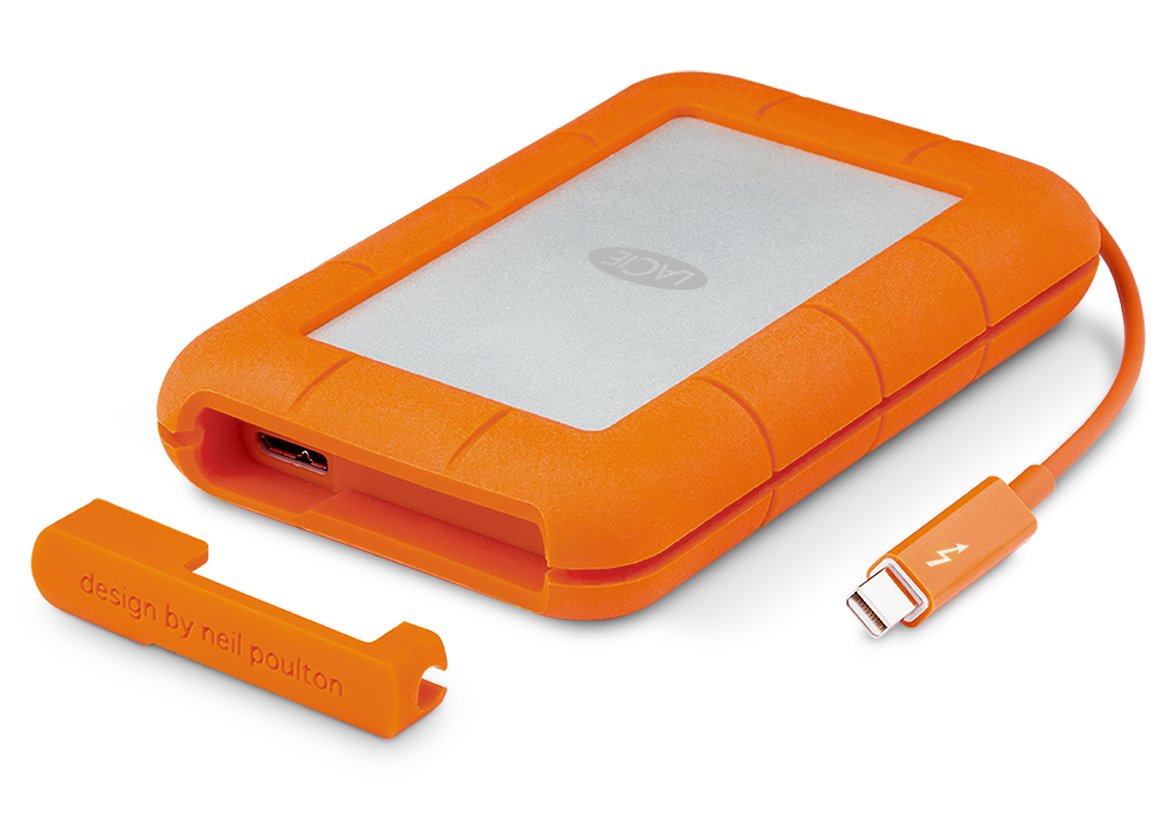
Article: The Science of Digital Resilience
From the Extremes to the Cleanroom: Professional Data Recovery Standards
In the commercial segment, we witness the dramatic physical risks that field professionals face—from Arctic freezes to impact damage. The true "final frontier" of data protection takes place in a silence so absolute it is measured in microscopic particles.
For enterprise users and creative professionals, understanding the official recovery ecosystem is not just about insurance; it is a critical component of the data lifecycle. This brief outlines the official protocols, trusted partners, and engineering standards behind LaCie’s data recovery operations.
1. The Official Recovery Ecosystem
Contrary to the "Wild West" of unauthorized repair shops, LaCie (a premium brand of Seagate Technology) operates within a closed-loop recovery ecosystem designed to maintain warranty integrity and data security.
- First-Party Intervention (Rescue Data Recovery Services):
Most professional LaCie drives (specifically the Rugged, d2, and Big Dock lines) include "Rescue Data Recovery Services" for the duration of the warranty (typically 2–5 years). This service grants direct access to Seagate’s internal laboratories. Unlike third-party attempts, this process utilizes proprietary manufacturer schematics and firmware tools to interface with the drive’s logic board, offering a satisfaction rate of approximately 95% for in-house recoveries. - Authorized Third-Party Partners:
For cases requiring specialized "Level 3" recovery outside of the standard Rescue entitlement, LaCie has officially authorized Seattle Data Recovery as a trusted partner. Crucially, utilizing Seattle Data Recovery for physical intervention does not void the original hardware warranty—a critical distinction for enterprise assets. Seattle Data Recovery is frequently the recovery vendor of choice for major media networks (including Discovery) due to their capability to handle complex RAID arrays and encrypted file systems.
2. Engineering Standards: The ISO 5 Cleanroom
The commercial depicts the "surgical" nature of recovery, but the reality is strictly defined by International Organization for Standardization (ISO) metrics.
When a hard drive’s chassis is breached for physical repair (such as a head-swap), it must occur within a Class 100 (ISO 5) Cleanroom.
- The Physics: A hard drive's read/write head floats just 3 nanometers above the platter—a gap smaller than a smoke particle.
- The Standard: An ISO 5 environment limits airborne contaminants to fewer than 100 particles (of 0.5 microns or larger) per cubic foot. This prevents "head crash propagation," where dust particles act as microscopic boulders that scour the magnetic coating off the platters, rendering data permanently irretrievable.
3. Chain of Custody and Security
For unreleased media assets and proprietary corporate data, the physical security of the drive is as vital as the data itself.
- SOC 2 Type II Compliance: Both Seagate’s internal labs and Seattle Data Recovery operate under SOC 2 Type II audit standards. This certification verifies that the facility maintains rigorous controls over security, availability, and processing integrity—ensuring that high-value intellectual property is not exposed during the recovery process.
- Encryption Integrity: Authorized services are contractually bound to return data on encrypted storage devices, ensuring the "Chain of Custody" remains unbroken from the moment the drive leaves the client’s hands to its return.
Seagate
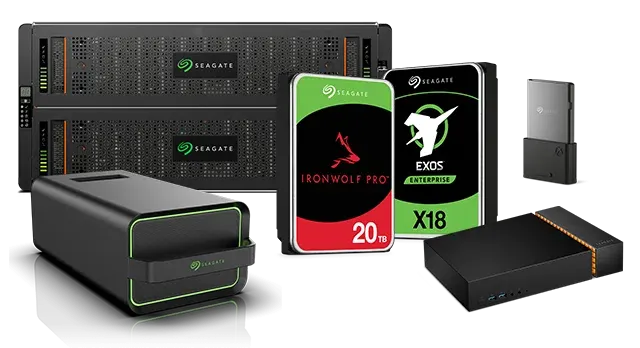
Advanced Engineering Protocols: Recovering Failed Seagate External Storage Systems
Among data recovery professionals and enterprise IT specialists, managing data loss on Seagate external hard drives—ranging from the consumer-grade Backup Plus and Expansion series to professional-grade desktop arrays—presents a unique set of micro-engineering challenges.
Unlike standard logical file deletions, physical or firmware-level failures on modern Seagate architecture require highly specialized hardware intervention. Below is a technical overview of how advanced diagnostic laboratories handle the core failure tiers distinct to Seagate external storage devices.
1. The Challenge of Seagate Architecture: Bypassing the Media Cache
Modern Seagate hard drives utilize a proprietary firmware architecture known as Media Cache. This technology improves drive performance by temporarily writing data to a specific, hidden zone on the magnetic platters before transferring it to its permanent location.
- The Failure State: When a Seagate drive suffers a sudden power loss, an improper disconnection, or develops bad sectors, the Media Cache system can become corrupted. This triggers a Firmware Loop, causing the drive to instantly spin down, show an incorrect capacity (e.g., 0 MB), or stay in a permanent busy state (BSY) that locks out the computer's operating system.
- The Engineering Solution: Technicians must bypass the drive's standard operating protocol using specialized hardware tools like the PC-3000. By connecting directly to the drive’s serial system terminal, engineers issue low-level commands to clear the corrupted allocation tables, safely terminating the firmware loop without destroying the user's data.
2. Mechanical Failure: The "Stuck Spindle" Motor
Seagate external 2.5-inch slim drives are built with highly compressed internal dimensions. If the drive suffers a sharp impact, a drop, or even a sudden power surge, it frequently experiences a mechanical failure known as stuck platters or a seized spindle motor.
- The Symptoms: When plugged into a USB port, the drive does not spin up or vibrate. Instead, it emits a faint, repetitive beeping or buzzing sound at one-second intervals. This sound is the drive's internal motor trying—and failing—to turn the spindle.
- Cleanroom Intervention: To resolve a seized motor, the drive must be moved into a certified ISO 5 Cleanroom environment to prevent environmental dust from contaminating the magnetic surfaces. Under a microscope, engineers use proprietary spindle wrenches and platter extraction tools to safely free the binding mechanism or cleanly migrate the magnetic platters entirely into a healthy, matching donor chassis.
3. Read/Write Head Degradation and the "Clicking" Phenomenon
The read/write heads inside a Seagate hard drive float on an incredibly thin cushion of air just nanometers above the spinning platters. Physical trauma or progressive wear can cause these heads to deform, lose their alignment, or completely break off.
- The Clicking Sound: When the drive is powered on, the internal logic attempts to read the initial configuration data (the firmware zone). If the heads are damaged and cannot read this data, they rapidly snap back to their resting position and try again, creating a rhythmic, mechanical clicking sound.
- The Micro-Surgery: Continued operation during a clicking state can cause the damaged heads to physically scratch the platters, destroying the magnetic storage layer permanently. In the cleanroom, engineers must identify an identical "donor" drive—matching the model number, site code, and preamp compatibility—to harvest a healthy head stack assembly. Using specialized head combs, the damaged assembly is carefully replaced with the donor components, allowing the drive to safely read data one final time during the cloning phase.
Critical Protocol for End-Users Facing Seagate Failure
If a Seagate external hard drive begins to click, beep, or freeze your computer, standard troubleshooting steps can actively destroy your data.
- Cut Power Immediately: If the drive is making unusual sounds, keeping it plugged in can cause the hard drive heads to scrape the platters, carving away the data permanently.
- Avoid Retail Data Recovery Software: Software programs assume the drive is mechanically perfect. Forcing a physically failing or firmware-locked Seagate drive to run a rigorous software scan will accelerate mechanical collapse.
- Consult a Professional Lab: Ensure any service center you utilize possesses on-site cleanroom facilities and specialized hardware diagnostic tools capable of interacting directly with Seagate system files.
Toshiba

Advanced Engineering Protocols: Recovering Failed Toshiba External Storage Systems
Toshiba’s highly popular external storage lineups—including the Canvio Basics, Canvio Advance, Canvio Flex, and Canvio Ready series—are engineered heavily for consumer affordability and compact portability. However, when these units experience sudden drop damage, severe sector degradation, or electronic failures, retrieving the stored files demands highly advanced technical interventions.
At our Ballard laboratory, Seattle Data Recovery deploys specialist hardware infrastructure designed to address the unique firmware locks and proprietary architectures inherent to Toshiba storage media.
1. Bypassing the Integrated Non-Shuckable USB Barrier
Modern 2.5-inch portable Toshiba external drives present a distinct architectural challenge: they are completely non-shuckable. Instead of containing a separate internal hard drive connected to a removable USB adapter board, the native USB 3.0 controller is printed and soldered directly onto the drive’s main Printed Circuit Board (PCB).
- The Diagnostic Wall: When a drive suffers from degrading magnetic sectors or weak components, the integrated USB connection acts as a severe communication barrier. The USB interface restricts raw command transmission, meaning a standard computer or data scraping utility will perpetually freeze, time out, or completely fail to detect the drive.
- The Seattle Data Recovery Approach: Our lab technicians handle these failures by modifying the electronics at a board level. Under micro-soldering magnification, we physically bypass the native USB path. We map out the tiny differential data traces directly from the primary drive controller and bridge them to a native SATA interface. This hardware-level conversion provides our engineers with direct access to the disk's critical low-level service tracks and system files.
2. Managing Firmware Corruptions and G-Sensor Interventions
Toshiba hard drives are manufactured with built-in hardware accelerometers—often referred to as G-Sensors. These sensors are designed to immediately detect sudden movement, shocks, or drop events, instantly parking the drive's delicate read/write heads to safeguard the magnetic platters.
- The Loop State: If a drive takes an unexpected impact during high-speed operation, the G-Sensor logs the shock data directly into the drive's microscopic system area. In severe cases, this triggers a defensive firmware lock loop. The drive will spin up but refuse to communicate logical sectors to the computer, making it show up as uninitialized or unrecognized.
- The Engineering Correction: Once Seattle Data Recovery maps the drive over a native SATA pathway, we utilize low-level system commands via specialized diagnostic hardware. This allows us to clear out the persistent error logs trapped in the drive's volatile system memory, stabilizing the controller and allowing us to read data smoothly without further stressing the internal architecture.
3. Cleanroom Micro-Surgery: Head-Stack Replacements
When a Toshiba drive suffers a severe drop or progressive component wear, electronic patches are no longer enough. The delicate read/write heads can fail partially or completely, resulting in a physical head crash or a recurring mechanical clicking sound.
- Microscopic Precision: The Toshiba MQ-series architectures generally utilize multiple internal storage platters and up to four or more individual read/write heads. If even one head becomes misaligned or physically fails, extensive chunks of user data become completely unreachable.
- Donor Sourcing & Matching: Physical surgery on a compromised drive must happen within a certified dust-free cleanroom environment. Our engineers source exact matching "donor" parts that align cleanly with the patient drive's manufacture dates and preamp attributes. Using precision combs, the damaged head stack is gently extracted and swapped with the healthy components, providing the temporary stability required to safely read and mirror the data onto our secure storage arrays.
Emergency Guidelines for Failed Toshiba Drives
If your Toshiba portable or desktop drive stops executing properly, actions taken in the first few minutes can dictate whether the files can be saved:
- Do Not Continuous Power Cycle: If the drive is clicking, beeping, or causing your file explorer to hang, disconnect it instantly. Forcing a drive with failing hardware components to spin will scratch the internal platters, transforming recoverable files into permanent dust particles.
- Avoid Automated Repair Commands: System software repairs or automatic drive checkers are designed to re-write data tables to fix logical file paths. On a physically unstable drive, these stress commands will break the remaining components.
- Engage Certified Lab Diagnosis: Ensure your data is managed by professionals possessing on-site micro-soldering capabilities and cleanroom facilities tailored specifically to integrated drive architecture.
Western Digital
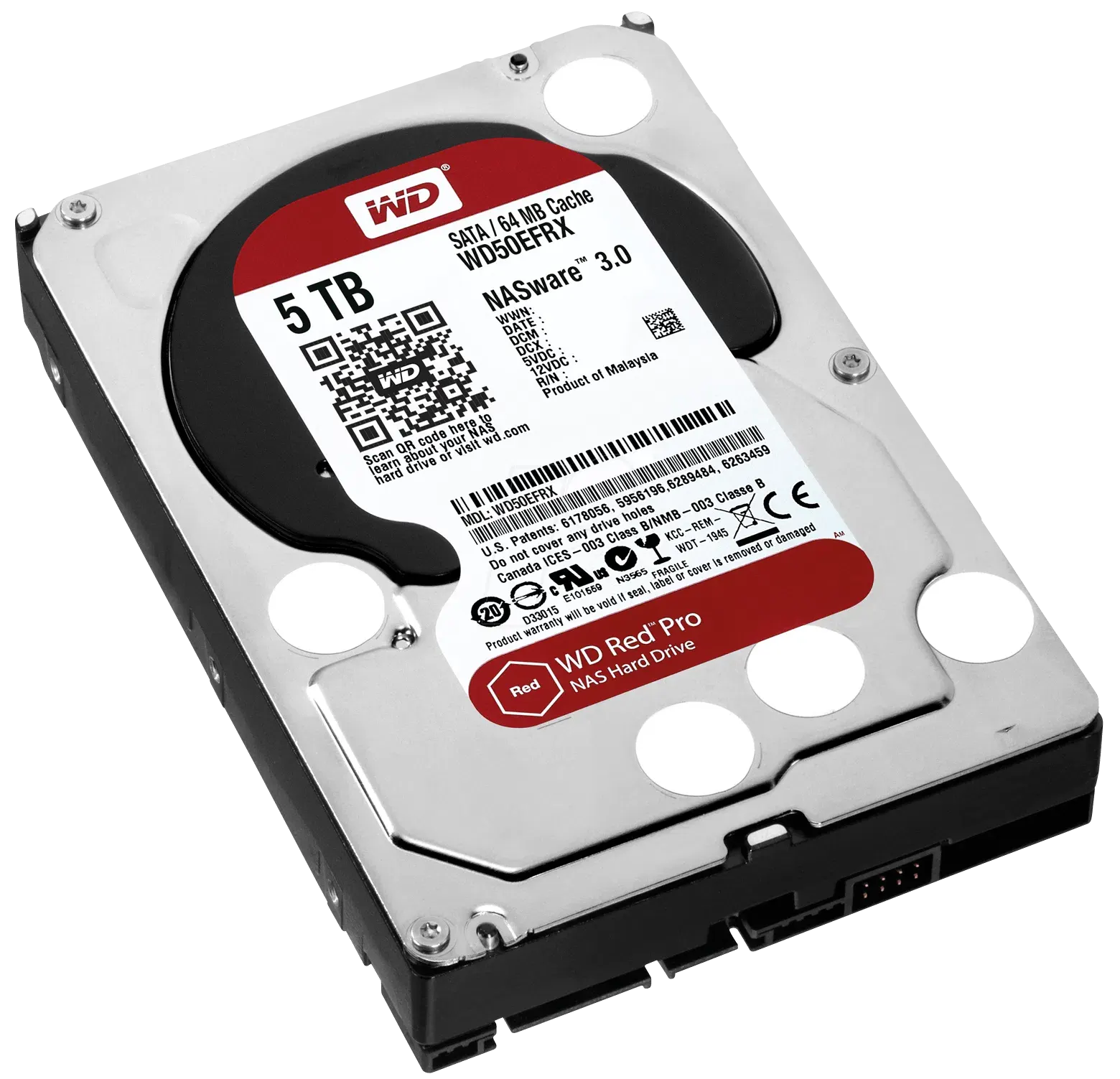
Advanced Engineering Protocols: Recovering Failed Western Digital (WD) External Storage Systems
Western Digital (WD) is a dominant force in external storage, manufacturing highly popular consumer lines like the My Passport, WD Elements, and My Book series. While these drives are highly reliable under normal conditions, their underlying engineering architecture presents specific, highly technical hurdles when they suffer physical or structural failures.
Unlike other manufacturers, Western Digital heavily integrates onboard hardware encryption and unified PCB designs into their portable drives. Dealing with a failed WD drive requires deep knowledge of proprietary firmware structures and advanced board-level micro-soldering.
1. The Challenge of WD Architecture: Integrated USB & Smartware Encryption
The most distinct obstacle with Western Digital portable drives (such as the My Passport series) is that they are non-shuckable.
- The Problem: The USB port is soldered directly onto the drive’s main Printed Circuit Board (PCB), completely eliminating the standard SATA interface. Furthermore, almost all modern WD My Passport drives use an onboard hardware encryption chip built directly into the bridge controller. Even if you don't set a password, the drive encrypts the data at the hardware level automatically.
- The Engineering Solution: If the USB port breaks or the board short-circuits, technicians cannot simply pull the drive out and plug it into another computer. Engineers must use microscopic schematics to locate the drive's internal SATA data lines (Tx+/Tx- and Rx+/Rx-) directly on the board. They solder microscopic wires to bypass the broken USB chip, routing the signal to a specialized diagnostic system. Crucially, the original board's encryption chip must remain intact and functional; otherwise, the data stream recovered from the platters will remain completely unreadable, scrambled code.
2. Firmware Locks: The WD "Slow Responding" Bug
Western Digital drives feature a highly robust internal operating system (firmware) that manages bad sectors and disk errors. However, this safety net contains a well-known vulnerability within the data recovery community often referred to as the WD Slow Bug.
- The Failure State: When a WD drive begins to develop bad sectors, it attempts to log these errors in its internal "Relo-List" (Relocation List). If the drive accumulates too many errors too quickly, the firmware becomes completely overwhelmed. The drive will technically spin up and light up, but it will cause any computer it is plugged into to completely freeze, hang, or fail to boot.
- The Engineering Solution: Standard data recovery software will crash when attempting to read a drive in this state. Technicians must use specialized hardware (such as the PC-3000) to safely interrupt the drive’s boot sequence, blocking the drive from loading its corrupted internal error logs. Once the firmware is stabilized and patched in the drive's system RAM, engineers can smoothly clone the data sectors.
3. Mechanical Failure: The Western Digital "Stuck Heads" Scenario
While Seagate drives are prone to stuck spindle motors, Western Digital drives frequently suffer from stuck read/write heads. This occurs when the drive loses power abruptly or takes a physical drop while operating.
- The Symptoms: Instead of returning to their safe "parking ramp" outside of the platters, the delicate read/write heads drop straight onto the mirror-smooth data surfaces. Because the surfaces are so perfectly flat, they lock together due to a phenomenon called micro-adhesion. When powered on, the drive will make a distinct faint, rhythmic quiet clicking, buzzing, or scrolling sound, but the disk will not spin.
- Cleanroom Intervention: This is a critical failure state. If an untrained user keeps plugging the drive in, the stuck heads will physically strip the magnetic data film off the platters, causing permanent data destruction. In an ISO 5 Cleanroom, an engineer must use a specialized WD Head Unsticking Tool to safely lift the head assembly off the platters without scraping the surface, pulling them back onto the parking ramp before replacing the damaged head stack entirely.
Critical Protocol for End-Users Facing WD External Drive Failure
If your Western Digital external drive is freezing your system, clicking, or buzzing:
- Do Not Attempt to Shuck the Drive: If it is a portable My Passport or Elements drive, there is no SATA connector inside. Cracking the plastic case roughly can easily flex the delicate integrated PCB, cracking internal traces or damaging the critical hardware encryption chip.
- Avoid Automated "Chkdsk" or Repair Tools: Operating system repair tools like Windows
chkdskor Mac First Aid will attempt to force write commands onto an unstable drive, which can push an overwhelmed WD firmware chip into a permanent lock state. - Check for Onboard Encryption: Always let your recovery technician know if you had a custom password set via WD Security/Smartware, as this dictates which hardware-bypass protocols they must use to successfully decrypt your files during the imaging phase.
Samsung SSD Data Recovery Services
Lost Access to Your Critical Files? We Bypass Complex Samsung Controller Security to Salvage Your Data.
Solid State Drives (SSDs) offer incredible speed, but when they fail, they fail silently and catastrophically. Unlike traditional hard drives that click or grind when failing, a malfunctioning Samsung SSD simply vanishes from your BIOS, locks into read-only mode, or causes sudden system crashes.
Because Samsung manufactures its own custom controllers, encryption chips, and V-NAND flash memory, standard off-the-shelf data recovery software cannot talk to a dead drive. At Seattle Data Recovery, we specialize in advanced, hardware-level Samsung SSD forensics to extract files from drives other shops declare "unrecoverable."
Why Samsung SSDs Fail: Beyond the Software
Modern Samsung drives—including the 870 EVO, 970 EVO Plus, 980 PRO, and 990 PRO—rely on highly sophisticated internal architecture. When these drives fail, it is almost always a hardware or microcode issue:
- Firmware & FTL Panics: The drive's Flash Translation Layer (FTL) becomes corrupted, leaving the controller unable to locate where files are physically stored on the memory chips.
- Sudden Read-Only Locks: A protective reaction to internal errors that freezes the drive, preventing any system boot or file access.
- Thermal & Component Degradation: High-speed NVMe drives generate massive heat, which can crack microscopic solder joints under the main controller chip.
Our Advanced Samsung Recovery Capabilities
When a drive stops communicating with a computer, standard recovery methods fail. We utilize two elite, laboratory-grade extraction methodologies to rebuild and save your data:
1. Hardware Controller Bypassing (Safe Mode Emulation)
Every Samsung SSD is managed by a proprietary processor (like the Phoenix, Elpis, or Pascal controllers). When this controller encounters a critical error, it enters a "panic state," locking out all data access to protect the hardware.
Using specialized hardware tools, our engineers physically tap into the drive's factory test points. We force the SSD into a technological "Safe Mode," bypassing the damaged controller firmware entirely. This allows us to communicate directly with the drive’s RAM and system area, repair the internal mapping tables, and cleanly clone your data before the drive permanently degrades.
2. Physical Chip-Off Recovery (NAND Flash Extraction)
If the main Samsung controller chip is physically burned out, shorted, or cracked due to a power surge or severe thermal damage, controller bypassing is no longer an option. In these extreme scenarios, we perform Chip-Off Recovery.
Our lab technicians carefully desolder the individual physical V-NAND flash memory chips from the solid-state circuit board using precise, temperature-controlled infrared rework stations. Once isolated, we place the raw memory chips into external hardware readers to dump the raw hex data. Our engineers then manually reconstruct the proprietary Samsung controller algorithms, error correction codes (ECC), and wear-leveling patterns to reassemble your original file tree.
Supported Samsung Solid State Drives
We support data recovery from all Samsung form factors, including 2.5-inch SATA, M.2 NVMe, mSATA, and portable external drives (T5, T7, T9):
- SATA Series: 840, 850, 860, 870 EVO / PRO
- PCIe NVMe Series: 950, 960, 970, 980, 990 EVO / PRO
- Enterprise Arrays: PM and SM series enterprise and data center SSDs
Start Your Recovery Today
Do not risk permanent data destruction by repeatedly power-cycling a failing SSD or using aggressive software scanners. When an SSD is unstable, every second of power applied brings it closer to permanent failure.
Let our specialized engineers safely extract your databases, operating systems, creative projects, and irreplaceable personal memories.
Professional Data Recovery for Kingston Solid-State Drives (SSDs)
When a solid-state drive fails, the primary objective shifts from trying to fix the hardware to safeguarding and extracting your critical data. Solid-state drives like the Kingston lineup rely on complex flash architecture that requires specialized laboratory intervention when a crash occurs. Traditional software recovery tools frequently fail or risk causing permanent data destruction if used on unstable flash media.
If your device is no longer detecting, showing erroneous capacities, or locking up your system, understanding your model's failure signature is key to a successful recovery.
Technical Recovery Profiles by Kingston Model Class
1. Kingston A400 SATA Series (The "SATAFIRM S11" Panic)
- The Problem: The DRAM-less Phison PS3111-S11 controller experiences firmware panic due to cell wear or sudden power loss, causing the drive to misidentify as
SATAFIRM S11with a capacity of 0 bytes or 2MB. - How We Recover It: Commercially available recovery software cannot access a drive trapped in this factory ROM safety state. Our engineers utilize specialized hardware sequencers (like ACE Lab's PC-3000) to isolate the hardware, load custom microcode directly into the controller's volatile SRAM, manually rebuild the corrupted Flash Translation Layer (FTL) mapping tables, and read the NAND cells sector-by-sector.
2. Kingston NV1, NV2, & NV3 Series (Controller Drops & 100% Active Loops)
- The Problem: Hardware component variations across production batches often lead to controller-level instability under sustained I/O strain, presenting as a drive that drops out of the BIOS entirely or reports 100% active utilization at 0 MB/s transfer speeds.
- How We Recover It: For drives exhibiting periodic dropout behavior, standard operating systems will continuously crash or force the device offline before an imaging pass can complete. We bypass standard OS drivers entirely, utilizing dedicated data recovery hardware to maintain steady communication link synchronization, manage voltage sags, and safely clone the flash blocks before the unstable controller permanently locks down.
3. Kingston KC3000 & FURY Renegade Series (Thermal Stress & Protocol Failures)
- The Problem: Operating continuously at high-performance PCIe Gen 4 speeds (up to 7,000MB/s+) creates severe thermal cycles that can cause micro-fractures in the solder joints beneath the high-density Phison PS5018-E18 controller. The drive becomes completely invisible to motherboard link training.
- How We Recover It: Recovering data from thermally fatigued high-speed NVMe drives requires precision lab equipment. We utilize clean-room inspection environments to address structural connection degradation, stabilize the high-speed controller logic lanes, and enforce explicit fallback timing modes to slowly extract the raw data directly from the Micron TLC flash arrays.
4. Kingston XS1000 & XS2000 Portable SSDs (Interface Bridge Desynchronization)
- The Problem: These portable external models use a native, single-chip USB controller architecture (such as Silicon Motion's SM2320). Unplugging the drive without executing the operating system's safe-ejection protocol or plugging it into an underpowered port causes internal SRAM firmware desynchronization.
- How We Recover It: Because there is no separate internal M.2 SSD to detach from a USB board, standard enclosure swaps are impossible. Our lab bypasses the corrupted USB controller endpoints by tapping directly into the peripheral diagnostic lines or safely initializing the single-chip bridge via proprietary hardware protocols, ensuring your encrypted layout or corrupted volume headers can be cleanly parsed.
5. Data Center Series (DC600M, DC2000B, DC3000ME)
- The Problem: Enterprise models use hardware-level Power Loss Protection (PLP) capacitor arrays. Over years of 24/7 data center ambient heat, these capacitors can degrade. Once the S.M.A.R.T. firmware flags an unreliable capacitor bank, the drive triggers a permanent Safe Read-Only Mode or drops from the server RAID array entirely.
- How We Recover It: When enterprise logic locks a drive down to protect integrity, the volume requires a bit-level mirror pass. We emulate proper hardware profiles, interface with the drive via industrial diagnostics engines, and safely reconstruct individual members of failed server volumes.
Why SSD Recovery Requires Professional Diagnostics
Unlike old mechanical hard drives, modern SSD data loss is heavily influenced by automatic internal routines like TRIM and Wear Leveling. When a file system is severely corrupted or a drive enters an unstable state, leaving the device powered on allows the internal controller to aggressively sweep, erase, or shuffle data blocks in the background. To ensure data is permanently preserved:
- Cut power immediately: Unplug external drives or shut down systems hosting a failing internal SSD.
- Avoid utility scans: Refrain from running heavy stress tests, formatting prompts, or software partition checkers on unrecognized drives.
Contact Seattle Data Recovery for Expert Assistance
If your Kingston SSD has suffered a catastrophic crash, data is rarely gone forever, but it is temporarily inaccessible without clean-room tools and hardware emulation controllers.
The engineering lab at Seattle Data Recovery specializes in advanced NAND flash reconstruction, firmware table restoration, and hardware-encrypted SSD data recovery. Located directly in the Ballard commercial district, our secure facility handles complex digital forensics and storage rescue for clients across the Pacific Northwest.
Expert Crucial SSD Data Recovery Services
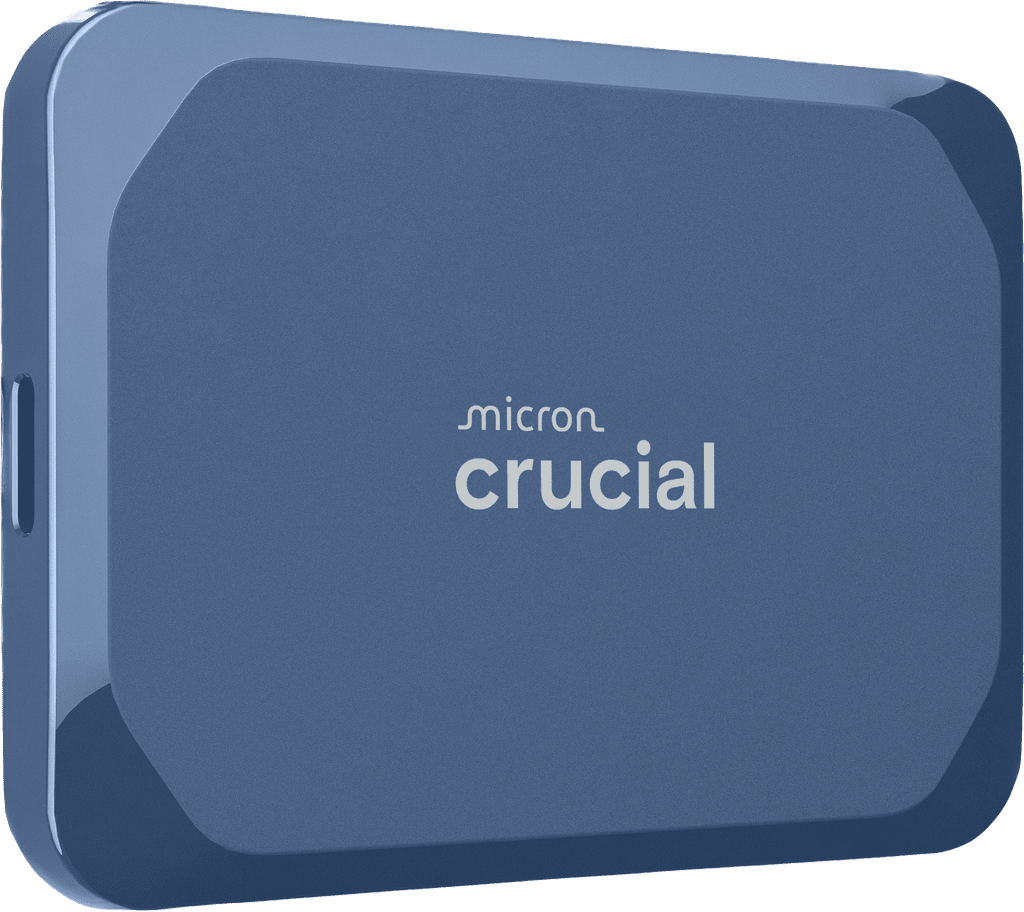
Crucial Solid-State Drives (SSDs)—including the lightning-fast Crucial T710, T705, and P-Series NVMe M.2 drives, the dependable MX500 and BX500 SATA series, and the X9 and X10 portable external drives—are widely trusted for their performance and value. However, like all flash-based storage devices, they are vulnerable to unexpected failure.
If your computer suddenly refuses to boot, displays a "Drive Not Initialized" error, or your external drive stops mounting, do not panic and avoid using DIY recovery software, which can permanently destroy degraded flash memory. The engineering specialists at Seattle Data Recovery possess the advanced cleanroom equipment and proprietary micro-soldering tools required to safely extract your critical data.
Common Crucial SSD Failure Modes
Our laboratory regularly handles failed Crucial SSDs suffering from both physical hardware degradation and logical firmware locking.
- Firmware "Panic Mode" Locks: Sudden power loss or incomplete write cycles can cause the flash translation layer (FTL) or firmware on drives like the Crucial P3 or P5 Plus to crash. The drive enters a perpetual busy loop, causing the system to hang or fail to recognize the SSD in the BIOS.
- Controller Failure & Thermal Degradation: High-performance Gen 4 and Gen 5 NVMe drives generate massive heat. Prolonged thermal stress can degrade the master controller chip or fracture its micro-solder connections to the board, completely cutting off access to the NAND flash chips.
- Bad Block Accumulation: Over time, the storage cells inside the NAND flash memory degrade naturally. When the accumulation of bad blocks exceeds the SSD’s factory-reserved over-provisioning space, the drive controller may instantly switch to a read-only mode or brick itself entirely.
- Broken USB-C Ports on External Drives: Portable Crucial X9 and X10 drives frequently suffer physical trauma. Accidental drops or cord tugs fracture the fragile surface-mounted USB-C joints inside the housing, resulting in zero power or intermittent connectivity.
Why Professional Recovery Beats DIY Software
When a solid-state drive begins to fail, its internal controller works overtime attempting to relocate damaged data blocks. Commercially available recovery software forces the unstable drive to execute continuous read commands, which rapidly accelerates hardware degradation and can lead to permanent data loss.
At Seattle Data Recovery, we bypass the malfunctioning controller by utilizing specialized hardware imagers. This allows us to stabilize the drive, manipulate the firmware registers directly, and safely extract the raw data directly from the NAND flash chips.
Our Specialized Recovery Process
- Risk-Free Evaluation: We inspect your Crucial SSD under a microscope to check for electrical shorts, blown capacitors, and damaged ports.
- Hardware-Level Mirroring: We isolate the storage media using specialized forensic imagers, ensuring we only read from the drive once to prevent further degradation.
- Advanced Chip-Off & Firmware Emulation: If the controller chip is dead, our micro-solder technicians can carefully remove the NAND flash memory chips and read them using external programmers, rebuilding your file system manually.
- Secure Data Verification: Once retrieved, your recovered files are transferred onto a brand-new, secure external storage device.
Trust Seattle's Local SSD Experts
Don't leave your irreplaceable files, photos, or business databases to chance. If your Crucial internal or external SSD is showing signs of failure, contact the local cleanroom experts at Seattle Data Recovery right away for a fast diagnosis and professional file extraction.
Data Recovery for SK Hynix
Seattle Data Recovery provides expert, laboratory-grade data recovery services for all SK Hynix solid-state drives (SSDs), including the popular Platinum and Gold consumer series, OEM laptop drives, and enterprise data center storage. Whether your drive has suffered an electronic failure, a corrupted controller chip, or sudden physical damage, our local engineers use specialized hardware to safely extract your critical files.
Unlike traditional hard drives, SK Hynix solid-state drives rely on complex NAND flash memory and custom controller chips. When these drives fail, they typically present symptoms such as:
- The "No Boot Device" Error: Your computer suddenly fails to recognize the drive, often caused by damaged drive firmware or translation layer corruption.
- Controller Failure: The SK Hynix proprietary controller chip stops communicating, rendering the data inaccessible even though the underlying NAND flash chips are healthy.
- Electronic Over-current/Shorts: Power surges or component failures on the drive's printed circuit board (PCB) that cut off power to the drive.
- Thermal Damage: High operating temperatures, especially in unheeled M.2 NVMe configurations like the Platinum P41, leading to degraded solder joints or chip degradation.
Our Seattle-based lab is fully equipped to handle data recovery across the entire spectrum of SK Hynix storage technology:
| Drive Type | Supported Series & Models |
|---|---|
| Consumer NVMe / SATA | Platinum P41, Gold P31, Gold S32, Silver S32 |
| OEM Laptop & Desktop Drives | BC501, PC711, PC801, HFM-series factory drives |
| Enterprise Data Center (eSSD) | PS1010, PE9010, PE8000 series, U.2/U.3, and E1.S/E3.S form factors |
Recovering data from modern SK Hynix drives requires moving far beyond retail software utilities, which can permanently burn out failing flash memory. Our physical lab process includes:
- Hardware-Level Diagnostics: We bypass your computer's standard operating system using dedicated hardware imagers to safely assess the drive without risking further degradation.
- Firmware Repair & Emulation: If the drive's internal microcode is corrupt, our technicians work in safe modes to patch the translation tables and force the drive into a readable state.
- Advanced Chip-Off Recovery: In severe failure cases where the controller is permanently broken, we can physically desolder the NAND flash memory chips and read the raw data directly using specialized programmers.
- Secure Data Transfer: Once rebuilt, your recovered files are transferred securely to a brand-new external drive or encrypted storage device.
If your SK Hynix drive has failed, stop using it immediately to prevent the drive from executing internal background cleanup tasks (like TRIM) that can permanently erase data.
To get started, you can submit a service request directly through the Seattle Data Recovery Portal or bring your drive into our local office for an immediate diagnostic assessment.