Hard Drive Data Recovery
1. Enterprise Storage & High-Availability RAID Drives
- Seagate Exos Series: Premium enterprise SATA and SAS helium-filled drives (Exos X16, X18, X24) used in massive corporate data centers.
- Western Digital Ultrastar: High-density enterprise drives (DC HC550, DC HC570, DC HC680) featuring OptiNAND technology and complex actuator architectures.
- Fiber Channel (FC) Hard Drives: Legacy and modern high-speed storage interfaces used in complex Storage Area Networks (SAN).
- Dell EMC & HPE Server Drives: Proprietary firmware-locked enterprise SAS drives engineered explicitly for high-end server blades and storage enclosures.
2. Professional & Production-Grade Portable Drives
- LaCie Rugged & d2 Professional: The entertainment industry standard for on-set filming, frequently suffering from dropped damage, water exposure, or interface bridge failure.
- SanDisk Professional (G-Technology): Premium multi-drive desktop arrays (G-RAID Shuttle, G-DRIVE) used for commercial audio and high-bitrate video post-production.
- OWC (Other World Computing) ThunderBay: High-speed Thunderbolt RAID enclosures favored by video editors and digital asset managers.
- Glyph Production Technologies: High-reliability production drives (Studio, Atom) engineered specifically for commercial music studios and live performance audio tracking.
3. Healthcare & Medical-Grade Data Storage
- DICOM/PACS Server Arrays: High-capacity enterprise networks running customized storage pools explicitly for handling high-resolution medical imaging (MRIs, CT scans, X-rays).
- Modality Hardware Hard Drives: Internal storage units integrated directly into specialized medical diagnostic hardware (GE Healthcare, Siemens Healthineers, Philips Medical systems).
- Medical Cart SSDs: Secure, encrypted mobile storage drives used on point-of-care hospital carts for real-time patient charts and Electronic Health Record (EHR) updates.
4. Antique, Legacy & Industrial Storage Devices
- SCSI & Ultra-SCSI Hard Drives: Legacy small computer system interface drives used in 1990s server architecture, legacy telecommunication nodes, and vintage print manufacturing equipment.
- IDE / PATA Desktop Drives: Older parallel ATA drives (Western Digital Caviar, Maxtor DiamondMax, Quantum Fireball) requiring physical hardware head swaps with rare donor parts.
- Industrial CompactFlash (CF) & PCMCIA Cards: Solid-state flash storage running proprietary operating systems inside legacy CNC manufacturing machines, aviation navigation units, and early automated manufacturing lines.
- MicroDrives: Miniature rotating magnetic hard drives inside a CompactFlash form factor, popular in early digital cameras and legacy industrial logging tools.
- Details
- Written by: Seattle Data Recovery
- Category: Hard Drive Data Recovery
A grinding noise from your computer's hard drive is not just an annoying sound—it's often a harbinger of more significant problems ahead. Recognizing the signs of impending drive failure is essential to safeguarding your data. In this post, we will explore the implications of a failing hard drive, the essential steps to take, and why upgrading to an SSD is a prudent decision for your computing needs.
Understanding the Sounds of Failure: The Grinding Hard Drive
When you hear a grinding noise emanating from your hard drive, it typically signals a severe mechanical issue. This sound often indicates that the internal components of the drive are failing, which could lead to catastrophic data loss if not addressed promptly.
The grinding noise might be a result of a head crash—a scenario where the read/write heads make unintended contact with the spinning platters of the hard drive. This breach can severely damage not only the heads themselves but also the platters where your data is securely stored. Alternatively, the noise might originate from a spindle motor failure, wherein the motor struggles to spin the platters, resulting in the odd sounds that spell trouble for your hard drive.
Identifying Other Culprits Behind Grinding Noises
Beyond head crashes and spindle motor failures, several other factors can contribute to the disconcerting noises from your hard drive. Loose components, debris within the drive, or issues related to the printed circuit board (PCB) may also lead to malfunctioning behavior, presenting as grinding sounds.
It is crucial to investigate these causes thoroughly. While some of these issues might seem minor, they can lead to dire consequences if the integrity of your hard drive is compromised. Please do not take any unusual sounds lightly; they often precede serious failures and significant data loss.
What to Do When You Hear a Grinding Noise
-
Power Down Immediately: The first course of action upon hearing a grinding noise is to power down your computer without delay. Continuing to use the device can exacerbate the damage and increase the likelihood of permanent data loss.
-
Back Up Your Data: If your computer still operates and allows access to the drive, your next step should be to back up critical files. Transfer important documents and data to a secure storage medium, ensuring they are protected from potential data loss.
-
Seek Professional Help: If you are uncertain about how to proceed, it is wise to consult with a professional. Providers such as Seattle Data Recovery specialize in diagnosing hard drive issues and can accurately assess the situation, providing recovery solutions if possible.
-
Consider Replacement: In cases where the damage is significant, replacing the hard drive may be more economical than attempting repairs. Moving to a new storage solution will help you avoid the headaches associated with a failing drive.
The Risks of DIY Repairs
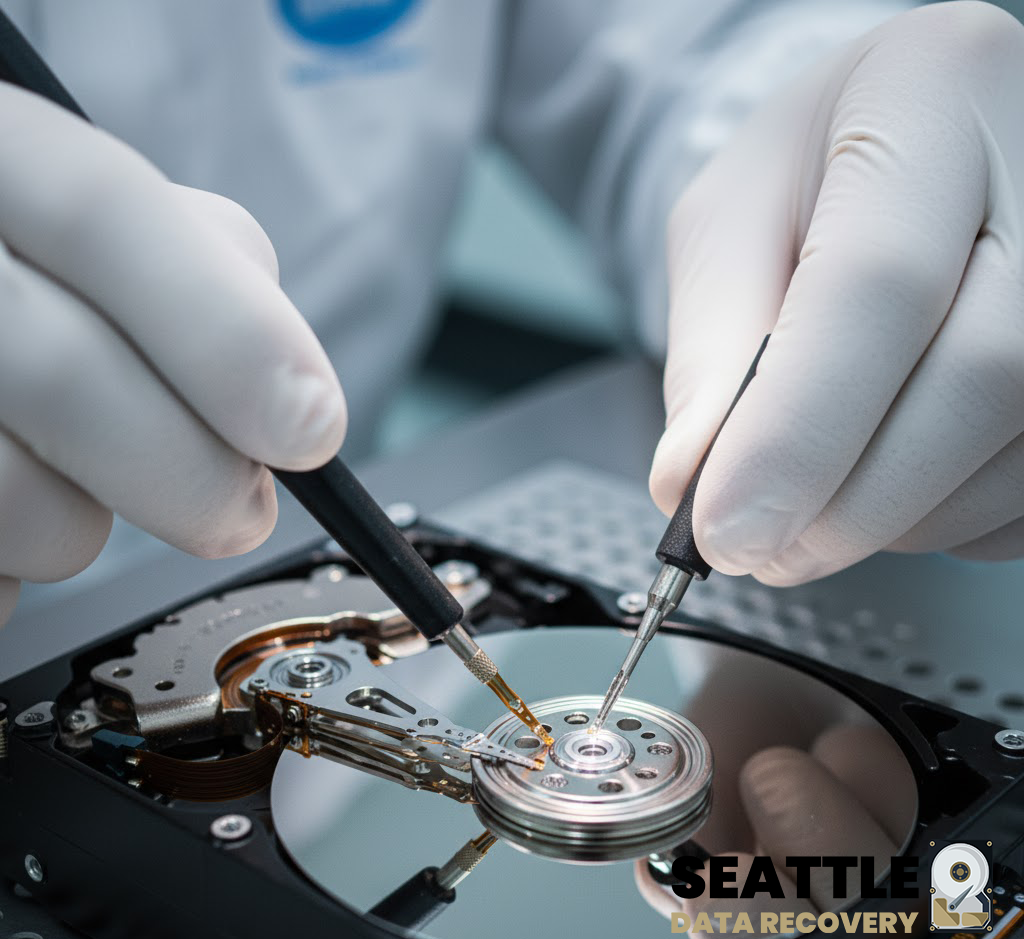
Given the complexity and delicate nature of hard drives, attempting a repair on your own can lead to further complications. Moreover, opening a hard drive without the proper equipment or environment can significantly increase the risk of permanent damage.
While some users might feel tempted to troubleshoot independently, it is important to remember that professional data recovery services are equipped with the necessary tools and expertise. Companies like Seattle Data Recovery can execute repairs and data recovery processes safely, greatly reducing the risk of permanent loss.
The Case for Upgrading to SSD
Evaluating the merits of upgrading to an SSD is crucial, especially if you're facing issues with a slow or grinding hard drive. Solid-state drives (SSDs) eliminate many of the mechanical components that contribute to failure in traditional hard drives. This absence of moving parts results in greater reliability and durability, making SSDs a superior choice.
SSDs offer remarkable performance enhancements that can transform your computing experience. They enable faster boot times, reducing wait periods significantly and leading to an overall snappier system. With SSD technology becoming more affordable, now is an opportune time to consider the upgrade.
Recognizing When It's Time for an Upgrade
Several indicators can signal the need for an SSD upgrade. If your computer experiences slow boot times or applications take an eternity to load, an SSD can alleviate these frustrations. Notably, storage-intensive applications, such as video editing software or modern games, will greatly benefit from the speed of an SSD.
Moreover, if you feel that your computer is sluggish when multitasking or responding to commands, an SSD will provide a major performance boost. The upgrade is particularly advantageous for older computers; an SSD can make even decade-old hardware feel revitalized. With faster access times and improved overall performance, upgrading becomes imperative.
Benefits of SSD Over HDD
The benefits of transitioning to an SSD extend far beyond speed. When you upgrade to an SSD, you experience increased durability due to the lack of moving parts—a stark contrast to the vulnerability of traditional HDDs. This enhanced reliability means that your drive is less likely to fail from physical shocks or environmental stressors.
Additionally, SSDs operate more quietly and generate less heat compared to HDDs, contributing to a more pleasant computing environment. They also consume less power, making them a great choice for laptops and portable devices that require energy efficiency.
Considerations When Upgrading
Despite the benefits that come with upgrading to an SSD, certain factors must be weighed before making the switch. One prominent consideration is the cost; SSDs typically cost more per gigabyte than traditional hard drives. However, prices for SSDs have declined in recent years, making them more accessible.
Furthermore, if you require substantial amounts of storage for media or backups, HDDs may still hold advantages due to their larger storage capacities at a lower price point. Migrating data from an HDD to an SSD may also entail complexities, such as transferring your operating system and files, which can be daunting for some users.
Seeking Assistance from Seattle Data Recovery
If your hard drive has begun to grind, it is more than just an inconvenience. Recognizing this sign early can help you prevent data loss and ensure that your important files remain intact. Seattle Data Recovery offers valuable services to help you navigate the complexities of data recovery and SSD upgrades.
Their team can assist in analyzing your drive's condition and offer solutions tailored to your needs. Whether it's recovering files from a failing HDD or guiding you through an SSD upgrade, their expertise can safeguard your data and enhance your computing experience.
Act Now to Protect Your Data
Hearing a grinding hard drive should serve as a wake-up call for modern users. It is essential to act swiftly by powering down your device, backing up your data, and consulting with professionals. Upgrading to an SSD not only mitigates the risks associated with mechanical failures but also significantly enhances your overall computing performance.
To protect your data and enjoy a smoother computing experience, please don't hesitate to contact Seattle Data Recovery. Their skilled team stands ready to assist you in transferring your files and facilitating a successful SSD upgrade, ensuring that you never have to worry about the longevity of your digital assets again.
Read more: When Your Computer's Hard Drive Starts Grinding: A Crucial Call to Action for SSD Upgrade
- Details
- Written by: Seattle Data Recovery
- Category: Specialized Recovery for Noisy Hard Drives
The Fine Line Between "High Performance" and "Total Failure": Recovering Noisy Toshiba Hard Drives
By Seattle Data Recovery | 2025 Consumer Choice Award Winner
If you use a Toshiba X300 (Performance), P300 (Desktop), or a Canvio Portable drive, you are accustomed to hearing your drive work.
Toshiba drives, particularly the high-performance X300 (4TB/6TB) and P300 series, are legendary for being "chatty." They are built for speed, often spinning at 7,200 RPM, and their aggressive read/write arms naturally produce a muted clicking or crackling sound during heavy use.
But there is a critical difference between the sound of work and the sound of death.
When that familiar "chatter" turns into a rhythmic click, a loud grind, or a repetitive buzz—and your files become inaccessible—the drive has suffered a catastrophic physical failure.
The "High-RPM" Danger Zone
Because many Toshiba drives are designed for high-speed performance, they possess significant rotational energy. When a read/write head crashes in a 7,200 RPM Toshiba drive, it doesn't just stop; it acts like a high-speed lathe.
-
The Scour: The heads dig into the magnetic platters, stripping away the data storage layer.
-
The Debris Field: This creates a massive cloud of microscopic dust and metallic shards inside the drive case.
-
The Failure Loop: In high-performance Toshiba models, the actuators are powerful. They will often relentlessly try to "find" the data, dragging the broken heads across the platters again and again, grinding your data into unrecoverable dust.
Why "Standard" Data Recovery Fails on Toshiba Drives
Most data recovery shops treat a Toshiba X300 the same way they treat a budget laptop drive. They open it, swap the heads, and hope for the best.
This approach destroys data.
In a high-speed Toshiba drive, the debris from a head crash is often fine, magnetized, and abundant. If a technician simply swaps the heads without neutralizing this environment, the debris will instantly shred the new components.
Seattle Data Recovery takes a different approach.
We utilize a proprietary, military-grade debris sequestration protocol.
We understand the specific airflow and internal physics of Toshiba’s high-performance architectures. Instead of fighting the debris, we use advanced physics to sequester and immobilize it. This allows us to stabilize the drive and recover data from platters that other firms would reject as "too scratched."
Award-Winning Excellence in Seattle
We are the recipients of the 2025 Consumer Choice Award for Data Recovery in North America.
We have earned this distinction by solving the most complex physical failures that others cannot handle.
We are not the cheapest option. We are the final option.
Our service is designed for clients who cannot afford to lose their business records, creative portfolios, or family archives. We provide a surgical, high-level intervention for drives that are physically destroying themselves.
Immediate Action Required
If your Toshiba drive is grinding and not mounting:
-
Kill the Power: Do not let it spin. The "grinding" noise is the sound of your data being erased.
-
Do Not Freeze It: Old myths will only cause condensation and further damage to the platters.
-
Contact Us: Bring it to the specialists who understand high-performance recovery.
Seattle Data Recovery
Ballard, Seattle
2025 Consumer Choice Award Winner
Specialists in Toshiba Performance & Portable Recovery
- Details
- Written by: Seattle Data Recovery
- Category: Hard Drive Data Recovery
The Silent Scream of Data
In the digital age, hard drives serve as the backbone of our technological world, housing everything from critical work documents to irreplaceable family photos. However, when a hard drive begins to fail, it often does so quietly, with subtle indicators that may go unnoticed until it's too late. This blog post aims to shed light on the common signs of a failing hard drive, common symptoms to watch for, and what you can do if you find yourself facing a bad hard drive. By understanding these warning signs, you can take proactive measures to protect your data and make a timely decision regarding Seattle data recovery services if necessary.
It is essential to recognize that hard drives, whether HDDs or SSDs, are mechanical devices that inherently wear down over time. Consequently, grasping the signs of a failing hard drive is not just a point of curiosity; it's a necessity for anyone who relies on digital storage. As we delve into the various manifestations of a failing hard drive, let's first explore the most distressing indicator: unusual noises.
The Sound of Deterioration – Unusual Noises
Clicks and Whirs: Mechanical Woes
One of the most glaring signs of a failing hard drive is the emergence of unusual noises. When a hard drive begins to fail, it may produce distressing sounds such as clicking, grinding, or whirring. These ominous noises usually indicate a malfunction with the read/write heads, which are crucial for accessing and writing data to the drive. A clicking sound, often referred to as the "click of death," suggests a severe issue that requires immediate attention.
Additionally, grinding noises signal a potential malfunction of the drive's mechanical components, indicating that the drive may be on the brink of failure. While some sounds may initially seem innocuous, they serve as prominent red flags that should prompt an examination of the hard drive's health. If you hear these unsettling sounds, consider backing up your data right away.
Humming and Buzzing: Signs of Internal Strain
On the other hand, although less frequent, these humming or buzzing sounds are equally concerning and emanate from your hard drive. These may suggest issues with the motor or other internal mechanisms. While hard drives typically operate quietly, persistent humming can point to a power failure or a malfunctioning spindle motor.
These internal noises should not be dismissed lightly. If your hard drive emits unusual sounds, it's advisable to investigate further or consult with professionals who specialize in hard drive recovery. Ignoring these signs may lead to catastrophic data loss.
Extended Delay – Slow Performance
Sluggish File Access: The New Norm
Another significant indicator of a failing hard drive is a noticeable decline in performance. Slow file access can manifest as delays in opening folders, applications, or files. You may find that what used to take seconds now stretches into frustrating minutes. This sluggishness can be attributed to the drive's deteriorating condition, which hampers its ability to read and write data efficiently.
When the hard drive struggles to process data promptly, it can severely impact productivity. What may feel like a minor inconvenience often signifies that your hard drive is on the verge of a more significant malfunction. Therefore, maintaining vigilance is paramount.
Slow Boot Times: A Disturbing Prelude
In addition to sluggish file access, slow boot times are another hallmark of a failing hard drive. If your computer takes longer than usual to start up, it may indicate that the hard drive is having trouble locating the operating system. This can lead to increased frustration as you wait for your system to power up.
When these delays become frequent, they indicate that your hard drive is not only exhibiting concerning behavior but may also be nearing complete failure. Proactive measures should be taken to safeguard your data, as continued use of a failing drive can result in irreversible damage.
Data Dilemmas – Corruption and Loss
Corrupted Files: A Harbinger of Trouble
Data corruption serves as one of the most alarming symptoms of a failing hard drive. When files become unreadable or start displaying errors upon opening, it's a sure sign that something is amiss. These corrupted files may range from simple documents to essential databases, rendering them unusable when you need them most.
Moreover, missing files can exacerbate the situation, leaving users uncertain about their whereabouts. If folders, files, or critical information seemingly vanish without explanation, it's a clear call to action. Engage data recovery services before it's too late, especially in a city like Seattle, where specialized data recovery professionals are readily available to assist.
Error Messages: A Digital Red Flag
As hard drives deteriorate, you may encounter frequent error messages related to disk read/write errors or bad sectors. These warnings indicate that the drive is struggling to perform its basic functions, reflecting a deeper underlying issue. When confronted with an error message, you should not ignore it; instead, consider it a crucial signal that your hard drive may require immediate attention from Seattle data recovery experts.
These interruptions in service can result in significant downtime, impacting both personal and professional tasks. Prioritizing your hard drive's health means addressing these issues promptly. Failure to do so may culminate in complete data loss.
The Unstable Environment – Other Symptoms
Frequent Error Messages: The Warning Signs Compound
In conjunction with data corruption, frequent error messages can compound the instability of your system. Notifications regarding disk errors or drive-related malfunctions serve as a clarion call, urging users to take matters seriously. These errors indicate that your hard drive is experiencing significant difficulties and may be on the verge of failure.
When such errors increase in frequency, the stability of your operating system is at risk. Ignoring these signs can lead to a cascading series of failures, ultimately culminating in catastrophic data loss. Therefore, addressing these symptoms should be a priority for anyone relying on their hard drive for essential operations.
System Instability: A Symptom of Failing Hardware
Alongside error messages, a failing hard drive can render your computer unstable, leading to frequent crashes or freezes. When your system becomes unresponsive or experiences unexpected shutdowns, it creates a precarious situation in which you may lose unsaved work or data.
This instability indicates that the hard drive is having difficulty maintaining a stable connection with the system. Consider this a significant threat to both your workflow and your data. Seek out hard drive diagnostics immediately, and if necessary, consult with data recovery professionals in Seattle to retrieve vital information.
The Vanishing Act – Hard Drive Detection Issues
Hard Drive Not Detected: A Fateful Turn
One of the most alarming scenarios is when your computer fails to recognize the hard drive, particularly during the boot-up process. This can occur suddenly and is often indicative of severe damage to the drive. An undetectable hard drive may render your computer unusable by preventing it from booting your operating system until the issue is resolved.
This situation demands immediate action. If you cannot access your files because the drive is undetectable, engaging the services of a professional data recovery expert is critical. Quick intervention can sometimes salvage crucial data before it becomes irretrievable.
The Blue Screen of Death: Windows' Final Warning
In Windows operating systems, the infamous Blue Screen of Death (BSOD) can signal significant hardware failures, including those stemming from a failing hard drive. The system automatically halts to prevent further damage, presenting a cryptic message that can leave users perplexed and anxious.
Encountering a BSOD due to hard drive issues means the drive may be too far gone to recover without specialized assistance. It is crucial to document any error messages that accompany the BSOD, as they can aid recovery specialists in diagnosing the problem effectively.
The Heat of Battle – Overheating Issues
Overheating: A Critical Concern
As hard drives age, inadequate ventilation and dust accumulation can lead to overheating, which can cause significant damage to internal components. When a hard drive becomes excessively hot, it accelerates wear and tear, ultimately leading to failure. If you notice prolonged heat emanating from your hard drive, this stark warning should not be ignored.
Implementing cooling solutions or ensuring proper airflow can mitigate some risks associated with overheating. However, if overheating persists, consider evaluating the health of your hard drive and the potential need for professional data recovery services.
The Cost of Heat: Loss of Data Integrity
In tandem with the risk of complete failure, an overheating hard drive can result in corrupted data, making files unrecoverable. Thus, the heat generated poses not only a risk to the hardware but also a threat to the integrity of the information stored within.
When tackling overheating, take proactive steps to protect your data. Regular monitoring and maintenance of your hard drive can significantly reduce the risk of overheating and, by extension, data loss.
SMART Errors – Your Drive's Built-In Alarm
Understanding SMART Technology: The Early Warning System
SMART (Self-Monitoring, Analysis, and Reporting Technology) serves as a built-in system that monitors hard drive health, alerting users to potential issues. SMART can predict impending drive failure based on specific criteria, such as read error rates and recalibration counts. Regularly checking SMART data provides insights into the overall health and stability of a hard drive.
Engaging in routine checks of SMART status can be instrumental in identifying potential problems before they evolve into significant failures. When SMART indicators show concerning results, it's wise to consider taking preventative actions, including data backups and diagnostics.
The Importance of Monitoring: Preventing Catastrophic Failure
Monitoring SMART data becomes critical, particularly for individuals and businesses heavily reliant on their drives. Knowing when a hard drive exhibits signs of deterioration allows users to make informed decisions regarding replacements or data recovery measures.
By utilizing monitoring technology and heeding its warnings, you can take proactive steps that may prevent catastrophic data loss. Evaluating SMART metrics is an essential part of maintaining digital health and ensuring the longevity of your hard drive.
Prevention is Key – Best Practices for Data Protection
Regular Backups: Your First Line of Defense
In an age where data is indispensable, maintaining regular backups should be a non-negotiable practice. Scheduled backups mitigate the risk of data loss, particularly when a hard drive fails. Using reliable external drives or cloud services can save vital information and provide peace of mind.
Employ a backup schedule that aligns with your data input frequency. For critical data, consider employing incremental backups that capture updates frequently, minimizing the potential impact of a hard drive failure.
Utilizing Diagnostic Tools: Nipping Problems in the Bud
Finding a balance between use and maintenance is crucial for extending the life of your hard drive. Utilizing diagnostic tools can offer valuable insights into the performance of your drive. Various software options are designed to assess drive health and provide alerts regarding any emerging issues.
Therefore, routinely scanning your drive with these tools not only serves as a precautionary measure but can also help you identify specific problems before they progress to the point of data loss. With early intervention, many issues can be effectively resolved.
Navigating Recovery Options
When to Seek Professional Help
While it's possible to recover data from a failing hard drive independently, certain scenarios necessitate professional intervention. If you encounter persistent issues, undetectable drives, or critical system errors, it's time to consult with a specialist. Particularly in cases of physical damage, professional recovery services can save what might seem irretrievable.
In Seattle, numerous reputable data recovery services stand ready to assist. These professionals possess the expertise, tools, and knowledge necessary to salvage data from even the most compromised drives.
Evaluating Data Recovery Services: Choosing Wisely
Amidst an array of service options, evaluating potential data recovery providers is crucial. Look for a company with proven expertise, reliable customer service, and robust security protocols to protect your data. Comparing reviews and success rates can also provide insights into providers' capabilities.
Ultimately, when faced with a failing hard drive, do not hesitate to seek professional assistance. Prompt action can mean the difference between data recovery and total loss.
Conclusion: A Call to Action
Final Thoughts: Being Your Data's Best Advocate
A failing hard drive poses multiple threats to your data, manifesting itself through various signs that should not be overlooked. From unusual noises and slow performance to error messages and overheating, the indicators of potential failure are numerous. Understanding these warning signs enables you to intervene before a bad hard drive leads to irretrievable data loss.
Thus, the responsibility lies with you to stay informed and proactive in maintaining the health of your hard drive. Regular backups, routine diagnostics, and prompt action in response to warning signs are integral steps in safeguarding your valuable data.
Be Prepared: Safeguard Your Digital Life
In today's technology-driven world, knowledge is your greatest ally. Wisely invest in data protection strategies, stay vigilant, and ensure timely backups to mitigate risks. Additionally, should the time come when you are faced with a failing hard drive, know that professional service options are available to help recover your precious data.
Subcategories
Data Recovery for Encryption
Technical Operations Report: Encrypted Data Recovery & Hardware Remediation
This report outlines the specialized methodologies, safety protocols, and operational costs associated with our advanced data recovery services. It explicitly clarifies that our facility does not engage in password cracking or cryptographic bypass operations. Instead, we leverage a proprietary infrastructure of encryption keys, tokens, donor components, and forensic hardware to migrate encrypted volumes from compromised media to functional host environments. This process enables the logical repair and extraction of corrupted data to new storage media (SSD/HDD).
Our recovery process is strictly founded on hardware-level remediation and logical volume reconstruction. We do not decrypt data without authorized credentials; rather, we restore the physical and digital integrity of the storage medium to facilitate access.
-
2.1 Hardware Migration & Volume Mounting
The core of our operation involves the extraction of encrypted volumes from physically damaged devices. This is achieved by utilizing an extensive internal library of:-
Encryption Keys & Tokens: Verified cryptographic artifacts required for volume authentication.
-
Donor Hardware: A vast inventory of circuit boards (PCBs), controller chips, and donor drives matching specific firmware revisions.
-
Forensic Tools & Software: Proprietary algorithms designed to stabilize unstable read/write heads and correct error-correcting code (ECC) discrepancies.
Once the physical substrate is stabilized, the encrypted volume is mounted within a controlled, functional hardware environment. -
-
2.2 Data Integrity Restoration
Following successful mounting, we employ advanced logical recovery techniques to address file system corruption. This includes repairing broken partition tables, patching corrupted sector chains, and rebuilding directory structures. The final deliverable is a verified, bit-perfect copy of the recovered data transferred to a new, high-reliability SSD or HDD.
The physical manipulation of micro-circuitry and storage components introduces significant environmental and health hazards. Our facility adheres to strict safety standards to mitigate risks associated with:
-
Thermal & Chemical Exposure: The removal and replacement of surface-mount components (chip-off recovery) require the use of high-temperature reflow stations and aggressive chemical solvents for flux removal and board cleaning.
-
Toxic Materials: Technicians are routinely exposed to lead (from solder) and hazardous fumes generated during the heating of substrates and coatings.
-
Mitigation Strategies: Operations are conducted using industrial-grade fume extraction systems, lead-safe handling procedures, and personal protective equipment (PPE) to ensure technician safety.
maintaining a certified cleanroom environment is critical for preventing catastrophic data loss due to particulate contamination. This requirement imposes substantial operational overhead.
-
Environmental Controls: The facility utilizes HEPA-filtered air systems to maintain ISO-standard air quality, preventing microscopic dust and static discharge from damaging exposed platters and silicon dies.
-
Consumables & Garments: To maintain sterility, technicians must utilize single-use, anti-static protective uniforms (bunny suits), gloves, and face masks for every entry into the cleanroom. The cumulative cost of these disposable materials is a significant factor in the overall pricing structure.
-
Specialized Circuitry: The precise removal and re-soldering of memory chips and controllers require capital-intensive optical inspection systems and micro-soldering workstations.
Our data recovery services represent a complex intersection of electrical engineering, digital forensics, and hazardous material handling. The costs associated with our services directly reflect the investment in specialized equipment, the consumption of single-use safety gear, and the inherent risks involved in physical hardware remediation. We remain committed to providing the highest standard of recovery success while maintaining rigorous safety and ethical standards.
Reference Section: Regulatory Compliance & Technical Standards
Our "chip-off" and hardware migration techniques adhere to the digital forensic standards established by federal bodies for the recovery of data from damaged or encrypted media.
NIST (National Institute of Standards and Technology)
- Standard: Computer Forensics Tool Testing (CFTT)
- Relevance: Validates the methodology for digital data acquisition from damaged devices, including "chip-off" extraction where flash memory is physically removed from the circuit board to bypass failed controllers.
- Source: NIST Computer Forensics Tool Testing Program | Chip-Off Data Analysis (NIST Presentation)
FEMA (Federal Emergency Management Agency)
- Standard: Digital Forensics Basics (AWR-139-W)
- Relevance: Recognizes the necessity of advanced recovery techniques to retrieve data that has been "intentionally hidden or encrypted," confirming that physical extraction is a validated recovery path when standard access fails.
- Source: FEMA National Preparedness Course Catalog
- State of Indiana Digital Forensic Unit Procedures
- Standard: Chip-Off Extraction Protocols
- Relevance: Official government procedure manuals explicitly classify "chip-off" as an advanced data extraction technique required when devices are damaged or locked, validating it as a recognized forensic process rather than an illicit activity.
- Source: Digital Forensic Unit Procedures Manual (IN.gov)
Our facility strictly follows military and federal guidelines for handling the toxic materials involved in micro-circuitry repair and chemical cleaning.
- DOD (Department of Defense)
- Standard: Hazardous Materials Information Resource System (HMIRS)
- Relevance: The authoritative source for Safety Data Sheets (SDS) used by the US Military. Our lab utilizes these standards to manage the risks of chemical solvents and flux residues used during the cleaning of sensitive electronics.
- Source: DLA Hazardous Materials Information Resource System
- OSHA (Occupational Safety and Health Administration) / NIOSH
- Standard: Chemical Hazards & Lead Exposure
- Relevance: Defines the permissible exposure limits (PEL) for lead fumes (from soldering) and chemical solvents. Compliance with these standards necessitates the high-cost ventilation systems and personal protective equipment (PPE) utilized in our lab.
- Source: NIOSH Pocket Guide to Chemical Hazards
- ISO (International Organization for Standardization)
- Standard: ISO 14644-1 (Cleanroom Standards)
- Relevance: Defines the air cleanliness classes required for handling exposed storage media. Our facility adheres to strict particle count limits (e.g., ISO Class 5) to prevent microscopic contaminants from destroying data during physical recovery.
Hard Drive Repairs
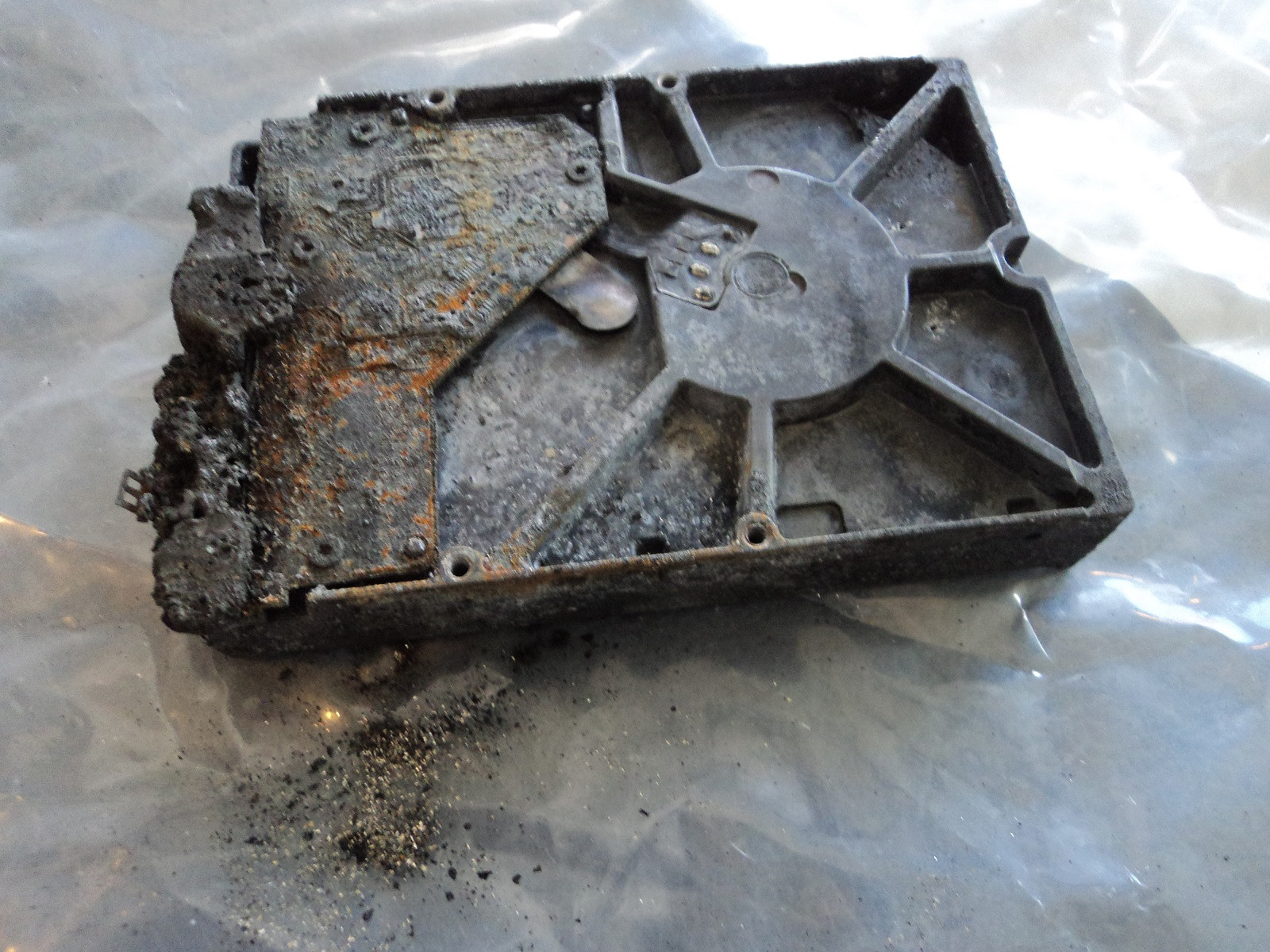
Hardware-Level Hard Drive Repair for All Brands by Seattle Data Recovery
Universal Failure Tiers & Brand-Specific Engineering Protocols
Western Digital (WD): Bypassing Integrated USB & Encryption
- The Hardware Hurdle: Most portable WD drives (like the My Passport series) do not feature a standard SATA connector. Instead, the USB port and a hardware encryption chip are soldered directly to the main Printed Circuit Board (PCB).
- Our Repair Protocol: If the board suffers a short circuit or the USB port breaks, our technicians perform precision micro-soldering. Under magnification, we tap directly into the drive’s core SATA transmission lines on the board, routing them out to our diagnostic hardware while keeping the encryption chip active to prevent data scrambling.
Seagate: Resolving Seized Spindles & Firmware Loops
- The Hardware Hurdle: Seagate drives feature a compact mechanical design that makes them prone to a "seized spindle motor" or stuck heads if dropped. Additionally, their Media Cache architecture can get trapped in a permanent firmware lock loop when it hits corrupted data sectors.
- Our Repair Protocol: For stuck components, the drive is moved to our dust-free cleanroom where engineers use specialized mechanical tools to safely unstick the head assembly or cleanly migrate the platters to a matching donor chassis. For firmware loops, we link directly to the drive’s system terminal to patch its internal code via RAM commands.
Toshiba: Clearing G-Sensor Lockouts
- The Hardware Hurdle: Toshiba external lines (Canvio series) feature built-in hardware accelerometers (G-Sensors) designed to instantly lock the drive if motion is detected. A sudden drop can trap the drive in a defensive, non-responsive firmware loop.
- Our Repair Protocol: Much like WD, modern Toshiba portable drives utilize integrated USB boards. We convert the native board to a raw SATA path, allowing us to transmit low-level commands that clear out the persistent error logs trapped in the drive’s system memory, stabilizing the controller for data mirroring.
HGST / SanDisk Professional: Enterprise Multi-Platter Alignment
- The Hardware Hurdle: HGST and G-Technology drives spin at higher RPMs (7200 RPM) and often feature tight, multi-platter stacks. They use highly unique NVRAM chips on their PCBs containing custom adaptive alignment data for that specific drive's internal read/write heads.
- Our Repair Protocol: If the PCB fails due to power surges, a simple board swap will fail. Our technicians desolder the original microscopic NVRAM chip and cleanly transplant it onto a perfectly matched donor PCB. Mechanical repairs are performed with absolute precision to maintain the alignment of the multi-platter stack.
The Seattle Data Recovery Hardware Repair Process
- The Cleanroom Inquest: If a drive is clicking, grinding, or beeping, it is never powered on in a standard room. It is opened strictly inside an ISO 5 Cleanroom environment where airborne particles are filtered down to microscopic levels. This prevents dust from landing on the platters and permanently scratching away data.
- Donor Part Matching: Physical part replacements require an incredibly precise match. We maintain an extensive inventory of donor drives, matching not just the model number, but also manufacturing dates, site codes, and internal pre-amplifier revisions.
- Forensic Cloned Imaging: Repaired hard drives are highly unstable and are never meant to be returned to normal use. Once the drive spins up smoothly, it is immediately attached to a hardware imager to create a bit-for-bit digital clone. We extract your data safely from this healthy clone.
Emergency Guidelines: Protect Your Media from Permanent Loss
- Disconnect Power Immediately: If the drive is making unusual sounds (clicking, beeping, buzzing), pull the plug. Keeping it powered on can cause a broken read head to physically dig into the spinning platter, shredding your data into unrecoverable dust.
- Say No to DIY Software: File recovery programs are designed for healthy drives with deleted files. Forcing software to scan a drive with a physical head or firmware failure will rapidly overheat and permanently destroy the unit.
- Do Not Open the Drive Casing: Cracking open a hard drive cover outside of a certified cleanroom immediately ruins the drive's internal environment, exposing the platters to millions of microscopic airborne contaminants.
Platters
- What it is: Flat, circular metal or glass discs coated in a magnetic material that physically store all digital data.
- Common failures: Head crashes (where read/write heads scratch or gouge the magnetic surface), bad sectors (unreadable data blocks), and physical warping from severe heat or drops.
Read/Write Heads
- What it is: Tiny sensors mounted on the tip of the actuator arm that float a microscopic distance above the spinning platters to read and write data.
- Common failures: Head crash (contact with platters), head stiction (heads getting permanently glued or stuck to the platter surface), and actuator/head degradation causing clicking or beeping noises.
Actuator Arm & Voice Coil Actuator
- What it is: A mechanical arm that sweeps the read/write heads rapidly and precisely across the surface of the platters, controlled by a magnet and coil assembly.
- Common failures: Failed actuator motor/assembly, mechanical binding, or inability to track and position the heads accurately.
Spindle Motor
- What it is: The motor located beneath the platters that spins them at high speeds (typically 5,400 to 7,200 RPM).
- Common failures: Seized motor (failure to spin up, often making a faint ticking, beeping, or humming sound) or worn bearings that cause grinding noises and wobbling platters.
Printed Circuit Board (PCB / Controller Board)
- What it is: The external green or black circuit board attached to the bottom of the drive that translates signals, controls the motor, and manages data flow.
- Common failures: Electrical short circuits or component burn-out caused by power surges, static discharge, or a faulty power supply, which can render the drive completely dead ("no power/no spin").
Firmware (System Area)
- What it is: Low-level internal software stored on a reserved portion of the platters and PCB that boots the drive and tells the heads how to operate.
- Common failures: Firmware corruption from bugs, improper updates, or unexpected power loss, which causes the drive to spin up but fail to be recognized by the computer.
Cache Memory (DRAM)
- What it is: A small, high-speed volatile memory chip on the PCB that temporarily holds frequently accessed data.
- Common failures: Data corruption or chip failure due to voltage spikes or overheating.
Air/Breather Filter
- What it is: A tiny internal filter that equalizes internal air pressure with the outside while trapping microscopic dust particles.
- Common failures: Clogging or seal failure that lets dust and moisture inside, leading to platter contamination and corrosion.
Data and Power Connectors
- What it is: The physical pins/ports that plug the drive into the computer's motherboard and power supply.
- Common failures: Bent or broken pins, loose cable connections, or corroded contact pads.
External USB Hard Drive Recovery
1. Terms for Finding Professional Help (Physical Damage)
- "Cleanroom data recovery": Essential for open-drive repairs. It ensures dust doesn't destroy the sensitive platters inside the drive.
- "Head swap service": Specific repair for when the read/write heads are damaged (often causes clicking sounds).
- "Platter restoration" or "scratch damage recovery": For severe damage where the data storage surface is physically scratched.
- "PCB repair" or "firmware repair": For when the drive's circuit board or internal coding fails (drive might seem dead or show wrong capacity).
- "No data no fee recovery": A pricing model where you pay nothing if they cannot recover your files.
2. Terms for DIY Software (Logical Errors)
- "Partition recovery software": If the drive shows up as "unallocated" or asks to be formatted.
- "Undelete tool" or "File recovery utility": If you accidentally deleted files or emptied the trash/recycle bin.
- "Corrupted file system repair": If the drive is visible but you can't open folders.
3. Industry "Slang" to Know
- "Click of death": The rhythmic clicking sound indicating mechanical failure.
- "Donor drive": A matching hard drive that professionals buy to harvest parts (like heads) to repair yours.
- "Cloning": The process of creating a bit-by-bit copy of your failing drive to a healthy one before attempting recovery.
Cost Expectations
- Logical Recovery (Software/Firmware): Typically $500+.
- Physical Recovery (Cleanroom/Mechanical): Typically $600 – $2,500+ depending on if you need donor parts.
Portable Hard Drive Data Recovery
Integrated USB External Drives (non-shuckable)
The Engineering Challenge: Recovering Integrated, Non-Shuckable External Drives
Why Integrated USB Drives Fail Differently
- No Native SATA Direct Access: Data recovery hardware tools (like the industry-standard PC-3000) rely on low-level SATA commands to handle bad sectors, bypass firmware locks, and force unstable hard drives to read data. The USB interface acts as a "translator" that inherently blocks these diagnostic commands.
- The USB Bridge Failure Protocol: If an integrated drive encounters even a minor physical issue (like a few unreadable sectors), the onboard USB bridge chip often panics, freezes, and completely drops its connection to the computer.
How Specialized Labs Bypass Non-Shuckable Failure Tiers
Phase 1: Hardware SATA Modification (Solder-Level Wire Tapping)
- Locating the Transmit/Receive Lines: Technicians use microscopic schematics of the PCB to identify the four tiny differential data lines (Tx+, Tx-, Rx+, Rx-) leading directly from the drive's main controller chip before they reach the USB chip.
- The Solder Bridge: Under a microscope, an engineer will manually solder microscopic wires directly onto these traces, effectively creating a makeshift SATA port. They then isolate and disable the power to the native USB chip to prevent signal interference. This allows the hardware to communicate directly with the drive at the core firmware level.
Phase 2: Complete PCB Swapping & ROM Transplants
- The Donor Match: Engineers must source an identical "donor" PCB. Crucially, modern hard drives store unique, factory-calibrated alignment data inside a specific ROM chip on the board.
- The ROM De-Solder: Simply putting a new board on the drive will fail because it lacks the original calibration codes. The engineer must physically de-solder the microscopic ROM chip from the broken integrated USB board and solder it cleanly onto the healthy donor board.
Phase 3: ISO Cleanroom Mechanical Recovery
- Once the electronic modifications from Phase 1 or 2 are completed, the drive must be moved into a certified ISO 5 Cleanroom environment.
- Technicians manually swap out damaged read/write head assemblies or deal with platter scratches, using the newly modified SATA connection to safely mirror the data onto a healthy server.
What Affected Users Should Do
- Stop Power Cycles: Do not keep plugging the drive into different computers. If a drive has weak read heads, forcing it to try and boot over a restrictive USB interface can scratch the magnetic platters, leading to permanent, irreversible data loss.
- Avoid DIY Software: Standard file-scraping software cannot navigate a failing USB bridge controller. If the hardware is freezing, software will only accelerate the physical death of the drive.
Full System & Bootable Drive Recovery
Complete Full System & Bootable Drive Recovery: Restoring Operational Continuity
Understanding the Full System Recovery Architecture
- The Boot Sector (MBR/GPT/UEFI): The critical first layer that tells your computer hardware how to initialize and locate the operating system. If this tiny block of code is corrupted by a power surge or bad sectors, the machine will display black-screen errors like "Operating System Not Found" or "No Bootable Device Detected."
- The Operating System Kernel: The core directory hosting Windows, macOS, or Linux system files.
- The Registry and Application Layer: The localized databases that remember your software licenses, user profiles, specific network paths, and custom enterprise tools.
Popular Full System Failure Scenarios & Lab Solutions
1. Severe Physical Damage to Core Boot Media
- The Scenario: A workstation or production laptop is dropped, or a server drive suffers an internal mechanical head failure. The drive begins clicking or grinding, and the machine crashes into a blue-screen loop or a blank screen.
- The Lab Solution: We open the failing hard drive inside our ISO 5 Cleanroom to replace damaged read/write head assemblies with exact matching donor components. For dead solid-state boot drives, we perform advanced chip-off recovery and controller bypassing to access the underlying flash memory blocks directly.
- The Bootable Result: Rather than just extracting files, we generate an absolute, sector-by-sector binary clone of the entire drive surface, preserving the precise partition geometry and alignment.
2. Corrupted Apple Silicon Logic Boards and M-Series Mac OS Environments
- The Scenario: A modern MacBook Pro or iMac suffers an electrical short, liquid spill, or power spike. Because Apple Silicon M1/M2/M3/M4 storage chips are permanently soldered to the main circuit board, a dead board means your entire system and local user profiles are completely trapped.
- The Lab Solution: Our micro-soldering specialists perform advanced logic board diagnostics and component-level donor transplants. We migrate the encrypted NAND storage silicon and matching secure processor keys together onto a stable donor board, allowing the Mac OS environment to safely boot into a hardware-unlocked extraction state.
3. Catastrophic Operating System and Firmware Corruption
- The Scenario: A sudden power grid drop during a winter storm interrupts a critical system update or firmware flash. The operating system files become deeply corrupted, or the drive's internal translation layer microcode locks up, making the system completely unresponsive.
- The Lab Solution: We connect the drive to hardware emulators (such as the PC-3000) to bypass standard operating system drivers. We safely patch the drive's internal firmware tracking tables, repair broken Master Boot Record (MBR) layouts, and correct underlying Master File Table (MFT) errors.
Post-Recovery Options: Hardware Clones vs. Virtual Containers
- Bare-Metal Hardware Clone: We flash the entire recovered image directly onto a brand-new, high-speed solid-state drive (SSD). You simply slide the new drive back into your original computer, press the power button, and watch your original operating system boot up instantly with all your files and settings intact.
- Physical-to-Virtual (P2V) Conversion: We convert your entire system image into a standalone virtual disk container (such as a
.VMDKor.VHDXfile). This allows you to run your complete legacy workstation or server inside a virtualized sandbox on a brand-new computer or deploy it instantly to cloud infrastructures like AWS or Microsoft Azure.
Secure B2B Walk-In and Drop-Off Instructions
- Arrival & Free Designated Parking: To safely transport rackmount server arrays, enterprise towers, or multiple workstations, pull vehicles directly onto Level 2 of our facility structure. We provide dedicated free client parking spaces (Spaces 40–45) explicitly reserved for Seattle Data Recovery clients.
- Secure Elevator Access: Proceed inside the primary lobby doors and take the building elevator directly up to Level 4 (please note that building stairwells are locked for security and do not connect to the commercial office suites).
- Regus Reception Experience: Turn right out of the elevator cab to step into our executive corporate suite, managed in exclusive partnership with Regus. Regus front-desk reception teams are globally recognized for elite administrative hospitality, absolute data privacy controls, and a polished corporate environment. Your high-priority hardware will be instantly logged into our secure tracking system before entering our engineering workspace.
Partition Recovery Services
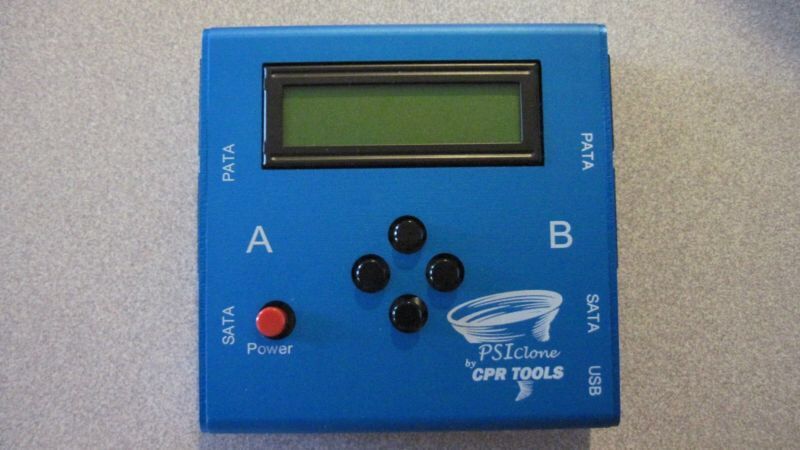
Advanced Partition Recovery Engineering at Seattle Data Recovery
The Anatomy of a Lost Partition: What Actually Happens?
- Partition Tables (MBR / GPT): The very first sectors of a drive contain the map of all volumes. If a power surge, improper disconnection, or firmware bug corrupts this table, the operating system views the entire drive as empty, "unallocated," or "RAW."
- The File System Boot Sector: Each individual partition has its own boot sector containing critical parameters (like cluster size and the location of the file metadata tables). If this sector is wiped, the partition becomes unreadable.
- Metadata Tables (MFT / HFS Catalog / APFS Containers): For Windows (NTFS), Mac (APFS/HFS+), or Linux (EXT4), these tables act as the drive's master index. If the index is fractured, the files remain on the platters, but their names, folder structures, and directory paths are lost.
Our Tiered Partition Recovery Protocols
Phase 1: Sector-by-Sector Diagnostic Imaging
- We mount the drive onto a hardware imager that bypasses the computer’s operating system.
- We create a bit-for-bit, exact digital clone of the drive, handling unstable or dropping heads safely. All subsequent partition repairs are performed strictly on this secure digital image.
Phase 2: Forensic Geometry Reconstruction
- Locating Backup Superblocks: Operating systems automatically create hidden, backup copies of partition headers and boot sectors at the very end of a drive's boundary.
- Our engineers manually calculate the drive geometry to locate these hidden backups, parsing the raw hex signatures to inject the original volume parameters back into the primary partition table.
Phase 3: Parsing Fractured File Systems
- Our systems perform a highly specialized process called Intelligent File System Parsing. Rather than randomly searching for files, our equipment maps out the ghost remains of the old Master File Table (MFT) or Catalog Tree.
- This allows Seattle Data Recovery to extract the data while fully preserving the original file names, date timestamps, and nested folder hierarchies exactly as they existed before the collapse.
Critical Instructions for Partition Loss Situations
- Strictly Avoid "Chkdsk", "First Aid", or Defrag Utilities: If a partition table is corrupted, built-in operating system repair tools will aggressively attempt to "fix" it by writing new data over the old file system indexes. This can permanently slice through and destroy the remaining structural fragments of your files.
- Do Not Initialize or Format the Volume: If your operating system pops up a window saying "You must format the disk in drive X: before you can use it," click Cancel immediately. Formatting creates a brand-new file system structure that can overwrite the original metadata blocks.
- Keep the Drive Powered Down: If the partition dropped because of background physical media degradation (bad sectors), leaving the drive plugged in allows the internal drive logic to keep retrying those dead zones, which can physically burn out the read/write heads.
Internal Hard Drive Data Recovery Services
Professional Cleanroom Recovery for Laptop & Desktop HDDs
Supported Drive Interfaces & Form Factors
- 2.5-Inch Laptop Drives: Standard SATA, Slim SATA, and legacy IDE/PATA drives pulled from laptops, MacBooks, and portable enclosures.
- 3.5-Inch Desktop Drives: High-capacity SATA, enterprise SAS (Serial Attached SCSI), and legacy IDE drives pulled from Mac Pros, gaming rigs, workstations, and home towers.
- Solid-State Hybrid Drives (SSHD): Complex dual-architecture drives (such as Seagate FireCuda) that utilize a mechanical platter stack paired with an integrated NAND flash caching chip.
Direct Comparisons: Common Internal Failure Modes
| Attribute | 💻 Laptop Hard Drives (2.5") | 🖥️ Desktop Hard Drives (3.5") |
|---|---|---|
| Primary Failure Catalyst | Physical trauma (drops, jars, liquid spills) and thermal choking in tight chassis spaces. | Power surges, prolonged runtime wear, and sudden power loss (OS crashes). |
| Mechanical Symptom | Head Stiction (heads stuck to platters) or snapped actuator arms due to impact. | Seized Spindle Motors or worn-out bearings emitting grinding/buzzing noises. |
| Electronic Failure | Corrupted firmware modules caused by abrupt battery depletion mid-write cycle. | Blown TVS Diodes and shorted PCBs caused by faulty desktop power supplies (PSUs). |
| Recovery Approach | Precision head isolation, manual parking ramp disengagement, and chassis stabilization. | Microscopic PCB component replacement, ROM transplants, or full cleanroom chassis swaps. |
Our ISO 5 Cleanroom Recovery Process
- Non-Destructive Diagnostic Assessment: We safely isolate your drive's Printed Circuit Board (PCB) to test the electrical rails. If the board is functional, we connect the drive to advanced diagnostic hardware (such as ACELab PC-3000) to read the drive's microcode through its terminal interface without initializing the unstable data sectors.
- Class 100 / ISO 5 Cleanroom Intervention: If your drive is clicking or failing to spin, it is transferred to our certified cleanroom. Our technicians use proprietary tools to perform mechanical adjustments:
- Head Stack Assembly (HSA) Transplants: Swapping out broken read/write heads using precise donor matches.
- Multi-Platter Alignment Transfers: Moving a locked platter stack to a functional donor chassis when a motor fails.
- Firmware and Translator Repair: Once the mechanics are stabilized, we repair internal system area structures, rebuild collapsed data translators, and modify head maps to isolate severely scratched platter zones.
- Bit-by-Bit Sector Imaging: The drive is cloned using specialized imaging hardware that controls read timeouts and head voltage. We target your most critical files first, ensuring that if the drive degrades completely during processing, your highest-priority data is already safe.